
LM Studio Tutorial: Download and Run Models Without the Command Line
Fact-check note: This guide follows LM Studio’s official documentation and download page (read 2026-10-30; the download page showed version 0.4.27). The interface updates often, so screenshots and menu positions may differ slightly from what you see; the official docs win. We ran no speed tests and give no benchmark numbers.
If you want to run large language models on your own computer without touching a terminal, this LM Studio tutorial is for you. LM Studio is a graphical desktop app that searches and downloads models, lets you chat like on a website, chats with your documents, and can start an OpenAI-compatible local API with a click. We’ll go in order: install, download a model, chat, tune settings, chat with documents, then the local server.
What Is LM Studio, and How Does It Differ From Ollama?
LM Studio’s docs describe it as an app for downloading and running local LLMs such as gpt-oss, Llama and Qwen, with a simple chat interface, model search and download from Hugging Face, MCP support and OpenAI-compatible local endpoints. It runs GGUF models through llama.cpp and, on Apple silicon Macs, can also use Apple’s MLX.
Compared with Ollama, the two are positioned differently:
| Aspect | LM Studio | Ollama |
|---|---|---|
| Main interface | Graphical desktop app | Command line plus a simple desktop app |
| Finding models | Built-in search that downloads Hugging Face models | ollama run model-name pulls from its own library |
| Choosing a quantization | Several quantizations listed in the UI | Chosen through model tags |
| Local API | OpenAI-compatible; docs use port 1234 | Its own API on port 11434 |
| Headless use | Headless version called llmster | Already server-friendly |
| Best for | Beginners, picking quantizations, wanting a GUI | Scripting, servers, pairing with other tools |
You can install both without conflict. If you prefer the command line, see the Ollama Install Guide.
LM Studio Tutorial Step 1: Requirements and Install
From the official system requirements page:
| System | Requirements |
|---|---|
| macOS | Apple silicon (M1/M2/M3/M4 and so on), macOS 14.0 or newer, 16GB+ RAM recommended; 8GB can work with small models and modest context; Intel Macs aren’t supported |
| Windows | x64 and ARM (Snapdragon X Elite); x64 needs AVX2; at least 16GB RAM recommended and at least 4GB of dedicated VRAM recommended |
| Linux | x64 and ARM64, distributed as an AppImage; Ubuntu 20.04 or newer (newer versions are less tested) |
To install:
- Open the LM Studio download page and download the installer for your system.
- Install and launch it. On first run it offers to download a model; you can skip that and choose later.
- Models are big, so check disk space first; if your system drive is short, change the model folder in the My Models tab.
Download Your First Model
Search for a model
Go to the Discover tab on the left and search by keyword, such as qwen, gemma or llama, or enter a specific user/model string, or even paste a full Hugging Face URL. An official tip: press ⌘+2 on Mac or Ctrl+2 on Windows and Linux to jump to Discover from anywhere.
Choosing a quantization
A given model comes in options such as Q3_K_S or Q8_0, which are the same model compressed to different degrees. The official advice: choose a 4-bit option or higher if your machine can handle it. Our additions:
| Quantization | File size | Quality | Suits |
|---|---|---|---|
| Q3 and below | Smallest | Clearly reduced | Last resort when memory is very tight |
| Q4_K_M | Small (about a third of FP16) | Fine for everyday use | Most people’s default |
| Q5/Q6 | Medium | Closer to the original | When VRAM or RAM has headroom |
| Q8_0 | Larger | Very close to the original | Plenty of VRAM, quality first |
For more, see LLM Quantization Explained.
Choose a model size for your memory
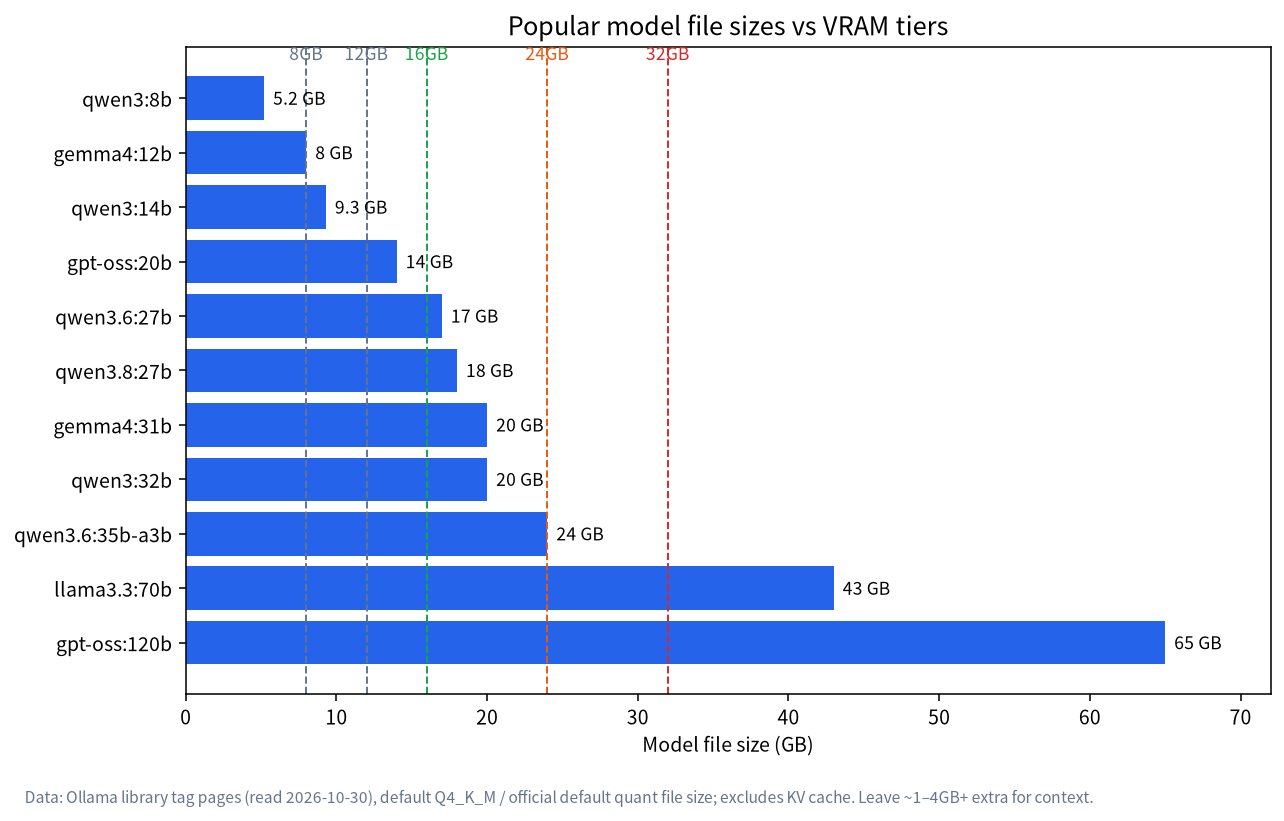
Look at your VRAM or unified memory first, then pick a file size. This is a rough starting point using Ollama library file sizes (2026-10-30); the same model in LM Studio is similar but not identical:
| Usable VRAM / memory | Suggested model size | Example search | Ollama reference file size |
|---|---|---|---|
| 8GB | 7B–8B | qwen3 8b |
5.2GB |
| 12GB | 12B–14B | qwen3 14b |
9.3GB |
| 16GB | about 20B | gpt-oss 20b |
14GB |
| 24GB | 27B–32B | qwen3.6 27b, gemma 4 31b |
17–20GB |
Remember to leave room for context beyond the download size; the rules are in How Much VRAM Does an LLM Need?. For 8GB cards see What Can an 8GB GPU Run?.
Start Chatting
- At the top of the chat tab, open the model selector, choose a downloaded model and load it.
- When loading finishes, ask your question in the box at the bottom.
- If loading is slow or complains about memory, drop to a smaller model or lower the context length described next.
Tune the Load Settings
LM Studio’s docs say you can set default load parameters per model: open My Models and click the gear icon beside it. Common settings:
- GPU offload: how many layers go on the GPU. Layers that don’t fit stay in RAM and slow things down.
- Context size: bigger means more memory. Raise it for long documents, but watch memory.
- Flash Attention: an optional optimization that the docs list as configurable per model.
Save your changes as the model’s defaults and they’ll apply next time. For plain-language explanations of these terms, see How Much VRAM Does an LLM Need?.
Chat With Your Documents
Per the docs, you can attach .docx, .pdf and .txt files to a chat:
- If the document is short enough to fit in the model’s context, LM Studio adds the full text to the conversation.
- If it’s very long, LM Studio switches to RAG (retrieval-augmented generation), retrieving relevant passages for the model. This sometimes works very well and sometimes needs tuning.
- An official tip: give as much context as possible in your question, mentioning terms you expect in the source, which tends to improve retrieval.
The offline documentation also states that document processing happens locally and nothing you upload to LM Studio leaves the app.
Going Further: Three Ways to Use LM Studio and Managing Runtimes
LM Studio is more than a desktop window. From the official docs and download page, it comes in three forms:
| Form | What it is | Suits |
|---|---|---|
| LM Studio desktop app | A GUI with search, download, chat and the local server | Personal computers, beginners |
lms command line |
Chat, download models, manage the daemon and control the server from the terminal | People who want scripting |
| llmster (headless) | The docs call it LM Studio’s headless daemon for servers, cloud instances and CI | Machines without a desktop |
The download page gives these llmster install commands: curl -fsSL https://lmstudio.ai/install.sh | bash on Mac and Linux, and irm https://lmstudio.ai/install.ps1 | iex on Windows. Before running any “download and execute a script” command, make sure you trust the source.
LM Studio also executes models through “LM Runtimes”. Per the docs, it runs GGUF models with llama.cpp on every system and, on Apple silicon Macs, can use MLX as well. Press ⌘+Shift+R on Mac or Ctrl+Shift+R on Windows and Linux to install or manage runtimes. When a new model fails to load, checking whether the runtime needs an update often solves it.
A Ten-Minute Quick-Start Checklist
- Confirm your computer meets the system requirements and find out your VRAM or unified memory.
- Download and install LM Studio.
- In Discover, search for a model that matches your memory (for 8GB, an 8B-class model).
- Choose Q4_K_M or higher and wait for the download.
- Load the model and ask a few questions in a field you know well to judge answer quality.
- Go to My Models and set a sensible default context size for that model.
- When needed, start the local server and connect an OpenAI-format client.
Picking Between LM Studio and Ollama
Neither tool is “better”; they suit different habits. Choose LM Studio if you like a visual interface, want to compare quantizations side by side before downloading, or want to chat with documents without setting anything up. Choose Ollama if you prefer commands, want to script model pulls, or plan to put a web interface such as Open WebUI on top. Many people install both: LM Studio to explore models, Ollama as the always-on background service. Just remember that each keeps its own copy of the model files, so disk use can double if you download the same model in both.
Managing Models and Disk Space
Model files are the main storage cost. A quick routine keeps things tidy:
- Keep only the two or three models you actually use and delete experiments you haven’t touched in a month.
- If your system drive is small, move the model directory (My Models tab) to a larger disk before downloading anything big.
- Prefer one good Q4_K_M of each size over several quantizations of the same model; comparing two is useful, hoarding five is not.
- Note the file size shown in Discover before you click download; it tells you at once whether the model can fit your memory.
Start the Local Server: Call It in OpenAI Format
LM Studio’s developer features turn a model into a local API. The docs list compatible endpoints including /v1/models, /v1/chat/completions, /v1/embeddings and /v1/completions, with examples on port 1234. Existing OpenAI clients only need their base URL pointed at your machine:
from openai import OpenAI
client = OpenAI(base_url="http://localhost:1234/v1", api_key="lm-studio")
resp = client.chat.completions.create(
    model="the model identifier shown in LM Studio",
    messages=[{"role": "user", "content": "Hello, introduce yourself"}],
)
print(resp.choices[0].message.content)
Any string works for api_key (a common pattern for local servers; we haven’t verified it on every version, so check the official docs if it’s rejected). The server can listen on localhost only or serve the local network; if you open it to your LAN, make sure the network is trusted.
Offline Use and Privacy
Per the official offline page, chatting, chatting with documents and running a local server all work without internet. Searching for models, downloading models and updating the Discover catalog need a connection. You can download models first and then work fully offline. The docs also state that what you type into LM Studio while chatting with models doesn’t leave your device.
Troubleshooting
| Symptom | Likely cause | Fix |
|---|---|---|
| Out-of-memory error on load | Model too big or context too long | Pick a smaller model or quantization; lower context |
| Very slow generation | Some layers in RAM, not on the GPU | Raise GPU offload layers or drop a size |
| Can’t find models | No internet connection | Reconnect to search, or sideload existing files |
| Disk full | Model files are large | Change the model folder in My Models |
| UI differs from this guide | The app was updated | Follow the official docs |
FAQ
Is LM Studio free?
For personal and commercial licence terms, check LM Studio’s official website for the current wording; we won’t state a conclusion on the vendor’s behalf.
Can I install LM Studio and Ollama together?
Yes, they don’t conflict. Loading two big models at once, though, uses memory twice.
Does it work on an Intel Mac?
The official system requirements say Intel Macs aren’t supported.
Can an 8GB machine use it?
The docs say you can try, but choose smaller models and keep context modest.
Can it search the web?
LM Studio’s core features run locally; whether web-search style features exist depends on the official docs, and we haven’t verified each one.
How do I reach it from other devices?
Start the local server and use LAN access as the docs describe, or follow Open WebUI + Ollama for a web interface.
Next Steps and Community
After LM Studio is running, the next step is usually picking a better model; see Best Local LLMs. If you’re stuck on a step, ask in the community (join the community). Our Shenzhen team sources, builds and tests local-LLM machines and can hand you one that’s ready to use. Talk first; no obligation to buy.