
Open WebUI Ollama Setup: A Chat Interface for Your Local Models
Verification note: commands, image tags and connection steps come from Open WebUI’s official documentation (Quick Start, Starting with Ollama and Connection Errors) and Ollama’s docs, read 2026-10-30. Open WebUI moves fast, so image sizes and page paths may change soon. We did not re-run every step on every operating system; treat the official page you are reading as the source of truth.
Once Ollama is installed, you can chat with a model, but only in a terminal. If you want a browser interface with conversation history, a model dropdown and accounts for family or colleagues, Open WebUI is the most common choice. This Open WebUI Ollama setup guide walks through running it with Docker, connecting it to the Ollama on your machine, and fixing the connection problems people hit most often. If Ollama isn’t installed yet, begin with our Ollama install guide.
What Open WebUI Is and How It Relates to Ollama
Open WebUI is a self-hosted AI interface. It does not run models itself; it is a front end. You type in the browser, it sends the request to a back-end model server, and it streams the reply back. The project describes support for Ollama and OpenAI-compatible APIs, so the same interface can talk to local and cloud models.
That makes the architecture simple:
- Your browser opens Open WebUI (on whatever port you mapped, for example 3000).
- Open WebUI sends requests to Ollama (default port 11434).
- Ollama runs the model on your GPU or RAM and streams tokens back.
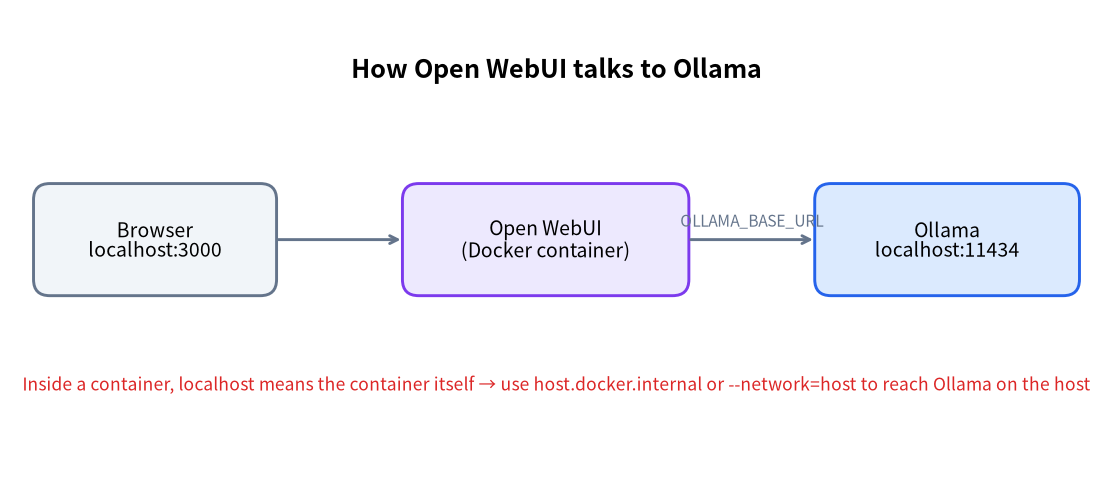
Two practical consequences follow. First, how fast the model answers depends on Ollama and your hardware, not on Open WebUI; if it feels slow, read Ollama not using GPU. Second, Open WebUI itself is light: in an October 16, 2026 test the docs report about 300 MiB of idle RAM for the slim image’s container (that figure is the container alone and not a minimum requirement).
Choosing a Method: Docker, Python or Something Else
The official Quick Start offers several routes. Here is our take for newcomers:
| Method | Best for | Upside | Watch out for |
|---|---|---|---|
| Docker | Most people | Officially recommended, easy updates, data lives in a volume | Needs Docker; a container reaching Ollama on the host needs the right address |
| pip / uv (Python) | Low-resource or manual setups | No Docker required | Officially supports Python 3.11 and 3.12; 3.13 is not supported yet |
| Kubernetes | Teams and enterprises | Scales | Higher bar, not covered here |
| Bundled-with-Ollama image | One-command installs | Open WebUI and Ollama in one container | Duplicates an Ollama you already have, so models download again |
If you already followed our Ollama guide, the smoothest path is Docker for Open WebUI, pointed at the Ollama running on the host.
Before You Start
- Docker installed (on Windows this usually means Docker Desktop; the docs also describe a WSL setup).
- Ollama running with at least one model pulled (see our local LLM deployment guide).
- A secret key. The docs recommend generating one with
openssl rand -hex 32and passing it asWEBUI_SECRET_KEY. Without a fixed key, everyone is logged out whenever the container is recreated.
Open WebUI Ollama Setup, Step 1: Start the Container
The standard command from the official Quick Start is below (replace your-secret-key with your own value):
docker run -d -p 3000:8080 \
  --add-host=host.docker.internal:host-gateway \
  -v open-webui:/app/backend/data \
  -e WEBUI_SECRET_KEY=your-secret-key \
  --name open-webui --restart always \
  ghcr.io/open-webui/open-webui:main
What each flag does:
| Flag | Purpose |
|---|---|
-p 3000:8080 |
Serves the UI on port 3000 of your machine; change the left number if 3000 is taken |
-v open-webui:/app/backend/data |
Stores chats, users and settings in a volume that survives updates; never run without it |
--add-host=host.docker.internal:host-gateway |
Lets the container reach Ollama on your machine |
--restart always |
Starts again after a reboot |
-e WEBUI_SECRET_KEY |
Fixes the session key so recreated containers don’t log everyone out |
When it’s up, open http://localhost:3000 in your browser.
Which image tag?
The docs list several. :main is the standard image with bundled speech-to-text and embedding models. :slim is smaller: the docs cite about 197 MB versus 1.62 GB for :main (compressed Linux/amd64 sizes checked on October 16, 2026; real numbers vary by build). :cuda adds NVIDIA GPU support, and :ollama bundles Ollama inside the container. Slim only suits chat-only use or setups where document extraction and voice go to external services; if you want local document Q&A or speech, stay on the standard image. For production, pin a version tag such as :vX.Y.Z, because :main and :latest are rolling images.
Step 2: Create the Admin Account
On first visit you’ll see “Get started with Open WebUI” and an option to create an admin account. The docs explain that the first account is the administrator, who manages users and every instance-wide setting, and everything stays in your own volume. Sign-up switches itself off once the admin exists. To let others join, enable New Sign Ups in the admin settings; new accounts then wait as Pending until you approve them. Write down the admin password: losing it locks you out of instance settings.
Step 3: Connect to Ollama
Open WebUI tries to connect to Ollama automatically once it starts. If that works, the models you already pulled show up in the dropdown. To check manually, go to your avatar, then Settings, Admin, Connections, and look under “Manage Ollama API Connections”. The official tips:
- If Ollama runs on the host and Open WebUI runs in Docker, use
http://host.docker.internal:11434. - You can add several Ollama instances; Open WebUI spreads requests across them randomly, and model IDs must match exactly for them to merge into one entry.
- To use Ollama on another machine, set
OLLAMA_BASE_URLwhen starting the container.
Downloading models from the interface
The connection’s Manage dialog can download models, and so can the model selector: type a model name and, if it isn’t there, Open WebUI offers to pull it from Ollama. Ollama can also pull GGUF files straight from Hugging Face using hf.co/{username}/{repository}:{quantization}, where the quantization matches the GGUF file name, such as Q4_K_M or Q8_0. For choosing a quant, see our quantization guide; for choosing a model, see best local LLMs.
Without Docker: Installing with pip
The docs also describe a Python route, and the commands are short:
pip install open-webui
open-webui serve
It serves on http://localhost:8080 by default. Use DATA_DIR to choose where data lives and --port to change the port. Mind the official version note: Python 3.11 and 3.12 are supported, 3.13 is not yet, and for production the docs recommend the Docker image or the latest Python 3.12. The session key is written to .webui_secret_key in the directory you start from, so set WEBUI_SECRET_KEY or always start from the same place. On Linux x86_64 machines without an NVIDIA GPU, the docs suggest installing the CPU build of PyTorch first so you don’t pull in the CUDA libraries.
When Open WebUI Can’t Reach Ollama
According to the official Connection Errors page, network addressing is the usual culprit:
| Symptom | Cause | Fix |
|---|---|---|
| Empty model dropdown | Open WebUI can’t reach Ollama | Open the Ollama address in a browser to confirm it is running |
| Docker can’t reach Ollama on the host | localhost inside a container means the container |
Use http://host.docker.internal:11434, or --network=host |
| Ollama only listens on 127.0.0.1 | Default is local-only | Set OLLAMA_HOST=0.0.0.0 and restart Ollama |
Page won’t open after --network=host |
The port changes | Open WebUI is then at http://localhost:8080 |
| Slow model list, spinner forever | An unreachable connection is saved | Fix or remove it, or lower AIOHTTP_CLIENT_TIMEOUT_MODEL_LIST |
| Occasional “Model not found” | Intermittent name-lookup failures | The docs advise leaving the default resolver and not enabling c-ares |
For host networking, the official example is:
docker run -d --network=host \
  -v open-webui:/app/backend/data \
  -e OLLAMA_BASE_URL=http://127.0.0.1:11434 \
  --name open-webui --restart always \
  ghcr.io/open-webui/open-webui:main
A caution of our own: setting OLLAMA_HOST to 0.0.0.0 lets other devices on your network reach Ollama, which has no login of its own. Unless you understand your network, don’t expose that port to the internet.
Updating and Backing Up
The docs give two update routes: Watchtower for a one-shot update, or a manual one. Manually, you remove the old container (docker rm -f open-webui), pull the new image (docker pull ghcr.io/open-webui/open-webui:main), and start it again with the same flags. Your data sits in the open-webui volume, so as long as the volume survives and the secret key is unchanged, chats and settings carry over. Removing the volume wipes everything, so don’t run that casually. For stability, pin a version tag and back up the volume before upgrading.
A Sensible First-Hour Routine
Once the page loads, a short checklist saves a lot of confusion later. First, send one short message to a small model and run ollama ps in a terminal to confirm the model loaded and where it is running. Second, open Settings, Admin, Connections and note the Ollama URL that works, because you’ll need it again if you move the container or the model server. Third, decide up front whether anyone else will use the instance; if so, enable sign-ups only briefly and approve accounts by hand. Finally, write down the exact docker run command and secret-key location somewhere safe. Most “it stopped working after the update” reports come down to a recreated container that was started with slightly different flags than the original.
Getting More Out of Open WebUI
- Build task-specific models. The Ollama guide notes you can create a new model from an existing one with its own system prompt and parameters, with nothing new to download.
- Separate multiple machines with prefixes. Use a Prefix ID when several Ollama servers share model names.
- Expose only what others should see. Whitelist models in the connection’s Model IDs filter.
- Mind the privacy boundary. The docs point out that local inference doesn’t make separately configured cloud tools, extraction or embedding services local, and picking a cloud model sends your prompt to that provider. For the trade-offs, see local LLM vs API.
- Prefer a desktop app over Docker? Compare our LM Studio tutorial.
FAQ
How do Open WebUI and Ollama relate?
Open WebUI is the interface; Ollama is the service that runs models. The first calls the second through Ollama’s API, by default on port 11434.
Can Open WebUI connect to cloud models too?
Yes. The docs say it supports Ollama, OpenAI-compatible APIs and other protocols, so local and cloud models can live in one interface. Picking a cloud model means your content goes to that provider.
Do I need a GPU to run Open WebUI?
No. Open WebUI is light; the GPU matters for Ollama. The official :cuda image gives the Open WebUI container itself NVIDIA support, while model inference is still done by Ollama, so most people don’t need it.
Why can’t my container reach localhost:11434?
Inside a container, localhost is the container itself. Use http://host.docker.internal:11434, or run with --network=host.
Where is my data stored, and can I lose it?
In the volume you mounted (open-webui in the example). As long as you don’t delete it, updates and restarts keep your data. Back it up regularly.
Sign-up is closed. How do I let my family in?
Log in as admin, go to Settings, Admin, Authentication and enable New Sign Ups. New accounts wait for your approval in the Admin Panel.
Next Steps and Community
If you’re stuck on connections, ports or Docker, post the error screenshot and the command you ran (hide the secret key) in our community (join the community) and we’ll help. We source, assemble and test local-LLM machines in Shenzhen, and we can help plan a “one box, several users” setup. Start with a conversation about your needs; there is no obligation to buy.