
Ollama Not Using GPU? How to Fix It on NVIDIA, AMD, Mac and Docker
Verification note: supported hardware, driver requirements, environment variables and log paths below come from Ollama’s official documentation (the Hardware support and Troubleshooting pages at docs.ollama.com, read 2026-10-30). Docs change between releases, so check the page for the version you run. We did not reproduce every fault on every piece of hardware; this is an organised reading of the official guidance.
You load a model, the chat is slower than you expected, the GPU fan stays quiet and your VRAM graph is flat. That is the classic case of Ollama not using GPU. The good news is that the causes are few: the model doesn’t fit in VRAM, the driver is too old, the card isn’t supported, an environment variable is steering Ollama away from it, or a container can’t see the device. This guide confirms the problem first and then works through each platform. If you haven’t installed Ollama yet, start with our Ollama install guide.
Ollama Not Using GPU: First, Confirm It Is Really on the CPU
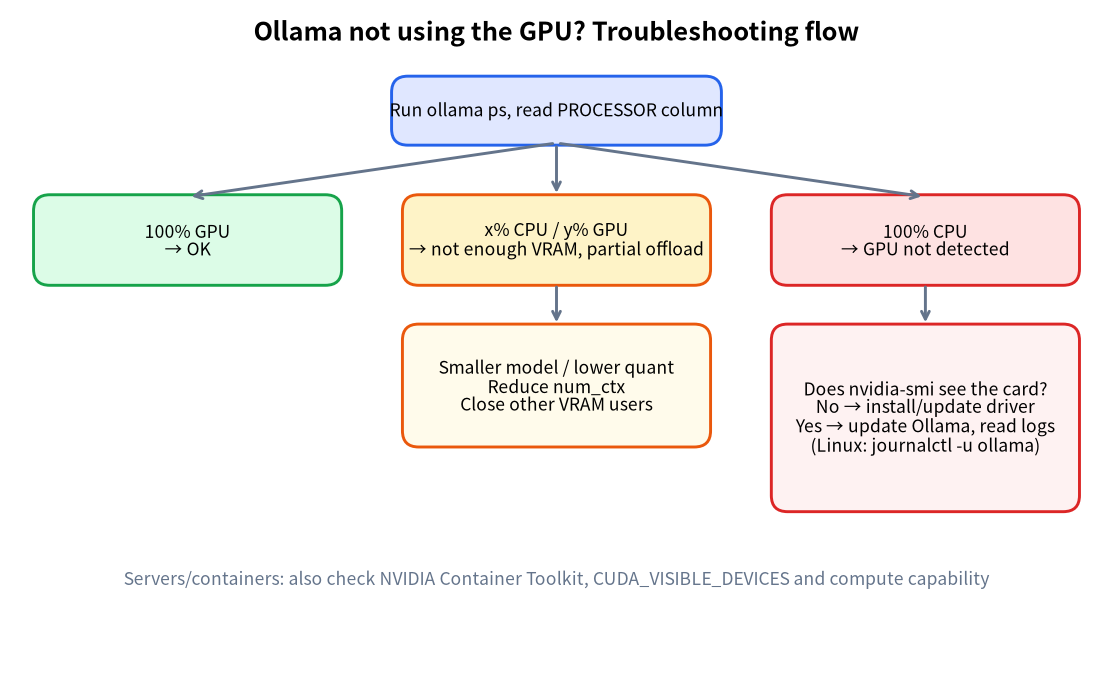
Don’t judge by feel. Load a model, and in a second terminal run:
ollama ps
Read the PROCESSOR column:
| PROCESSOR shows | What it means | Next step |
|---|---|---|
100% GPU |
The model is entirely in VRAM; the GPU is doing the work | If it’s still slow, see “Slow but 100% GPU” below |
100% CPU |
The GPU is not being used at all | Work through the driver and support checks below |
xx%/yy% CPU/GPU |
Part of the model sits in VRAM, part in system RAM | It doesn’t fit; use a smaller model or context, see our VRAM calculator guide |
On NVIDIA you can also run nvidia-smi; while a model is loaded you should see an ollama process with VRAM attached to it.
Symptom-to-Cause Cheat Sheet
| Symptom | Most likely cause | Fix |
|---|---|---|
ollama ps says 100% CPU |
Driver too old, unsupported card, or an env var pointing away from the GPU | Update the driver; check the support list; inspect CUDA_VISIBLE_DEVICES and friends |
| Mixed CPU/GPU split | Model plus context cache exceeds VRAM | Use a smaller model; shorten context |
| GPU works, then CPU after suspend/resume (Linux) | Known driver issue | Reload the nvidia_uvm module |
| GPU works in Docker, then falls back to CPU | systemd cgroup management interfering | Change Docker’s cgroup driver setting |
| AMD card always on CPU (Linux) | ROCm driver too old | Upgrade to the ROCm v7 driver and reboot |
| Very slow on a Mac | Running under Rosetta, or an Intel Mac | Install the native build; Intel Macs are CPU-only |
| Speed fluctuates after load | VRAM right at the edge | Lower context or quantize the KV cache |
Cause 1: The Model Plus Cache Doesn’t Fit in VRAM
This is the most common and most overlooked cause. The GPU is working; it just can’t hold everything, so part of the model is offloaded to system memory and ollama ps shows a CPU/GPU split. Speed then drops sharply, because the CPU-resident layers run at system-memory speed.
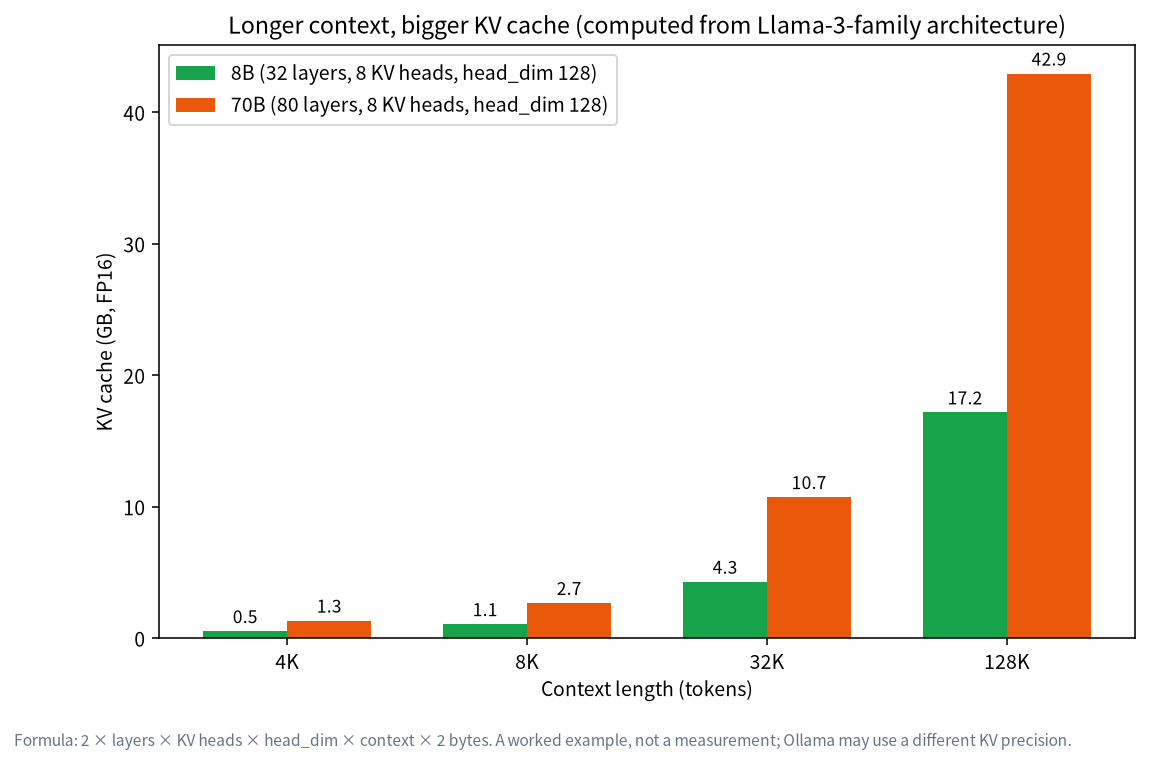
There are two usual culprits: the model is too big, or the context is too long. Ollama’s documentation says the default context depends on available VRAM: 4k below 24 GiB, 32k between 24 and 48 GiB, and 256k at 48 GiB or more, with at least 64,000 tokens recommended for agents and coding tools. A longer context means a bigger KV cache, so you may not have changed models at all and still blown through your VRAM.
What to do:
- Choose a smaller model or a lower quant (see our quantization guide).
- Shorten the context with
OLLAMA_CONTEXT_LENGTHor/set parameter num_ctxinside a session. - Set
OLLAMA_FLASH_ATTENTION=1and thenOLLAMA_KV_CACHE_TYPE=q8_0to roughly halve the cache. - For concrete trade-offs on common cards, read LLM on 8GB VRAM and LLM on 24GB VRAM.
Cause 2: NVIDIA Drivers and the Support List
According to the Ollama docs, NVIDIA GPUs need compute capability 5.0 or higher and driver version 550 or newer. Older cards, with compute capability 5.0 through 6.2, need driver 570 or newer. You can look up your card’s compute capability on NVIDIA’s CUDA GPUs page. The official table covers GeForce RTX 50 series (compute capability 12.0), RTX 40 (8.9), RTX 30 (8.6), RTX 20 and GTX 16 class (7.5), the GTX 10 series (6.1), and more besides.
Work through these steps:
- Run
nvidia-smi. If it fails, the driver itself isn’t working; fix that first. - Compare your driver version against the minimums above and update if needed. Ollama also recommends running the latest driver where possible.
- On multi-GPU machines, check
CUDA_VISIBLE_DEVICES. It limits which cards Ollama may use, and an invalid ID such as-1forces CPU, so make sure you haven’t left one set. UUIDs are more reliable than numeric IDs; list them withnvidia-smi -L. - On Linux, initialization failures can show up in the logs as error codes such as 3 (not initialized), 46 (device unavailable), 100 (no device) or 999 (unknown). The documented remedies: confirm the uvm driver is loaded (
sudo nvidia-modprobe -u), reload it (sudo rmmod nvidia_uvmthensudo modprobe nvidia_uvm), reboot, and update the driver. If nothing works, setCUDA_ERROR_LEVEL=50for more diagnostics and checkdmesg. - If the GPU disappears after a suspend/resume cycle on Linux, that is the same driver bug the docs describe, and reloading
nvidia_uvmrecovers it.
Cause 3: AMD GPUs, ROCm and Vulkan
On Linux, Ollama requires the AMD ROCm v7 driver; on Windows it needs a ROCm v7/HIP7-capable driver stack. The official list includes cards such as the Radeon RX 9070 XT and RX 7900 XTX and some Ryzen AI processors such as the Ryzen AI Max+ 395. On Windows the supported Radeon list is the RX 7000-series models (7900 XTX, 7900 XT and so on) plus certain PRO cards.
Troubleshooting steps:
- If the server log shows “failure during GPU discovery”, “failed to finish discovery before timeout” or a 30-second bootstrap discovery, the system driver is probably too old (ROCm 6.x or earlier). Upgrade to ROCm v7 with AMD’s
amdgpu-install, then reboot and restart Ollama. - On Linux, GPU access usually requires membership in the
videoand/orrendergroup for/dev/kfd. If permissions are wrong, Ollama reports it in the log. - For a card that isn’t officially supported, the docs describe
HSA_OVERRIDE_GFX_VERSION, which asks ROCm to use a close LLVM target (their example maps an RX 5400, gfx1034, to10.3.0). Treat this as an experiment, not a guarantee. - With several AMD GPUs, select devices with
ROCR_VISIBLE_DEVICES; an invalid ID forces CPU. If you see gibberish output across multiple AMD GPUs on Linux, the docs point to AMD’s multi-GPU known-issues guide. - In containers, SELinux can block access to the GPU devices;
sudo setsebool container_use_devices=1allows it.
Ollama also offers Vulkan as additional GPU support on Windows and Linux. It is enabled by default once the backend is installed; most Windows GPU drivers ship Vulkan, while Linux often needs extra packages. If a Vulkan GPU misbehaves, disable it with OLLAMA_VULKAN=0 or GGML_VK_VISIBLE_DEVICES=-1. On mixed iGPU/dGPU systems where the integrated GPU is unstable, keep Vulkan on and point GGML_VK_VISIBLE_DEVICES at the discrete GPU’s index. Vulkan also needs extra capability (or root) to report free VRAM; without it Ollama falls back to approximate model sizes, which can make scheduling less precise.
Cause 4: Macs and Apple Silicon
On Mac, Ollama uses the GPU through Metal. The official macOS requirements are macOS Sonoma (v14) or newer, with Apple M-series chips getting both CPU and GPU support and x86 Macs getting CPU only. The Troubleshooting page also notes that under Rosetta emulation only the CPU library works. So if an M-series Mac is mysteriously slow, check that you installed the native build and that the terminal isn’t running in Rosetta mode. For memory sizing on Macs, see running an LLM on Mac.
Cause 5: Docker and Containers
In a container, the GPU must first be exposed by the container runtime. The documented first check is:
docker run --gpus all ubuntu nvidia-smi
If that cannot see your card, Ollama can’t either. A second documented case: Ollama initially uses the GPU in Docker but later switches to CPU, with GPU discovery errors in the log. The fix is to disable systemd cgroup management by adding "exec-opts": ["native.cgroupdriver=cgroupfs"] to /etc/docker/daemon.json on the host. For AMD on some distributions you also need --group-add arguments so the container can access the render devices. If Open WebUI runs in a container as well, connection details are in our Open WebUI and Ollama guide.
Slow but Showing 100% GPU: Stop Blaming the GPU
If ollama ps says 100% GPU and it still feels slow, look elsewhere:
- The model is simply large. Even fully in VRAM, generation speed is bound by memory bandwidth; our GPU guide for local LLMs compares bandwidth across cards.
- A reasoning model is thinking. Thinking tokens take real time and don’t mean the GPU is idle.
- First load. Reading weights from disk into VRAM takes a while.
- Laptop power mode. Battery or power-saving profiles can throttle the GPU.
- A very long prompt. Prompt processing grows with prompt length.
Logs and Environment Variables: Finding the Real Cause
The official docs give these log locations:
| Platform | Where to look |
|---|---|
| Mac | cat ~/.ollama/logs/server.log |
| Linux (systemd) | journalctl -u ollama --no-pager --follow --pager-end |
| Docker | docker logs <container-name> |
| Windows | Open %LOCALAPPDATA%\Ollama in Explorer and read server.log |
For more detail, set OLLAMA_DEBUG=1; GPU discovery then prints extra information. One more variable deserves caution: OLLAMA_LLM_LIBRARY is an experimental override that bypasses autodetection and forces a specific library, for example cpu_avx2. If you ever set it while experimenting, Ollama may be staying on the CPU on purpose, so check that it isn’t lingering in your environment.
A 10-Step Checklist
- Run
ollama psand note PROCESSOR. - If it’s
100% CPU, runnvidia-smion NVIDIA machines. - Check the driver version (550 or newer; 570 or newer for older cards).
- Confirm your card’s compute capability is at least 5.0 on NVIDIA’s CUDA GPUs page.
- Look for stray
CUDA_VISIBLE_DEVICES,ROCR_VISIBLE_DEVICES,GGML_VK_VISIBLE_DEVICESorOLLAMA_LLM_LIBRARYvalues. - If the split is mixed, shorten the context or pick a smaller model.
- On AMD, confirm ROCm v7 and group permissions.
- In Docker, run
docker run --gpus all ubuntu nvidia-smifirst. - Restart Ollama, and reboot if needed.
- Still stuck? Set
OLLAMA_DEBUG=1, collect the logs and ask on Ollama’s Discord or GitHub.
FAQ
Why is Ollama always using my CPU?
Most often the driver is too old or the card is unsupported; next most common is an environment variable restricting devices, and then a model that doesn’t fit in VRAM. Run ollama ps and match the PROCESSOR output to the table above.
What is the minimum NVIDIA driver version?
The docs require driver 550 or newer. Older GPUs with compute capability 5.0 through 6.2 need 570 or newer.
I have enough VRAM. Why is there still a CPU share?
Your context may be set long enough that the KV cache pushes the total over your VRAM. Ollama’s defaults are also larger on cards above 24 GiB. Shorten the context or quantize the cache.
Do AMD GPUs work with Ollama?
Yes. Linux needs the ROCm v7 driver, Windows needs a ROCm v7/HIP7-capable stack, and Vulkan provides additional support. Check the official support list for your exact model.
Can an Intel Mac use its GPU?
No. Ollama’s macOS docs say x86 Macs are CPU-only; Apple M-series chips get both CPU and GPU.
It worked, then fell back to CPU after a reboot. What now?
On Linux, check whether the failure follows a suspend/resume cycle (reload nvidia_uvm); in Docker, check the cgroup setting. Also confirm the environment variables your service starts with match the ones you used manually.
Next Steps and Community
If a GPU problem is beating you, post your ollama ps output, GPU model, driver version and a log excerpt in our community (join the community) and we’ll look at it together. We source, assemble and test local-LLM machines in Shenzhen, so we’re also happy to help you decide whether it’s a software setting or a hardware mismatch. Just ask; there is no obligation to buy.