
How to Run LLMs on a Mac: How Much Unified Memory Do You Need?
Fact-check note: Mac specs come from Apple’s website (read 2026-10-30). The “GPU can use about 70% of memory” figure and the per-model 8k-context needs come from CanRun’s public estimates; we have not benchmarked every Mac. Apple’s lineup changes quickly, so check the site before buying, and China list prices are given below, and the Apple store prevails when you order.
To run LLMs on a Mac is to have an advantage most computers can’t match: the CPU and GPU share one pool of unified memory, so there is no hard “VRAM wall”; the more memory, the bigger the model you can hold. There’s a clear downside too: bandwidth usually trails high-end discrete GPUs. This article answers three questions. What size of model fits in which Mac? How should you configure one? And is a Mac or a GPU PC the better fit?
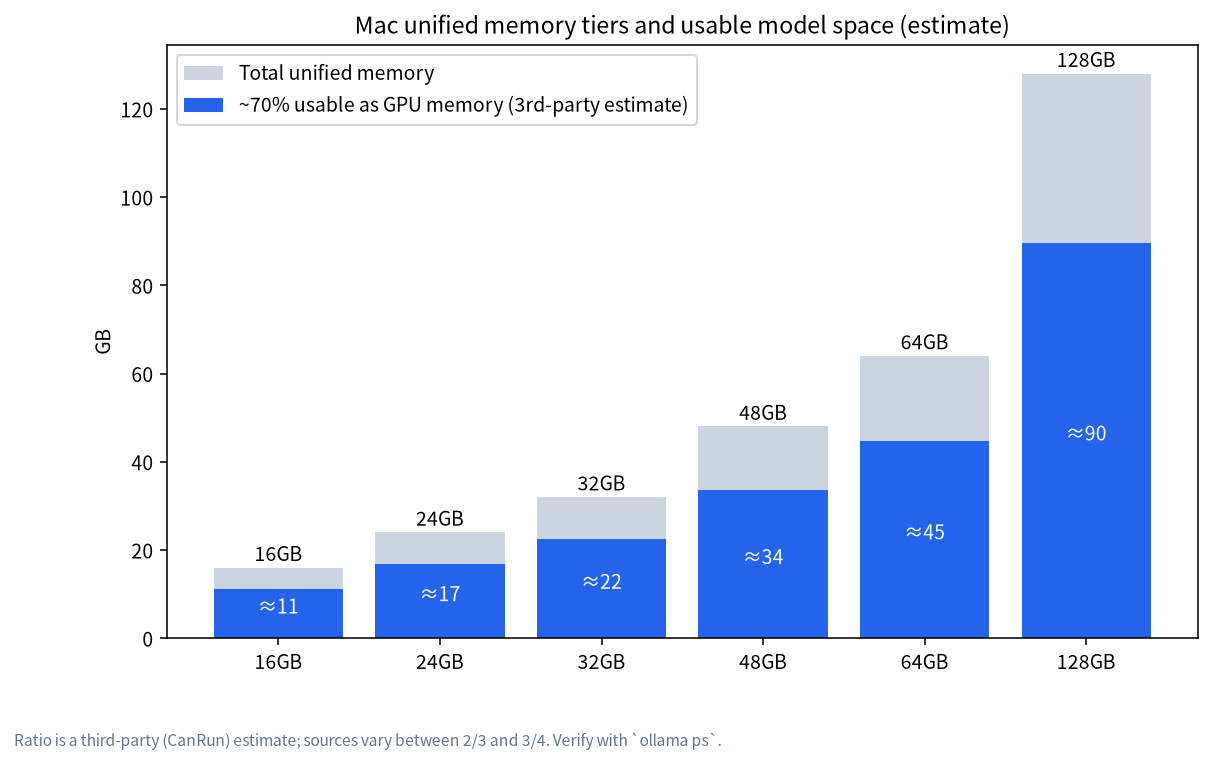
The short answer: 16GB gets you started, 24GB is the more practical floor, 32GB and up is where 30B-class models get comfortable, and 64GB+ is where 70B-class becomes possible. Don’t treat total memory as VRAM; the GPU can use about 70% of it.
How to Run LLMs on a Mac: Unified Memory vs VRAM
A traditional PC has dedicated VRAM, and a model that doesn’t fit spills into system RAM at a steep speed cost. A Mac has no dedicated VRAM; CPU and GPU share one pool, but macOS limits how much of it the GPU may take. CanRun’s guide uses a simplified number: the GPU can use about 70% of unified memory. It also notes that, according to code quoted in a llama.cpp discussion, macOS by default holds back about a third on Macs up to 32GB and a quarter on larger ones, so 70% is conservative; sources range from two-thirds to three-quarters.
| Unified memory | GPU-usable (at 70%) | Typical models that fit (8k context) |
|---|---|---|
| 16GB | about 11.2GB | Llama 3.1 8B, Gemma 3 12B, Qwen3 14B (tight) |
| 24GB | about 16.8GB | All of the above, plus gpt-oss-20b |
| 32GB | about 22.4GB | All of the above, plus Qwen3 30B-A3B (2507) |
| 48GB | about 33.6GB | Plenty of headroom for 30B class |
| 64GB | about 44.8GB | A 70B Q4 (43GB) barely fits, with almost no margin |
| 128GB | about 89.6GB | Very large models such as gpt-oss-120b |
The “typical models” column matches CanRun’s 8k-context totals: Llama 3.1 8B at 6.6GB, Gemma 3 12B at 8.4GB, Qwen3 14B at 10.9GB, gpt-oss-20b at 12.9GB, Qwen3 30B-A3B at 19.9GB and gpt-oss-120b at 64.3GB. A 64GB Mac can’t hold gpt-oss-120b; a 128GB one can (CanRun’s conclusion). The 70B row is our own reading of Ollama’s 43GB llama3.3:70b file against 44.8GB usable. The margin is so thin that we wouldn’t call it comfortable.
To estimate any other model, work through How Much VRAM Does an LLM Need? and compare against the table above.
Current Mac Models and Bandwidth
Relevant specs from Apple’s site on 2026-10-30 (only the parts that matter for LLMs):
| Model / chip | Unified memory options | Memory bandwidth | Note |
|---|---|---|---|
| Mac mini (M6) | 16GB, configurable to 24GB or 32GB | 153GB/s base; 170GB/s on 24/32GB configs | Small and quiet |
| Mac mini (M5 Pro) | 24GB, configurable to 48GB or 64GB | 307GB/s | Nearly double the M6’s bandwidth |
| MacBook Pro (M6) | Apple’s page lists up to 170GB/s | about 170GB/s | Portable |
| MacBook Pro (M5 Pro) | 24GB, 48GB, 64GB | 307GB/s | |
| MacBook Pro (M5 Max, 32-core GPU) | 36GB | 460GB/s | |
| MacBook Pro (M5 Max, 40-core GPU) | 48GB, 64GB, 128GB | 614GB/s | The choice for 70B-class models |
China list prices (Apple China store prices as relayed by third parties, October 2026): Mac mini (M6) 24GB/512GB is 9,999 RMB and 32GB/1TB is 13,749 RMB; Mac mini (M5 Pro) 24GB/512GB is 12,999 RMB and 64GB/1TB is 24,249 RMB (the 48GB step adds about 4,500 RMB over 24GB); Mac Studio (M5 Max) 64GB/1TB is 29,749 RMB and 128GB/1TB is 41,749 RMB. These are official list prices, not market medians. Apple has changed configurations and prices several times lately because of memory costs, so check the Apple China store before ordering.
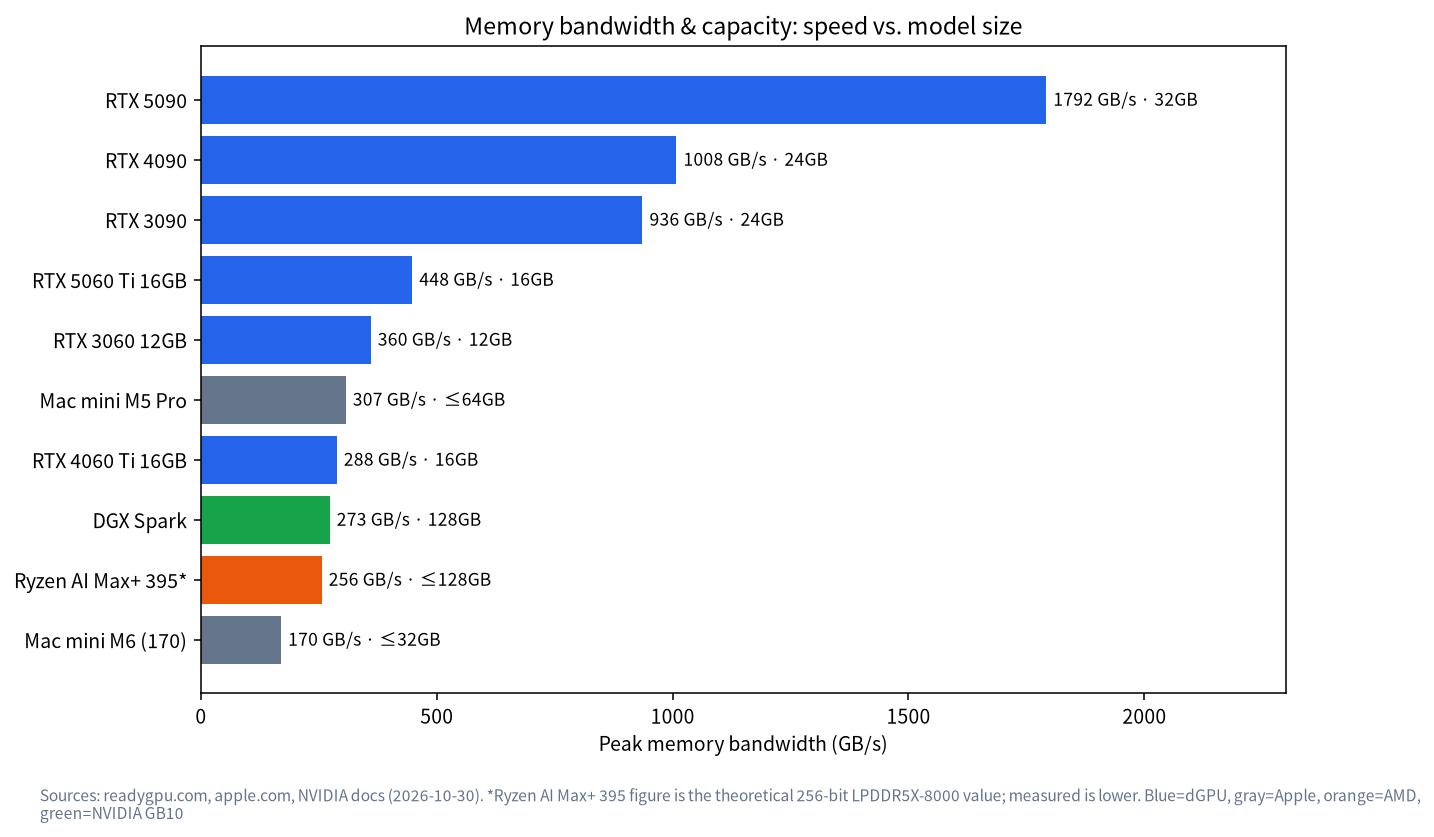
Bandwidth matters: for a model that fits, higher bandwidth generates faster. For comparison the RTX 4090 offers 1008GB/s, the RTX 5090 1792GB/s and the DGX Spark 273GB/s (NVIDIA documentation). A Mac is therefore “large capacity, moderate bandwidth”, not “large and fast”.
CanRun also publishes per-chip speed estimates with a ±20% error band. They are third-party estimates, so we don’t reproduce the figures here; check its page when comparing configurations.
How Much Memory to Buy, by Use Case
| Your use | Suggested memory | Why |
|---|---|---|
| Trying things out with 7B–8B | 16GB | Just enough; running a browser or IDE alongside gets tight |
| Daily driver with 14B–20B models | 24GB | Holds gpt-oss-20b (CanRun estimates 12.9GB needed) |
| Coding assistant, 30B-class MoE | 32GB–48GB | Qwen3 30B-A3B (19.9GB) and similar have room |
| Wanting to hold a 70B-class model | 64GB at minimum, ideally 128GB | A 70B Q4 is 43GB; a 64GB machine has almost no margin |
| Huge MoE (such as gpt-oss-120b) | 128GB | CanRun: 64GB machines can’t hold it |
Two warnings. Unified memory is fixed at purchase and can’t be added later, so buy one tier up. And the OS, browser and other apps share the same pool, so the model really gets less than the totals suggest.
Model Picks by Memory Tier
The table below pairs Ollama file sizes (read 2026-10-30) with the GPU-usable space estimated at 70% above. “Margin” is a rough subtraction, usable space minus file size, before context cache; leave another 1–4GB as described in How Much VRAM Does an LLM Need?:
| Unified memory (GPU-usable) | Model tag | File size | Rough margin | Verdict |
|---|---|---|---|---|
| 16GB (about 11.2GB) | qwen3:8b |
5.2GB | about 6GB | Comfortable |
| 16GB (about 11.2GB) | qwen3:14b |
9.3GB | about 1.9GB | Tight; keep context small |
| 24GB (about 16.8GB) | gpt-oss:20b |
14GB | about 2.8GB | Workable |
| 24GB (about 16.8GB) | qwen3.6:27b |
17GB | about -0.2GB | Doesn’t fit; skip |
| 32GB (about 22.4GB) | qwen3.6:27b |
17GB | about 5.4GB | Comfortable |
| 32GB (about 22.4GB) | qwen3:30b-a3b |
19GB | about 3.4GB | Workable; MoE is quick |
| 48GB (about 33.6GB) | gemma4:31b |
20GB | about 13.6GB | Room for long context |
| 64GB (about 44.8GB) | llama3.3:70b |
43GB | about 1.8GB | Extremely tight; not advised |
| 128GB (about 89.6GB) | gpt-oss:120b |
65GB | about 24.6GB | Comfortable |
These conclusions are our back-of-envelope arithmetic, not measurements; ollama ps has the final say. More comparisons are in Best Local LLMs.
Software on the Mac
- Ollama: the official docs say macOS requires Sonoma (v14) or newer; Apple M-series is supported for CPU and GPU, and Intel Macs run CPU only. Setup is in the Ollama Install Guide.
- LM Studio: a friendlier graphical app. Its docs list Apple silicon with macOS 14.0 or newer and recommend 16GB or more; Intel Macs aren’t supported. See the LM Studio Tutorial.
- MLX: Apple’s open-source array framework for Apple silicon, of interest to developers.
Verify with ollama ps
After ollama run qwen3:14b on a Mac, open another terminal and run ollama ps. PROCESSOR should read 100% GPU. Any CPU share means the model exceeds what the GPU can use; step down a size or shorten context.
Watch memory pressure in Activity Monitor
Open Activity Monitor’s Memory tab. A green memory-pressure graph is healthy; yellow or red means heavy swapping, so close other apps or choose a smaller model.
Want the GPU to use more?
The llama.cpp discussion that CanRun quotes mentions raising the GPU’s ceiling with sudo sysctl iogpu.wired_limit_mb=<value>. It resets at restart, and leaving macOS too little memory causes heavy swapping. This is a community technique rather than an Apple recommendation, and we haven’t verified it ourselves; if you try it, back up first and adjust in small steps.
Context Settings That Matter on a Mac
Ollama’s default context length depends on available memory: per its documentation, 4k under 24GiB, 32k for 24–48GiB and 256k from 48GiB (check the docs for current values). A 16GB Mac therefore defaults to just 4k, which truncates long documents and coding sessions easily, while pushing it to 32k sharply raises cache use. Raise it in steps: 8k first, then 16k, and after each change confirm with ollama ps that you still get 100% GPU while watching memory pressure in Activity Monitor. For agents and coding tools Ollama recommends at least 64000 tokens, which is unrealistic on a small-memory Mac; choose a smaller model and spend the memory on context instead.
A Mac mini as a Home Model Server
A Mac mini is small, low-power and nearly silent, which suits leaving it on around the clock so phones and laptops can reach it over your LAN. Ollama’s FAQ documents how to set environment variables for the macOS app:
launchctl setenv OLLAMA_HOST "0.0.0.0:11434"
Then restart the Ollama app. That makes Ollama listen on all interfaces, so use it only on a trusted local network and don’t expose it directly to the internet. To keep a model resident and skip reload time, set OLLAMA_KEEP_ALIVE (default 5 minutes); the FAQ explains the accepted values. Pair it with Open WebUI for a multi-user web interface, as in Open WebUI + Ollama.
Pitfalls to Avoid Before Buying a Mac
- Don’t treat total memory as VRAM. At roughly 70% usable, a 16GB Mac gives the GPU only about 11GB.
- Memory can’t be added later. If the budget is tight, skimp on storage (you can plug in an external drive), not on memory.
- Look at bandwidth, not just capacity. At the same 24GB, the M6 and M5 Pro differ by nearly double in bandwidth, and generation speed will feel different.
- Don’t expect discrete-GPU speed. A Mac’s strengths are capacity and quiet, not raw speed.
- Leave plenty of disk. Models run 5–40GB each and a few fill hundreds of gigabytes; 1TB is a sensible minimum.
- Check prices yourself. Prices, education discounts and configuration combinations change often; don’t rely on second-hand figures.
Mac vs Discrete GPU
| Factor | Mac (Apple silicon) | NVIDIA GPU PC |
|---|---|---|
| Usable memory | Unified, up to the 128GB tier (M5 Max) | 8–32GB VRAM per card |
| Bandwidth | 153–614GB/s | Such as 1008GB/s on the 4090, 1792GB/s on the 5090 |
| Power and noise | Low, quiet | High; flagship cards draw 450–575W |
| Software | Ollama, LM Studio and MLX all work | Broadest compatibility, mature CUDA ecosystem |
| Upgradability | Memory can’t be added later | Cards can be swapped |
| Best for | Big models, quiet, low power, daily use too | Speed, tinkering, budget to spend |
The takeaway: if you want larger models (30B and up) or a quiet everyday machine that also runs LLMs, a Mac is a very reasonable pick. If generation speed matters most, or you plan fine-tuning or multi-card growth, a discrete-GPU PC fits better. See Best GPU for Local LLMs for those options, and Buying a Local LLM All-in-One Machine for a third route.
FAQ
Is 16GB enough to run LLMs on a Mac?
To get started, yes. 16GB gives the GPU about 11.2GB, enough for Llama 3.1 8B, Gemma 3 12B and (tightly) Qwen3 14B. For long-term use, start at 24GB.
How different are the M6 and M5 Pro?
On Apple’s site, the Mac mini’s M6 has 153–170GB/s of bandwidth and the M5 Pro 307GB/s. Bandwidth affects speed and capacity affects fit, so weigh both.
Can a Mac run 70B models?
It depends on memory. A 70B Q4 file is about 43GB; a 64GB Mac (about 44.8GB usable) has almost no margin, while a 128GB Mac is comfortable.
Why is my model slow?
First confirm 100% GPU in ollama ps, then check whether memory pressure has turned yellow. Anything landing on the CPU slows things sharply.
Does an Intel Mac work?
Ollama uses CPU only there and LM Studio doesn’t support Intel Macs, so the experience is poor and we don’t recommend it.
Can I add memory later?
No. A Mac’s unified memory is fixed at purchase, so buy enough up front.
Next Steps and Community
Not sure whether 24GB or 48GB is right? Post your budget and target models in the community (join the community). Our Shenzhen team sources, builds and tests local-LLM machines and can compare Mac and discrete-GPU routes for your needs. Talk first; no obligation to buy.