
vLLM Tutorial: Serving Local LLMs With vLLM and SGLang When Ollama Is Not Enough
Most people start local models with Ollama, and for one person it is the right tool. When several people or programs send requests at the same time, a different kind of software helps: a serving engine built to handle many requests per second on a GPU. This vLLM tutorial explains what vLLM and SGLang do differently, when they are worth the extra effort, how to install and start vLLM, and how to plan GPU memory so the server does not run out. It assumes you already understand model sizes and VRAM; if not, read our VRAM calculator guide first.
Verification note: vLLM statements (supported hardware,
vllm serve, the OpenAI-compatible server at localhost:8000, one model per server,--gpu-memory-utilizationdefault 0.92) come from the vLLM documentation; SGLang statements come from the SGLang documentation; PagedAttention comes from the SOSP 2023 paper by Kwon and colleagues. All were checked on 2026-10-30. The concurrency figure in this article is our own illustrative calculation, not a benchmark, and we did not run vLLM or SGLang for this article.Key takeaways (Updated 2026-10-30)
- Use Ollama or llama.cpp for one user; consider vLLM or SGLang when several users or programs hit the same GPU, because they batch requests and manage the KV cache more efficiently.
vLLM starts an OpenAI-compatible server with
vllm serve <model>on port 8000 and, by default, reserves 92 percent of GPU memory for itself, so it does not share a GPU politely.Plan memory as weights plus KV cache per request times the number of simultaneous requests; long contexts reduce concurrency quickly.
When Ollama Is Enough and When It Is Not
Ollama and llama.cpp are designed for convenience and flexible hardware: one command downloads a model, quantized files run on small GPUs or even mixed CPU and GPU memory, and several models can be loaded and unloaded as needed. For a household or a single developer that is exactly right, and our comparison of Ollama, LM Studio and llama.cpp explains the differences.
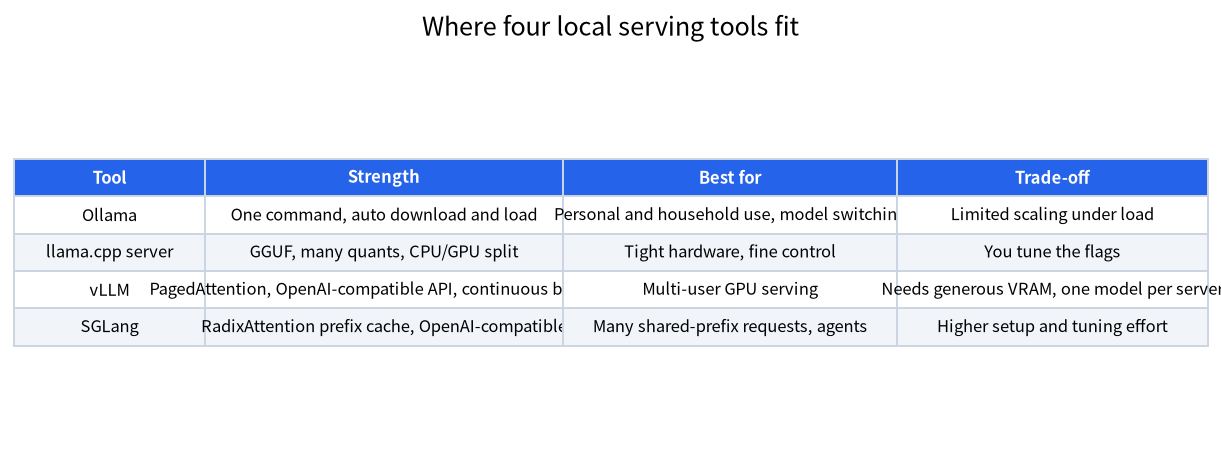
The picture changes under load. If ten colleagues or a batch job send requests together, you want the GPU to work on many sequences at once instead of one after another. That is what serving engines are built for. vLLM and SGLang use continuous batching, which adds new requests to a running batch as old ones finish, and both manage the KV cache carefully so that memory is not wasted on empty space. The vLLM approach, called PagedAttention, stores the cache in blocks rather than one large contiguous region per request, a technique described in the 2023 SOSP paper. SGLang adds RadixAttention, which reuses cached work when many requests share the same beginning, as agents and chat applications with long system prompts often do.
Be honest about the trade-off. These engines expect a proper GPU, usually NVIDIA CUDA or AMD ROCm, they usually load the model in a higher-precision format than the 4-bit files Ollama users enjoy, and each server hosts one model. On a single 8GB or 12GB card, Ollama will usually give you a better experience.
What vLLM and SGLang Do
According to its documentation, vLLM supports NVIDIA CUDA, AMD ROCm, Intel XPU, several CPU types and Apple silicon through a separate Metal plugin. It starts a server that implements OpenAI-style endpoints such as list models, chat completions and completions, so applications written for the OpenAI client can point at it by changing the base URL. By default the server listens on localhost port 8000, and it hosts one model at a time. SGLang’s documentation describes an inference framework meant for production serving, from a single GPU to large clusters, with RadixAttention, prefix caching and multi-GPU parallelism, and compatibility with Hugging Face models and OpenAI-style APIs.
In practice the two projects overlap, and both are evolving quickly, so check the current documentation for the model you want. Newer architectures sometimes work in one engine before the other. If your model is not supported, no amount of tuning helps, so check the supported models page first.
Installing and Starting vLLM
The vLLM quickstart recommends a clean Python environment managed with uv. On a Linux machine with an NVIDIA GPU and a current driver, the pattern is: create a virtual environment with Python 3.12, install vllm with the automatic backend selection, and then start a model with vllm serve. The quickstart’s example uses a small instruction model, Qwen2.5-1.5B-Instruct, which is a good first test because it downloads quickly. Once the server prints that it is running, you can send a request with any OpenAI-compatible client to http://localhost:8000/v1.
uv venv --python 3.12 --seed
source .venv/bin/activate
uv pip install vllm --torch-backend=auto
vllm serve Qwen/Qwen2.5-1.5B-Instruct
Watch the startup log: it reports the model loading and how much memory was set aside for the KV cache, which is the number that decides how many requests you can serve at once.
On Windows, the usual route is WSL2 with the NVIDIA driver on the Windows side, as in our Windows and WSL2 guide, or a Docker image on Linux. AMD users should follow the ROCm instructions in the vLLM documentation, which at the time of checking listed Python 3.12 and ROCm 7.0 support.
Planning GPU Memory
vLLM’s --gpu-memory-utilization option is the fraction of GPU memory the server may use; its documented default is 0.92. After loading the weights, vLLM gives most of what remains to the KV cache, which is why the server seems to fill the card whatever the model size. That is by design, and it also means you cannot run it beside a game or another model on the same GPU unless you lower the fraction. The --max-model-len option sets the longest context the server will accept; lowering it frees cache for more concurrent requests.
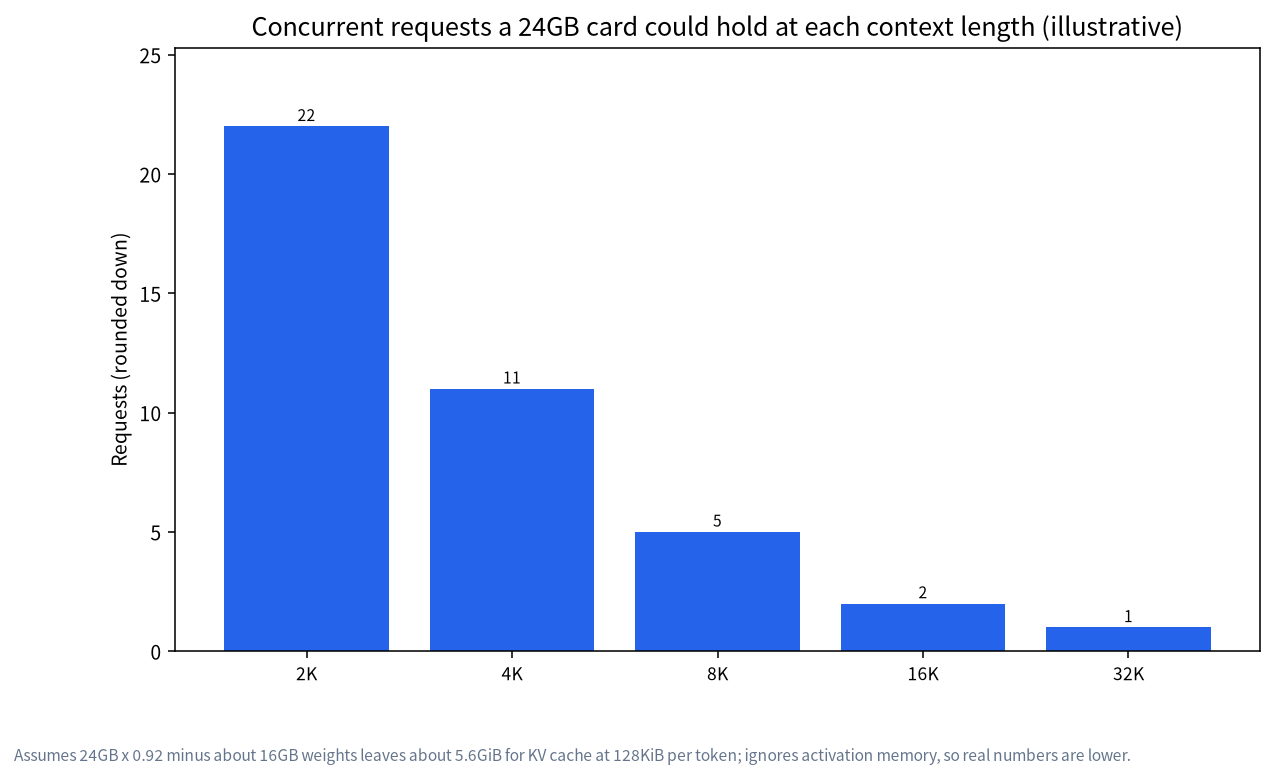
Here is a worked example with numbers we derived. Llama 3.1 8B in 16-bit form has about 8 billion parameters, so about 16GB of weights. On a 24GB card at 0.92 utilization, about 22GB is available, which leaves roughly 6GB for the KV cache after weights, ignoring activation memory and overhead. The model’s cache costs 128 KiB per token in 16-bit form (see our KV cache guide), so a request with an 8K-token context uses about 1 GiB. That is only about five simultaneous 8K requests, or about eleven at 4K, or twenty-two at 2K. Real numbers will be lower because of overhead, so treat this as a planning shape, not a promise.
| Context per request | KV cache per request | Requests in about 5.6 GiB |
|---|---|---|
| 2K tokens | 0.25 GiB | about 22 |
| 4K tokens | 0.5 GiB | about 11 |
| 8K tokens | 1 GiB | about 5 |
| 16K tokens | 2 GiB | about 2 |
| 32K tokens | 4 GiB | 1 |
The table’s logic is why serving engines matter most for short and medium requests. A shared system prompt, as in many chat applications, can be cached once by engines with prefix caching, which saves both memory and time.
Quantization and Multiple GPUs
Serving engines support quantized models, but the formats differ from GGUF. vLLM and SGLang commonly use formats such as AWQ, GPTQ or FP8 checkpoints from Hugging Face, so you download a model in a format the engine supports rather than converting a GGUF file. If you have two GPUs, tensor parallelism splits each layer across them, as covered in our dual GPU guide. It makes larger models fit and adds communication overhead, so test before you buy a second card for it.
Connecting Applications
Because the server speaks the OpenAI protocol, you can use Open WebUI, coding assistants and scripts by setting a base URL such as http://your-server:8000/v1 and any placeholder key, unless you started the server with an API key. Treat that port like any internal service: do not expose it to the internet without authentication, and see our enterprise deployment guide for access control ideas. For a browser interface, our Open WebUI guide shows how to connect to an OpenAI-compatible endpoint.
Choosing Between the Engines
| Question | Ollama or llama.cpp | vLLM | SGLang |
|---|---|---|---|
| Users at the same time | One to a few | Many | Many |
| Typical model format | GGUF, 4-bit common | Hugging Face checkpoints | Hugging Face checkpoints |
| Setup effort | Minutes | Python environment, GPU drivers | Python environment, GPU drivers |
| Memory behaviour | Loads and unloads on demand | Reserves most of the GPU | Reserves a configured share |
| Strong point | Convenience, small GPUs | Batching and a broad ecosystem | Prefix reuse for shared prompts |
Use the table as a starting point rather than a verdict. If your team mostly sends different questions of moderate length, vLLM is the more common first choice because of its large user base and documentation. If your application sends the same long instructions or documents in front of every request, as many agent frameworks and retrieval systems do, SGLang’s prefix reuse is worth testing. If you have fewer than three simultaneous users, the extra setup rarely pays back.
A Test Plan for Your Own Workload
Public benchmark numbers rarely match your prompts, so measure your own. Collect fifty realistic prompts with their usual lengths, including a few long ones. Start the server with the context length you actually need, then send the prompts from a small script at one, four and eight simultaneous requests, and write down the time to the first token and the total time for each run. Watch GPU memory during the run: if requests are queued or rejected, lower the context length, use a smaller or quantized model, or add a GPU. Repeat the same test on Ollama if you have it, so the comparison is fair. We do not publish speed numbers for these engines because they depend heavily on the model, the card and the settings, and the result that matters is the one from your own hardware.
Keep the first test small and boring. A tiny model proves that the driver, the Python environment and the network path all work before you spend an evening downloading a large checkpoint. Only then switch to the model you actually plan to serve, and change one setting at a time so you know which change helped.
Common Mistakes
- Starting vLLM next to another GPU job. The default reserves most of the card; lower the utilization or use another GPU.
- Setting a huge max context. It reduces how many requests fit; set the context you really need.
- Downloading a GGUF file. Serving engines usually expect Hugging Face checkpoints in supported formats.
- Judging speed from one request. Engines like vLLM shine under concurrency, not for a single prompt.
- Skipping the supported models list. Check that your model architecture is supported before you download it.
FAQ: vLLM Tutorial
Is vLLM better than Ollama?
Not universally. vLLM is built for many simultaneous requests on a GPU; Ollama is simpler for one user and runs on more modest hardware.
Can vLLM run on a Mac or on a CPU?
The documentation lists CPU and Apple silicon support, but the best-supported path is a GPU on Linux. Check the current notes for your platform.
What port does vLLM use?
By default the server listens on localhost port 8000, and you can change the address with the host and port options.
Why does vLLM use almost all my VRAM?
Its default memory utilization is 0.92, and it gives the memory left after the weights to the KV cache. Lower the setting if you need space for other jobs.
Is SGLang a replacement for vLLM?
They solve similar problems. SGLang emphasizes RadixAttention and prefix caching, while vLLM is widely used and documented; test both with your own workload.
Can I use GGUF models with vLLM?
Serving engines usually use Hugging Face checkpoints in formats such as AWQ, GPTQ or FP8. Use llama.cpp or Ollama for GGUF files.
Talk With Us
Sizing a shared GPU server or choosing between engines? Join the community or email admin@microaione.com.
References: vLLM documentation, vLLM quickstart, SGLang documentation, PagedAttention paper.