
Windows WSL2 Docker Local LLM Setup: Run Ollama With an NVIDIA GPU in a Container
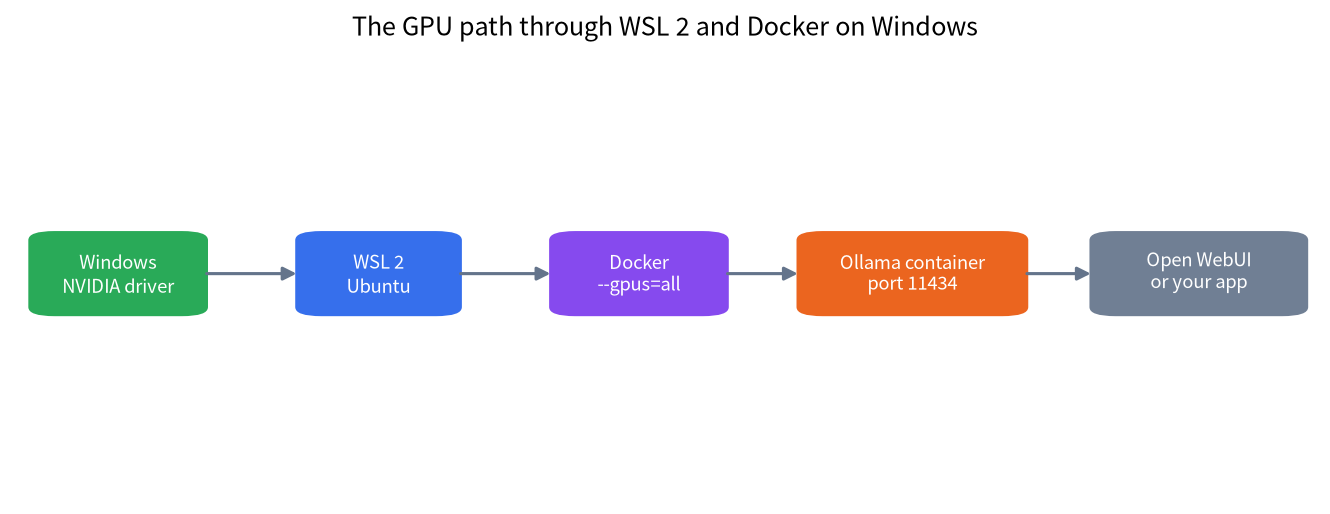
Many local-AI guides assume Linux, but most gaming PCs and workstations run Windows. You do not have to dual-boot. Windows Subsystem for Linux 2 lets you run a real Linux environment, and Docker Desktop can pass your NVIDIA GPU into containers. This guide to a Windows WSL2 Docker local LLM setup explains when this route is worth the extra layer, how the GPU is shared, which commands to run, how to avoid the memory and disk traps, and how to reach the model from Windows apps. If you only want to chat with a model on one PC, the native installer in our Ollama guide is simpler.
Verification note: Install requirements come from Microsoft’s WSL install and .wslconfig pages, NVIDIA’s CUDA on WSL user guide, Docker’s GPU page for Docker Desktop on Windows and Ollama’s Docker page, all read on 2026-10-30. We did not run the full procedure on a test machine for this article, so use the linked pages for the exact current commands and versions.
Key takeaways (Updated 2026-10-30)
- Install only the NVIDIA driver on Windows; NVIDIA says it is the only driver you need and warns not to install a Linux display driver inside WSL.
Docker Desktop supports
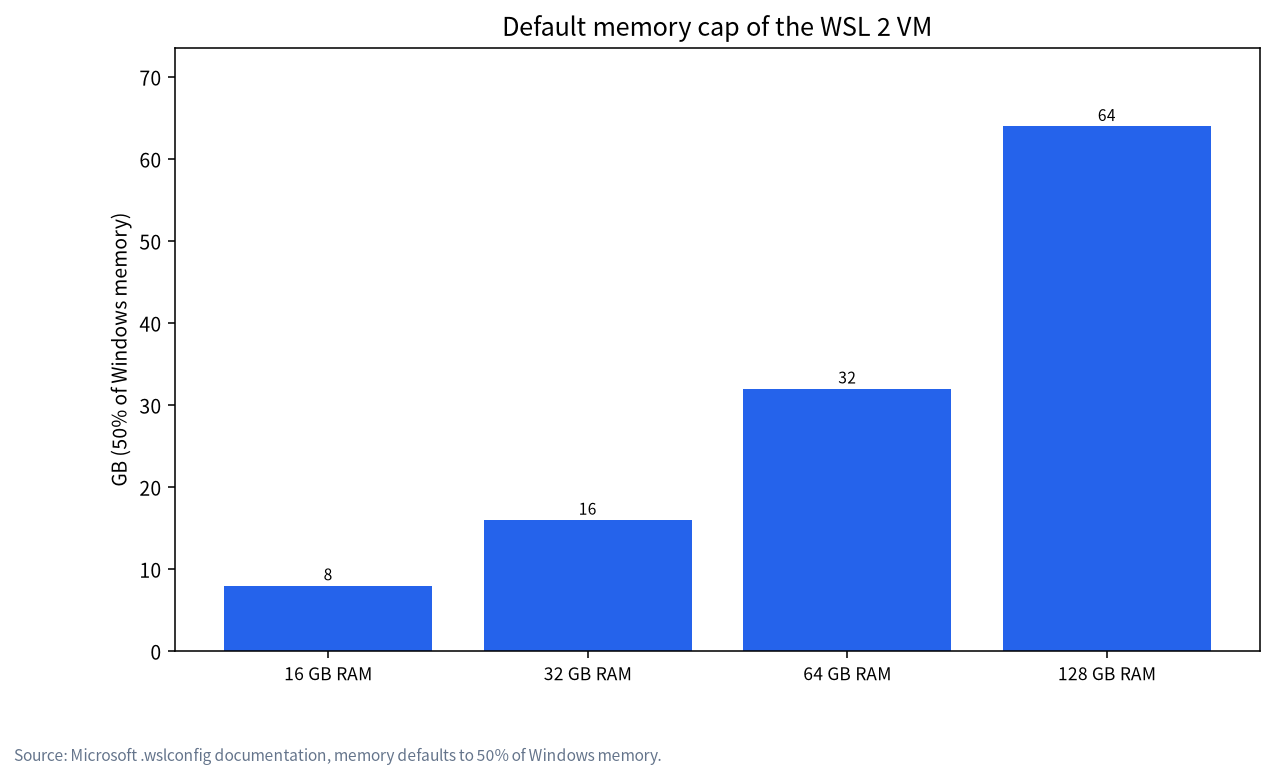
--gpusfor Linux containers only on the WSL 2 backend, and Ollama’s documented container command isdocker run -d --gpus=all -v ollama:/root/.ollama -p 11434:11434 --name ollama ollama/ollama.By default the WSL 2 VM may use 50 percent of Windows memory, so a 32GB PC gives WSL 16GB until you set a higher limit in .wslconfig.
Windows WSL2 Docker Local LLM: When It Is Worth It
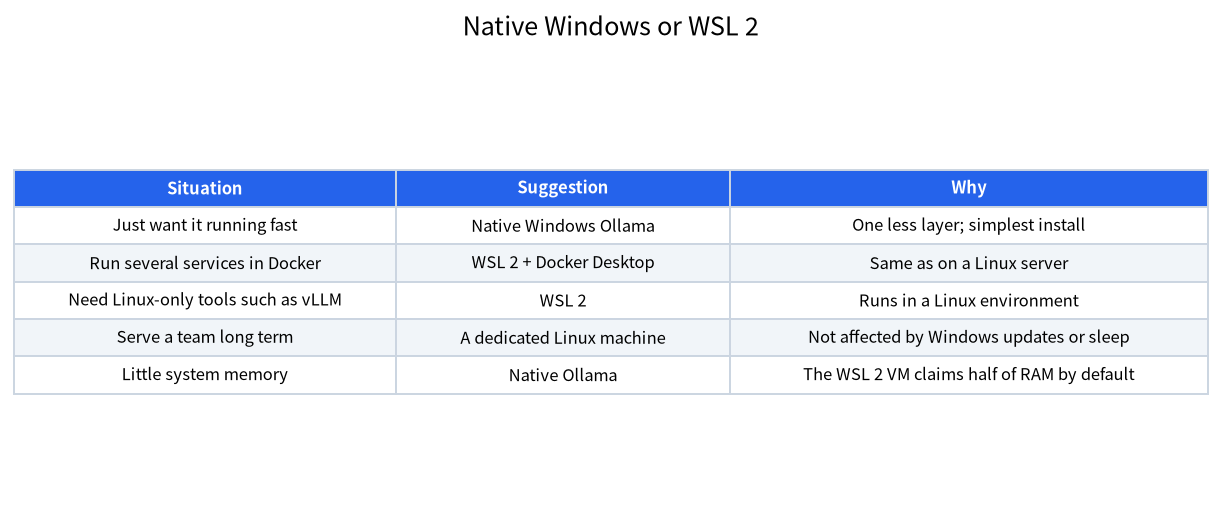
Running a model directly on Windows is the shortest path. The WSL 2 and Docker route adds a layer, so use it for a reason. The first reason is parity with servers: if your final deployment will be a Linux box with Docker Compose, developing in the same way avoids surprises. The second is software that only runs on Linux, such as some inference engines and RAG platforms; our Dify and RAGFlow guide and vLLM guide assume it. The third is isolation: containers keep dependencies away from the rest of Windows and are easy to remove.
The costs are real. The WSL 2 VM claims memory, the Linux distribution’s disk grows on your Windows drive, and troubleshooting has two more places to look. If none of the reasons above applies to you, stay native.
Step 1: Windows Driver and WSL 2
Microsoft’s install page says WSL requires Windows 10 version 2004 (build 19041) or later, or Windows 11, and that a single command installs everything, with Ubuntu as the default distribution. Open PowerShell as administrator and run:
wsl --install
wsl --update
Restart if asked, and finish the first launch of the Linux distribution by creating a user. The update command gets the latest WSL kernel, which Docker’s GPU page lists as a prerequisite.
For the GPU, NVIDIA’s CUDA on WSL guide says to install the latest NVIDIA Windows driver from its site, calls it the only driver you need, and states plainly not to install any Linux display driver in WSL. This is the most common mistake: people install a Linux driver inside Ubuntu and break the passthrough. After installing, open the Ubuntu terminal and run nvidia-smi; you should see your card listed. The guide notes that nvidia-smi has a limited feature set under WSL, so some fields may be missing.
Step 2: Docker Desktop With the WSL 2 Backend
Install Docker Desktop and make sure the WSL 2 backend is enabled in its settings. Docker’s GPU page says that GPU passthrough to Linux containers with --gpus is available only on Windows with the WSL 2 backend, and lists the prerequisites: a machine with an NVIDIA GPU, an up-to-date Windows 10 or 11, up-to-date NVIDIA drivers that support WSL 2 GPU paravirtualisation, and the latest WSL 2 kernel. The Ollama page shows how to install the NVIDIA Container Toolkit, but those steps are written for Linux hosts with Docker Engine; on Docker Desktop for Windows, follow Docker’s own GPU page.
Step 3: Run Ollama in a Container
Ollama’s documentation gives these commands. The CPU-only version is docker run -d -v ollama:/root/.ollama -p 11434:11434 --name ollama ollama/ollama. For NVIDIA GPUs, add --gpus=all:
docker run -d --gpus=all -v ollama:/root/.ollama -p 11434:11434 --name ollama ollama/ollama
docker exec -it ollama ollama run qwen2.5:14b
docker exec -it ollama ollama ps
The named volume keeps downloaded models when you recreate the container. The last command shows whether the model runs on the GPU; if the Processor column does not say 100% GPU, check the driver, the backend and the memory, and read our GPU troubleshooting guide. Because Microsoft’s .wslconfig documentation lists localhostForwarding as true by default, ports bound in the WSL 2 VM are reachable from Windows at localhost, so your Windows browser or application can use http://localhost:11434.
| Step | Where | Command or action | Check |
|---|---|---|---|
| Driver | Windows | Install the latest NVIDIA driver | nvidia-smi works in WSL |
| WSL | PowerShell | wsl –install, wsl –update | Ubuntu starts |
| Docker | Docker Desktop | Enable the WSL 2 backend | Containers start |
| Model server | WSL or Docker | docker run with –gpus=all | ollama ps shows GPU |
| Interface | Windows browser | Open WebUI or your app | Chat responds |
Memory, Disk and Performance Traps
The .wslconfig file, stored in your Windows user profile, controls the WSL 2 VM. Microsoft documents that memory defaults to 50 percent of the total Windows memory, that processors default to all logical processors, and that swap defaults to 25 percent of memory rounded up. On a 32GB PC, WSL 2 therefore gets 16GB by default. Models that run entirely on the GPU use little system memory, but loading, offloading and containers all need some. If you offload to system memory, as explained in our offloading guide, raise the limit, but leave enough for Windows itself. A sensible start for a 32GB machine is 24GB. After editing the file, run wsl --shutdown and wait a few seconds before starting again, since Microsoft notes that changes need the VM to fully stop.
Disk is the second trap. The distribution and your Docker volumes live in virtual disks on your Windows drive, so a few large models quickly add tens of gigabytes; keep an eye on free space on that drive. Keep model files inside the Linux file system or Docker volumes and not on Windows folders mounted into Linux, which is slower. Our model path guide explains how to move model storage.
Adding a Web Interface and an API
Once Ollama runs, add Open WebUI as a second container, as described in our Open WebUI guide. Containers on the same Docker network can reach each other by name, so point the interface at the Ollama container’s name instead of localhost, which inside a container means the container itself. For applications that expect an OpenAI-style endpoint, see our local API server guide. Keep the service reachable only from your own PC or your trusted network; do not publish port 11434 to the internet.
A Docker Compose File for Ollama and Open WebUI
Once the single command works, a Compose file keeps the whole stack in one place. The sketch below follows the pattern in the Ollama and Open WebUI documentation: Ollama gets the GPU, and Open WebUI reaches it by service name.
services:
  ollama:
    image: ollama/ollama
    volumes:
      - ollama:/root/.ollama
    deploy:
      resources:
        reservations:
          devices:
            - driver: nvidia
              count: all
              capabilities: [gpu]
  webui:
    image: ghcr.io/open-webui/open-webui:main
    environment:
      - OLLAMA_BASE_URL=http://ollama:11434
    ports:
      - "3000:8080"
    depends_on: [ollama]
volumes:
  ollama:
Notice that the Ollama port is not published, so only the web interface is reachable from Windows, at http://localhost:3000. Check the current Open WebUI documentation for the image tag and settings before you rely on this file, since both projects change often, and add authentication before anyone else on your network uses it.
A Troubleshooting Checklist
When the model runs on the CPU although you expect the GPU, work through the layers in order. First, run nvidia-smi in Windows and then in the WSL terminal; if it fails in WSL, the problem is the driver or the WSL kernel, so update both. Second, confirm that Docker Desktop uses the WSL 2 backend and that the container was started with --gpus=all. Third, run docker exec -it ollama ollama ps and read the Processor column. Fourth, check the container logs with docker logs ollama for messages about GPU discovery. Fifth, check memory: a model that does not fit in VRAM spills to the CPU, which looks exactly like a passthrough failure, so try a smaller model before blaming the setup.
If Windows apps cannot reach the model, check that the container publishes its port, that Windows firewall or security software is not blocking it, and that localhost forwarding has not been disabled in .wslconfig. If disk space disappears, look at the Docker volumes and unused images, and remove models you no longer use with ollama rm.
Picking a Model That Fits Your Card
The container does not change what fits in VRAM. A model that needs more memory than your card has will spill to system memory and slow down, with or without Docker. As a rule of thumb from our VRAM guide, a Q4_K_M model needs roughly 0.61GB per billion parameters, so a 14B model is about 8.6GB before the context cache, and an 8GB card is better served by a smaller model, as covered in our 8GB VRAM guide. These are derived estimates, not measurements, and the context window adds to them. Start with a model comfortably below your VRAM, confirm it shows 100 percent GPU in ollama ps, and only then try larger ones.
A First-Day Test Plan
Do not install everything at once. Day one, get nvidia-smi working in WSL. Then run the CPU-only container with a tiny model to prove that the network and volume work. Then recreate the container with --gpus=all and confirm the GPU in ollama ps. Only after that add the web interface. At each step, write down what you changed, so that when something breaks you know which layer to blame. If you plan to keep the service running for other people, read our remote service guide before you open any port, and consider moving the service to a dedicated machine once it matters.
Keeping the Setup Healthy
Update in a sensible order. Update the NVIDIA driver on Windows, run wsl --update, then update Docker Desktop, and pull new container images last with docker pull ollama/ollama. After an update, restart the container and check ollama ps again, because a driver change is the most common reason a working setup falls back to the CPU. Back up the Docker volume that holds your models only if downloads are slow for you; otherwise, simply re-pull them. Finally, remember that Windows can restart for updates, which stops the WSL 2 VM and your containers; set the container restart policy if you want the service to return by itself, and accept that this is why a dedicated machine suits always-on use better.
Native or WSL 2?
| Question | Native Windows | WSL 2 with Docker |
|---|---|---|
| Setup effort | Lowest | Moderate |
| GPU access | Direct | Through the Windows driver |
| Linux-only tools | Not available | Available |
| Memory overhead | None | A VM with its own limit |
| Matches a Linux server | Partly | Closely |
Common Mistakes
- Installing a Linux NVIDIA driver in WSL. Install only the Windows driver.
- Forgetting wsl –update. An old kernel can break GPU access.
- Leaving the default memory limit. Half of Windows memory may be too little or too much.
- Pointing containers at localhost. Use the container name or the host’s address.
- Publishing the Ollama port to the internet. Keep it on a trusted network.
- Storing models on a mounted Windows folder. It is slower than the Linux file system.
FAQ: Windows WSL2 Docker Local LLM
Do I need to install CUDA inside WSL for Ollama?
No. NVIDIA says the Windows driver is the only driver you need, and Ollama brings what it needs. The CUDA toolkit is only for compiling CUDA programs.
Is WSL 2 slower than native Windows?
We have not benchmarked it. It adds a layer and a memory limit, so test your own model if speed matters.
Why does the container not see my GPU?
Check the Windows driver, wsl –update, the Docker Desktop WSL 2 backend and the –gpus flag, then run ollama ps.
How do I give WSL 2 more memory?
Create or edit .wslconfig in your Windows user folder, set memory, and run wsl –shutdown.
Can I reach the model from Windows apps?
Yes. Microsoft lists localhostForwarding as true by default, so localhost:11434 works from Windows.
Should I use WSL 2 for a team server?
For long-term service, a dedicated Linux machine is steadier, because Windows updates and sleep can interrupt a WSL 2 VM.
Talk With Us
Stuck on the GPU passthrough? Join the community or email admin@microaione.com.
References: Microsoft WSL installation, Microsoft .wslconfig settings, NVIDIA CUDA on WSL guide, Docker GPU support on Windows, Ollama Docker documentation.