Home AI Server: How to Build a Private LLM Box for Your NAS and Network
A home AI server is a computer that stays on at home and answers questions for every phone and laptop in the house, using models that never leave your network. It is the logical next step once one person’s local setup works and the rest of the family or team wants in. This guide explains the parts, the software stack with Ollama and Open WebUI in Docker, how a NAS fits in, how to reach the server away from home, and the security steps that matter. It builds on our Open WebUI guide and uses reference prices from our build tables.
Verification note: Ollama behaviour (default binding 127.0.0.1:11434, the OLLAMA_HOST variable, parallel requests multiplying context) comes from the Ollama FAQ; the 4090’s 19W idle and 450W graphics power figures come from NVIDIA’s product page; build prices are medians of listings we checked on 2026-10-30 and are reference prices, not offers. We did not measure power draw or speed on a server for this article.
Key takeaways (Updated 2026-10-30)
- A home AI server is just a normal PC with a GPU, Docker, Ollama for the model and Open WebUI for the accounts and chat page; a NAS is best used for documents and backups, not for running the model.
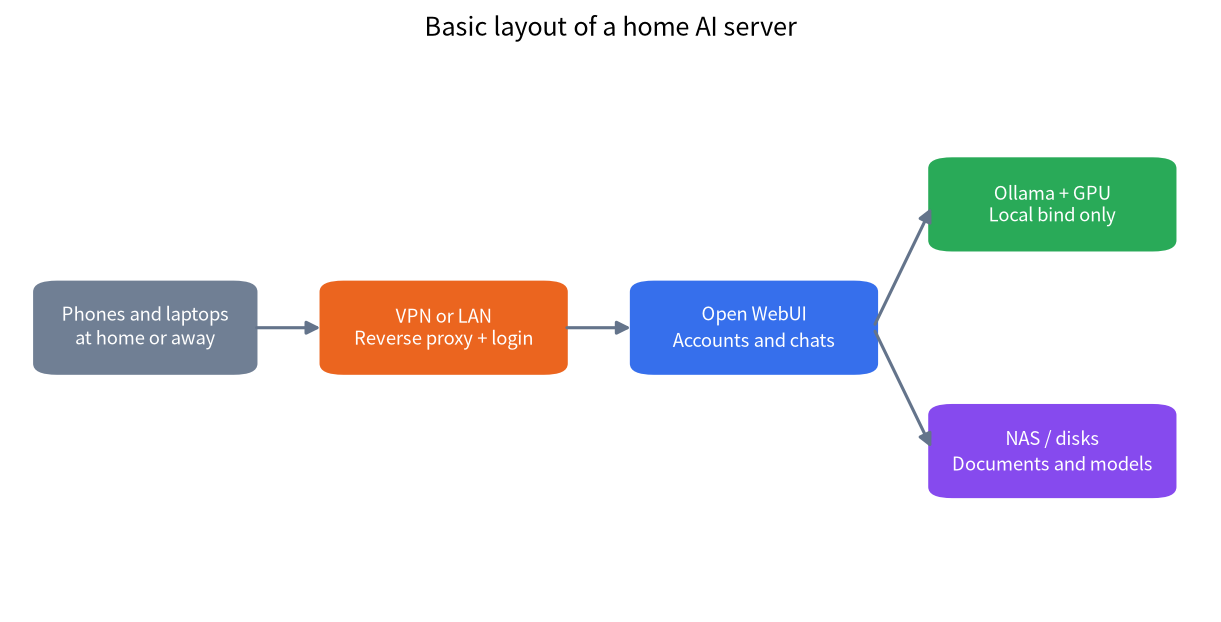
Keep Ollama bound to the server itself and expose only the web interface, preferably through a VPN, so the model API is never open to the network.
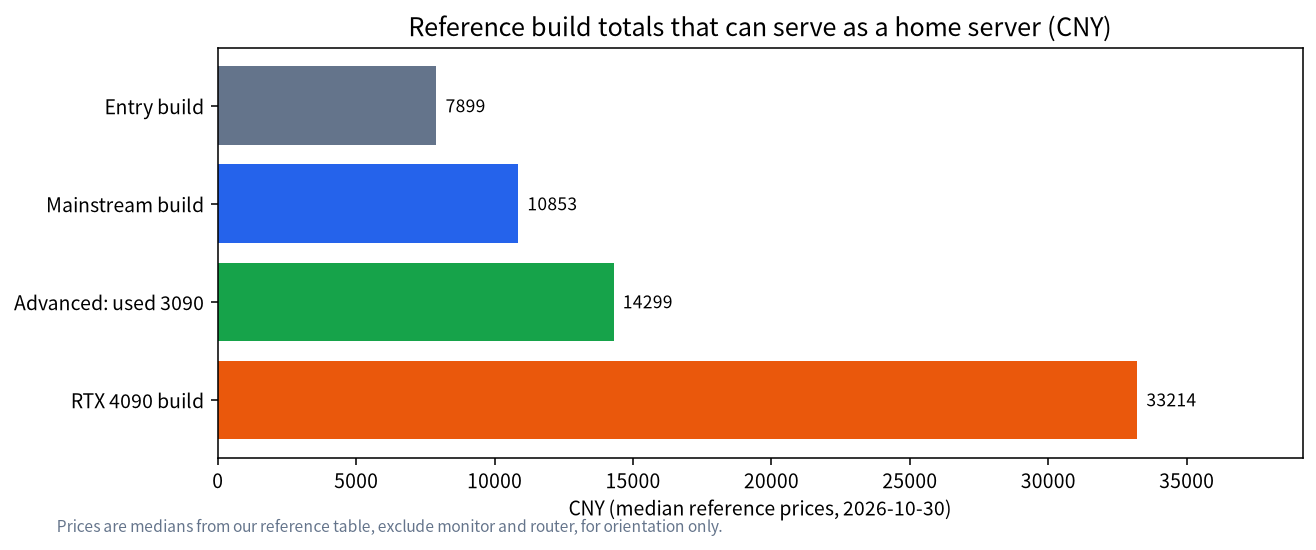
Budget from our reference builds: about CNY 7,900 for an entry box, CNY 10,900 for mainstream and CNY 14,300 for a used-3090 server.
What a Home AI Server Needs
The model has to sit in fast memory, so the core of the server is the same as any local LLM machine: a graphics card with enough VRAM, a reasonable CPU, 32GB or more of system memory and a fast SSD. If you need help sizing the card, our VRAM guide and the PC configuration list apply unchanged. What changes for a server is what you add around the machine: it must stay on, restart cleanly after a power cut, run headless and be reachable by several people.
The first design decision is whether to run the model on the NAS. In most cases you should not. A typical NAS has a weak CPU, little memory bandwidth and no GPU, so a model on it would generate a few tokens per second at best. A better split is to let the NAS do what it is good at, storing documents, photos, backups and model files, and let a separate GPU machine do the inference, mounting the NAS over the network for documents and for backups. If your NAS supports Docker and has a PCIe slot with enough power, you could install a GPU in it, but check the slot, the power supply and the cooling before you buy anything.
Hardware: Three Reasonable Tiers
| Tier | Typical parts | Reference total | Who it serves |
|---|---|---|---|
| Entry | 12GB-class GPU, 16GB to 32GB RAM | about CNY 7,900 | 1 to 2 users, 7B to 14B models |
| Mainstream | 16GB-class GPU, 32GB RAM, 1TB SSD | about CNY 10,900 | A family, 14B models with moderate context |
| Advanced | Used 24GB GPU, 850W-class PSU | about CNY 14,300 | A small team, 27B to 32B models |
| High end | 24GB RTX 4090 class | about CNY 33,200 | Heavier or faster use |
Totals come from our reference build table (medians of listings on 2026-10-30) and exclude a monitor, router and UPS. For a quiet always-on box, also read about large-memory mini PCs and the Mac mini as a server, which draw far less power at idle.
Power matters more for a server than for a desktop because it runs all day. NVIDIA lists the GeForce RTX 4090 at 19W idle and 450W total graphics power, and recommends an 850W system supply. A machine that idles most of the day costs mostly its idle power, so measure the whole box at the wall with a plug-in meter and multiply by your local tariff before you decide. We do not give an electricity figure because tariffs vary.
The Software Stack in Docker
Docker keeps the services tidy and easy to update. A common layout uses two containers: Ollama for the model and Open WebUI for accounts and the chat page. Install the NVIDIA driver on the host and the NVIDIA Container Toolkit so containers can see the GPU, then use a compose file that gives the Ollama container GPU access, a persistent volume for models, and no published port. Open WebUI then talks to Ollama over the internal Docker network and publishes its own port for the browser. The pattern is shown in the Open WebUI documentation, and the same idea works on Linux or on Windows with Docker Desktop and WSL.
Three settings deserve attention. First, OLLAMA_KEEP_ALIVE controls how long a model stays loaded after the last request; longer means fewer cold starts but VRAM stays occupied. Second, OLLAMA_NUM_PARALLEL sets parallel requests per model, and the Ollama FAQ notes that parallel processing multiplies the context, so a 4K context with four parallel requests needs the memory of 16K. Third, OLLAMA_CONTEXT_LENGTH should be chosen for the VRAM you have; see our context guide.
Using the NAS Well
The NAS is the right home for three things. Documents for your local knowledge base can live on a share that the server mounts read-only, so the retrieval service indexes them without being able to change them. Backups of the Open WebUI database and your compose files should be copied to the NAS on a schedule, because the chat history is the one thing you cannot re-download. And big model files can be stored there if the server’s SSD is small, though loading a model over a gigabit link takes a long time, so keep the models you use daily on the server’s own NVMe drive.
Remote Access Without Opening the Model
You will want to use the server from outside the house, and this is where most mistakes happen. Do not forward the Ollama port on your router. The API has no accounts, and anyone who finds it can use your GPU and read what the model sees. Safer options, in order of simplicity, are a VPN into your home network (a WireGuard-based tool is common), a private mesh network that gives each device a private address, or a reverse proxy with HTTPS in front of Open WebUI only, with strong passwords and sign-ups restricted to invited users. Keep the update habit too: a service reachable from the internet needs security patches applied quickly.
Security Checklist
| Area | What to do | Why |
|---|---|---|
| Model API | Keep Ollama on the server only; do not publish its port | No built-in authentication |
| Web interface | Require accounts, disable open sign-up | Chats and documents are stored per user |
| Remote access | VPN or private mesh first; HTTPS if public | Avoid exposing the GPU box |
| Updates | Update host, containers and WebUI regularly | Fix known vulnerabilities |
| Backups | Back up WebUI data and compose files to the NAS | Chat history cannot be re-downloaded |
| Power and heat | UPS if power is unreliable; check fan curves | A headless box runs all day |
For a fuller treatment of what stays private, read our local LLM privacy guide.
Running It Day to Day
Treat the box like any small server. Give it a fixed address on your router, set the BIOS to restart after a power failure, and enable automatic security updates for the host. Set a limit on the number of simultaneous users that matches your VRAM. If four people send long prompts at once, the requests queue, and the Ollama FAQ says the queue length is controlled with OLLAMA_MAX_QUEUE. Watch temperatures during the first week, because a case that is fine for gaming can still be loud or hot under a steady inference load.
Sizing the Server for a Household
Start from the people, not the hardware. A single adult asking a few questions an hour needs a single model loaded and never sees a queue. A family of four with children doing homework, a partner drafting emails and you coding can produce overlapping requests, and each overlapping request needs its own slice of context memory. A simple rule is to plan for the number of people who might ask something in the same minute, not the number of accounts. For most homes that is two. Pick a model that leaves headroom: if a 14B model at 4-bit takes about 9GB of a 16GB card, the remaining 7GB is what pays for context and parallel requests. Our model-size reference shows the arithmetic.
It also helps to choose different models for different jobs rather than one large model for everything. A small, fast model can answer everyday questions and summarize messages, while a larger model is kept for harder tasks and loaded only when someone picks it. Ollama unloads idle models after the keep-alive time, so two or three models can share one card if they are not used at the same moment. Tell the household which model is for what, and put the default in Open WebUI so that most people never have to choose.
A Simple Maintenance Routine
A server that nobody maintains slowly becomes a risk. Once a month, update the host system, pull new container images and read the release notes before restarting, because defaults sometimes change. Check disk space, since model files and chat history grow. Test a restore of your backup at least once; a backup you have never restored is only a hope. Review the user list in Open WebUI and remove accounts that are no longer needed. Finally, write down what you did in a short note beside the compose file, with the date, so that you or a family member can repair the server later without remembering everything.
Common Mistakes
- Running the model on the NAS CPU. It will be too slow to use; put the model on a GPU machine.
- Publishing port 11434 to the internet. Anyone can use your model; use a VPN.
- Ignoring idle power. An always-on box costs money at idle, so choose parts and settings with that in mind.
- No backups of chat data. Copy the WebUI volume to the NAS.
- Too many parallel users for the VRAM. Parallel requests multiply context memory.
FAQ: Home AI Server
Can I run LLMs on my NAS?
You can, but most NAS CPUs and memory systems are too slow for more than tiny models. A separate GPU machine for inference with the NAS as storage works much better.
Do I need Docker?
No, but it makes updates and rollbacks easier, and the Open WebUI and Ollama projects document it well.
How do I reach my server from outside?
Use a VPN or private mesh network into your home, or an HTTPS reverse proxy in front of the web interface only. Do not expose the Ollama port directly.
How many people can use one server?
It depends on VRAM and model size. Parallel requests multiply the context memory, so start with two or three users and test with realistic prompts.
Is it cheaper than cloud AI?
For heavy shared use, often yes after the hardware pays back, but light users may spend less on a cloud service. See our local versus cloud guide.
Does a home AI server keep my data private?
Prompts stay on your network, but you must still secure the web interface, accounts, backups and remote access.
Talk With Us
Planning a family or team server and want a second opinion on the parts? Join the community or email admin@microaione.com.
References: Ollama FAQ, Open WebUI documentation, NVIDIA GeForce RTX 4090 specifications, Ollama on GitHub.