AnythingLLM Tutorial: Chat With Your Documents Using Ollama on Your Own Computer
If you want to ask questions about your own PDFs, notes and web pages without sending them to a cloud service, AnythingLLM is one of the easiest ways to start. It is an application that wraps a model, an embedding model and a vector database into one interface, so you do not have to wire the parts together yourself. This AnythingLLM tutorial covers installing it, connecting it to Ollama, choosing an embedder, creating workspaces, understanding the chat modes and fixing the most common complaint, the answer that says nothing relevant was found. It builds on our local RAG knowledge base guide, which explains the ideas behind the pipeline.
Verification note: Facts about AnythingLLM (desktop and Docker installs, port 3001, built-in embedder and LanceDB defaults, chat modes, the 16GB RAM guideline, storage folders, Ollama address) come from the AnythingLLM documentation, which showed version 1.19.0 on 2026-10-30. We did not install or benchmark it for this article, so we give no speed or quality numbers. Screenshots are marked for the team to add.
Key takeaways (Updated 2026-10-30)
- AnythingLLM runs as a desktop app or as a Docker container; the desktop version keeps its data in a local storage folder, including a LanceDB vector store.
Connect it to Ollama at http://127.0.0.1:11434, or use the built-in model; pick the embedder first and avoid changing it later, because documents must be re-embedded.
If Query mode says nothing relevant was found, loosen the similarity threshold in the workspace settings and ask using the document’s own words.
What AnythingLLM Is
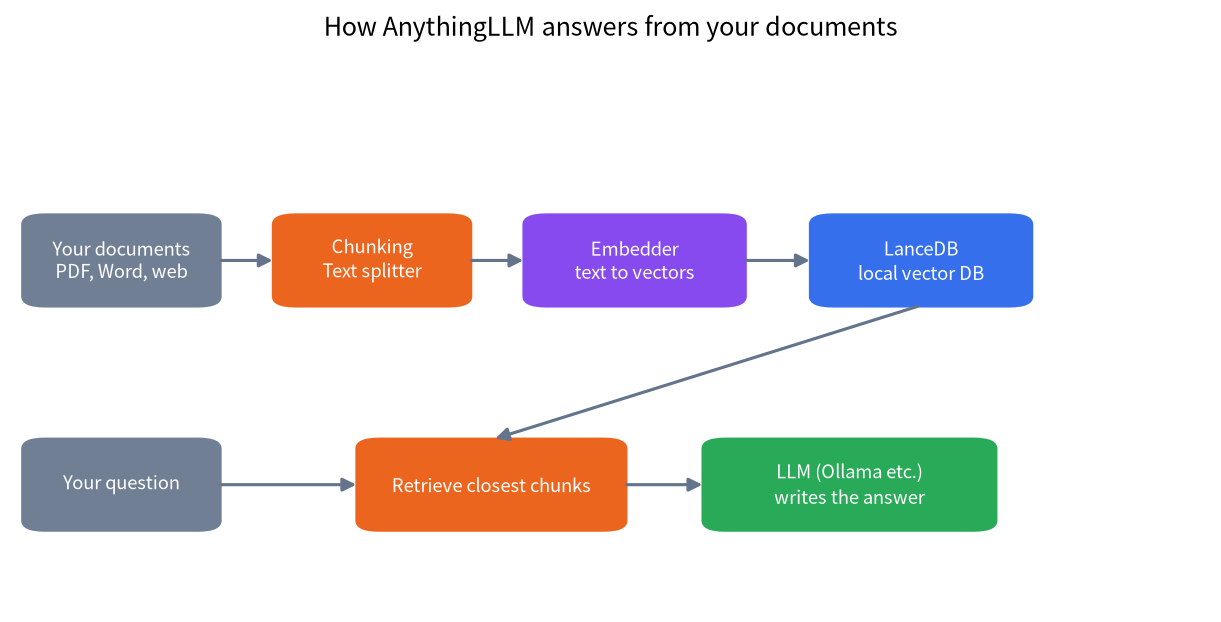
AnythingLLM is an open-source application for chatting with documents and for running simple AI agents. You give it files, it splits them into chunks, turns each chunk into a vector with an embedding model, stores the vectors in a database and, when you ask a question, retrieves the closest chunks and hands them to a language model to write the answer. That pipeline is called retrieval-augmented generation, or RAG. AnythingLLM’s documentation lists many choices for each part: local language models such as Ollama, LM Studio and its own built-in option, cloud providers if you decide to use them, several embedding providers, and local or hosted vector databases with LanceDB as the local default.
The important point for a local setup is that every part can stay on your machine. With Ollama as the model, the default built-in embedder and LanceDB for storage, your documents are not sent anywhere. Our privacy guide explains what to check if you mix in cloud services.
Desktop or Docker
The desktop app is the simplest way to start on Windows, macOS or Linux. According to the documentation, it is lightweight, and the recommended basic configuration is 16GB of RAM and an eight-core CPU; on Windows a GPU with 8GB to 12GB or more of VRAM helps local models, and on a Mac any M-series chip can run local models. AnythingLLM itself is small, and the model you choose is the real requirement, so use our VRAM guide to match the model to your hardware.
The Docker version suits a server. The quickstart starts a container, and you open http://localhost:3001 in a browser. Data persists across container rebuilds when you mount the storage folder. The documentation also mentions an optional built-in LLM mode for the container with GPU support, and a separate image that uses PostgreSQL with the pgvector extension. If you want several people to use it from other machines, our home AI server guide covers the network and security side; do not publish the port to the internet without authentication.
Connecting Ollama
Install and test Ollama first, as in our install guide, and pull the model you want. In AnythingLLM’s settings choose Ollama as the LLM provider. For a default local install, the documentation says to connect to http://127.0.0.1:11434. If AnythingLLM runs in Docker and Ollama runs on the host, 127.0.0.1 inside the container is the container itself, so use the host address that Docker provides; the documentation has a page on connecting to localhost from Docker for this exact issue. Pick a model that fits your VRAM with room for context, since retrieved chunks make prompts longer.
If you prefer a graphical model manager, LM Studio is also a supported provider; see our LM Studio tutorial. For a different browser interface for Ollama, Open WebUI is another option that also supports document upload.
Choose the Embedder Before You Upload
The embedding model turns text into vectors, and it is set system-wide, not per workspace. The default is a built-in embedder that needs no setup; Ollama and LM Studio can also provide embeddings. The documentation warns that once you have uploaded and embedded documents you should avoid changing the provider, because the vectors from different models are not compatible; if you change it, you must delete and re-embed the documents. So decide first. For mixed Chinese and English documents, test a few questions on a small sample before you embed a large library, because embedding models differ in language coverage and we have not benchmarked them here.
Workspaces and Uploading Documents
A workspace is a separate project with its own documents, chat history and settings. Make one workspace per subject, for example a workspace for a product manual and another for personal notes, so that unrelated documents do not compete during retrieval. Upload files through the interface, then move them into the workspace and save and embed them. The documentation distinguishes two ways of using a file: attaching it to a chat for full-text insertion, which is good for a short document you want read in full, and embedding it for retrieval, which suits large libraries where only a few passages matter for each question.
On the desktop app, everything is stored in a folder you can open from the version number in the top right corner. It contains the LanceDB vector store, the parsed documents, a cache of embeddings, any local models, the SQLite database and your logs. Back that folder up, and remember that deleting it deletes your embedded library.
The Three Chat Modes
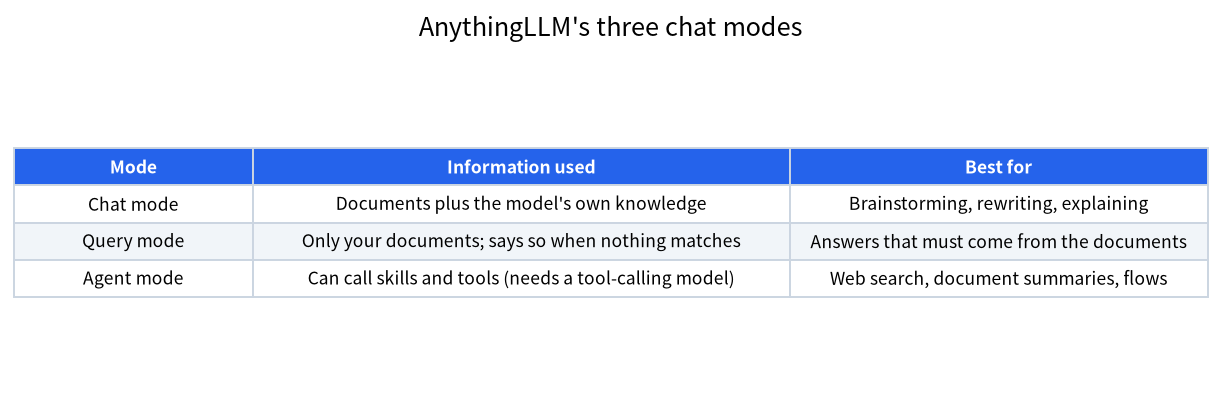
AnythingLLM has Chat mode, Query mode and Agent mode, described in its documentation. Chat mode uses both your documents and the model’s general knowledge, which is flexible but can blend facts from the document with guesses. Query mode only uses information from your documents and says when it cannot find an answer, which is what you want for a manual or a contract. Agent mode lets the model call tools such as web search or document summaries, and it depends on the model supporting tool calling, so a small model may not use the tools reliably.
| Task | Suggested mode | Why |
|---|---|---|
| Find an exact clause in a policy | Query | Limits answers to the document |
| Summarize a long report | Chat or Agent | Needs broad understanding |
| Brainstorm from your notes | Chat | Allows general knowledge |
| Look something up online and combine it with files | Agent | Needs tools |
What Is in the Storage Folder
Knowing the folders helps with backups and clean-ups. The documentation describes them as follows.
| Folder or file | What it holds | Back it up? |
|---|---|---|
| lancedb | The local vector database and its tables | Yes, or rebuild from documents |
| documents | Parsed content of uploaded files | Yes |
| vector-cache | Cached embeddings, with hashed file names | Optional, saves re-embedding time |
| models | Local language and embedder models, usually GGUF | Optional, can be re-downloaded |
| anythingllm.db | The SQLite database with workspaces and chats | Yes |
| plugins | Custom agent skills | Yes if you wrote any |
| logs | Application logs | Keep when debugging |
Because the vector database and the cache are derived from your documents, the most valuable items are the originals you uploaded and the SQLite database that holds your chat history and settings. If the desktop app misbehaves after an update, copy the whole folder before you try anything drastic.
Matching the Model to Your Machine
AnythingLLM does not change how large a model your hardware can run, so size the model the usual way. Retrieval adds extra text to every prompt: if the system fetches four chunks of a few hundred words each, the prompt grows by well over a thousand tokens before your question. A 7B or 8B model at 4-bit works on many 8GB cards, but if you want longer contexts or larger chunks, a 12GB or 16GB card is more comfortable. When the machine running AnythingLLM has no GPU, the documentation suggests hosting the model on another machine with a GPU and connecting over the network, since AnythingLLM can use any LLM that exposes an API. That is a useful pattern for a laptop client that talks to a home server.
Keep the first model modest and judge answer quality on your own documents. A larger model usually follows instructions and quotes sources more reliably, but retrieval problems, such as missing chunks, are not solved by a bigger model. If answers are wrong because the right passage was never retrieved, fix the chunking, the embedder or the question first, then consider a bigger model.
Fixing “No Relevant Information Found”
The documentation says the Query mode message usually means one of three things: the information is there but worded differently, the similarity threshold is too strict, or the document was split in a way that makes it hard to find. The quick fixes are to open the workspace settings, go to the vector database settings and set the document similarity threshold to no restriction, and to ask the question using terms from the document, for example the exact phrase the manual uses. If answers still miss, check the text splitting and chunking settings, since chunks that are too small lose context and chunks that are too large dilute it, and confirm the file was parsed into readable text; scanned PDFs without text need OCR first.
A Sensible First Test
Start with one document you know well, such as a ten-page guide. Embed it, switch to Query mode and ask five questions whose answers you know. Check each answer against the source and note which fail. Then change one setting at a time: the threshold, the chunk settings or the model. Only after a small test works should you upload a large library, because re-embedding hundreds of files wastes time. Also keep the context length in mind; if the model is run through Ollama, our guidance on context length explains why long retrieved passages need more memory.
Common Mistakes
- Changing the embedder after uploading. Vectors from different models do not mix; re-embed everything or keep the original.
- Putting every document in one workspace. Unrelated files compete in retrieval and lower answer quality.
- Using a tiny model for Agent mode. Tool calling needs a model that supports it well.
- Connecting Docker to 127.0.0.1. Inside a container that address is the container, not your host.
- Trusting answers without checking sources. Open the cited passages for anything important.
FAQ: AnythingLLM Tutorial
Is AnythingLLM free?
The application is open source and the desktop app can be used with local models at no licence cost. The documentation also lists paid options such as a Pro plan for the desktop app and a hosted cloud service; you do not need them for a local setup.
Does AnythingLLM need the internet?
Not if you use a local model, the built-in embedder and the local vector database. You need the internet to download the app and models, and for web search features.
Which vector database does it use?
LanceDB is the local default. The documentation also lists Chroma, Milvus and several cloud databases.
Can I use it with Ollama in Docker?
Yes, but use an address that reaches the host or the Ollama container, not 127.0.0.1 inside the AnythingLLM container.
How do I make Query mode answer more often?
Set the document similarity threshold to no restriction, ask with the document’s own wording and check your chunk settings.
Where is my data stored?
For the desktop app it is a storage folder under your user profile, which you can open from the app’s version number.
Talk With Us
Building a document assistant and stuck on retrieval quality? Join the community or email admin@microaione.com.
References: AnythingLLM documentation, system requirements, chat modes, where data is stored.