Local LLM Model Size Chooser: 7B, 14B, 32B or 70B for Your VRAM and Task
The most common question we get is “which model should I run?”, and the answer begins with a size, not a name. Bigger models are usually more capable, but they need more memory, run slower and cost more, so the right choice is the smallest model that does your job well on your hardware. This local LLM model size chooser gives a five-step method: start from the task, pick a size, estimate memory, test with real questions, then settle or step up. It includes the formulas, a table that maps VRAM to size, and the mistakes that make people buy hardware they do not need. For model names after you choose a size, see our best local models guide.
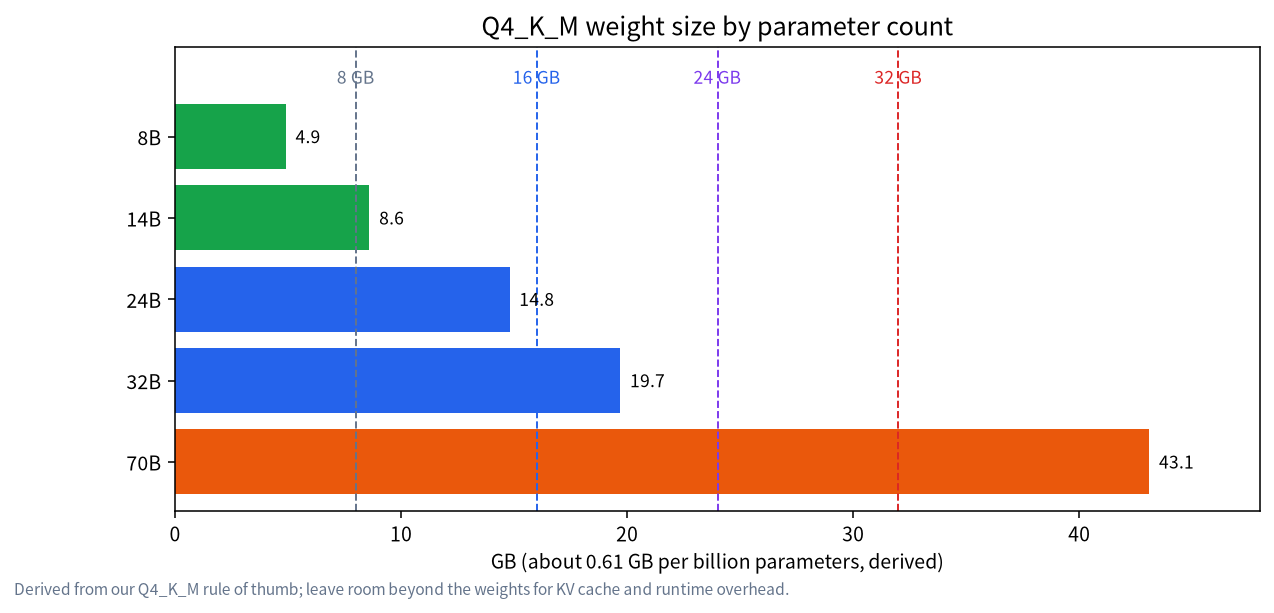
Verification note: Weight sizes use our Q4_K_M rule of thumb of about 0.61GB per billion parameters (8B 4.9GB, 14B about 8.6GB, 24B about 14.8GB, 32B about 19.7GB, 70B 43.1GB), and KV cache sizes come from the architectures covered in our context guide. All memory totals are derived estimates, not measurements, and exclude runtime overhead. The task table lists common starting points, not benchmark results.
Key takeaways (Updated 2026-10-30)
- Memory needed is roughly weights plus KV cache plus overhead: by our derived estimates a 14B Q4_K_M model at 8K context needs about 10GB, a 32B about 22GB and a 70B about 45GB.
Start from the task and try the smallest plausible size first; step up only when three real questions show it is not good enough.
Match size to VRAM with a margin: 8GB suits 7B to 8B, 12GB up to 14B at short context, 16GB a comfortable 14B, 24GB 24B to 32B at short context, and 48GB or more a 70B.
Step 1: Start From the Task, Not From the Hardware
People often begin with “what is the biggest model my card can run?” That finds the limit but not the right choice. A bigger model is slower for every answer, even when a smaller one would have been enough. Begin with what you want to do. Everyday questions, rewriting and simple summaries are well within the reach of 7B to 8B models. Longer writing, document work and tool use often benefit from 8B to 14B. Code assistance and hard reasoning tend to improve with 14B to 32B, and reasoning models also need long context room, as covered in our R1 distill sizes guide.
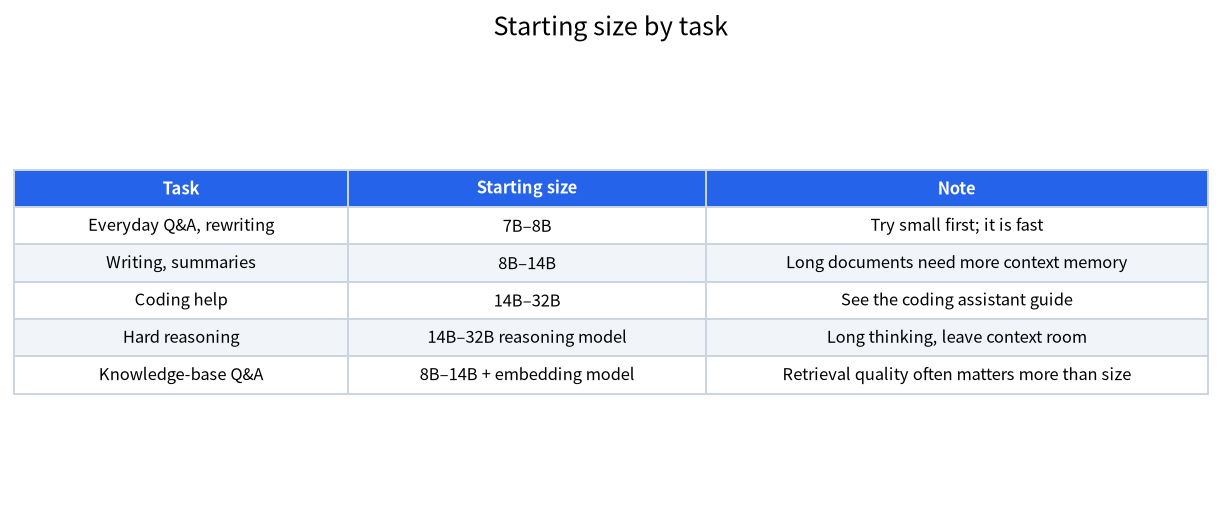
These are starting points from common practice, not benchmark results, and the field moves fast: a newer small model can beat an older large one. That is why step four, testing, matters more than any table.
Step 2: Know How Much Memory Each Size Needs
For most local setups you run a 4-bit quantised file such as Q4_K_M. Our rule of thumb is about 0.61GB per billion parameters, which gives the weight sizes in the figure. Higher precision costs more: Q8_0 is about 8.5 bits per weight, so a 70B model needs about 74GB, and unquantised f16 needs 2 bytes per parameter, so an 8B model alone is about 16GB. Our quantisation guide explains what you give up with each level.
| Parameters | Q4_K_M weights | Q8_0 weights (derived) | f16 weights (derived) |
|---|---|---|---|
| 8B | 4.9GB | about 8.5GB | about 16GB |
| 14B | about 8.6GB | about 15GB | about 28GB |
| 32B | about 19.7GB | about 34GB | about 64GB |
| 70B | 43.1GB | about 74GB | about 140GB |
Step 3: Add the KV Cache and Overhead
The weights are not the whole story. Each token of context adds KV cache, and the runtime needs some working memory. From our context length guide, the f16 cache costs about 128KiB per token for Llama 3.1 8B, 192KiB for Qwen2.5-14B, 256KiB for Qwen2.5-32B and 320KiB for Llama 3.1 70B. At 8K tokens that is about 1GB, 1.5GB, 2GB and 2.5GB respectively. Add a margin of a gigabyte or two for the runtime and your display, and use our VRAM calculator guide when you want exact numbers for a particular model.
A quick formula: needed memory = weights + (KV per token x context) + about 1 to 2GB. A 14B Q4_K_M at 8K context is 8.6 + 1.5 + 1 to 2, or roughly 11 to 12GB, which explains why it fits a 12GB card only with a short context and sits comfortably on 16GB.
| VRAM | Sensible size at Q4_K_M | Context to expect | Note |
|---|---|---|---|
| 8GB | 7B to 8B | Short | See the 8GB guide |
| 12GB | 8B, or 14B with short context | 4K to 8K | 14B is tight |
| 16GB | 14B | About 16K | Comfortable |
| 24GB | 24B, or 32B with short context | About 8K for 32B | 32B is tight |
| 32GB | 32B | 16K and beyond | Comfortable |
| 48GB or more | 70B | Short to medium | Two cards or a workstation card |
If a model does not fit in VRAM, layers can run on the CPU, which works but is much slower; see our offloading guide. Mixture-of-experts models change the picture because only some of the weights are active per token, and our MoE guide explains how to size them.
Step 4: Test With Three Real Questions
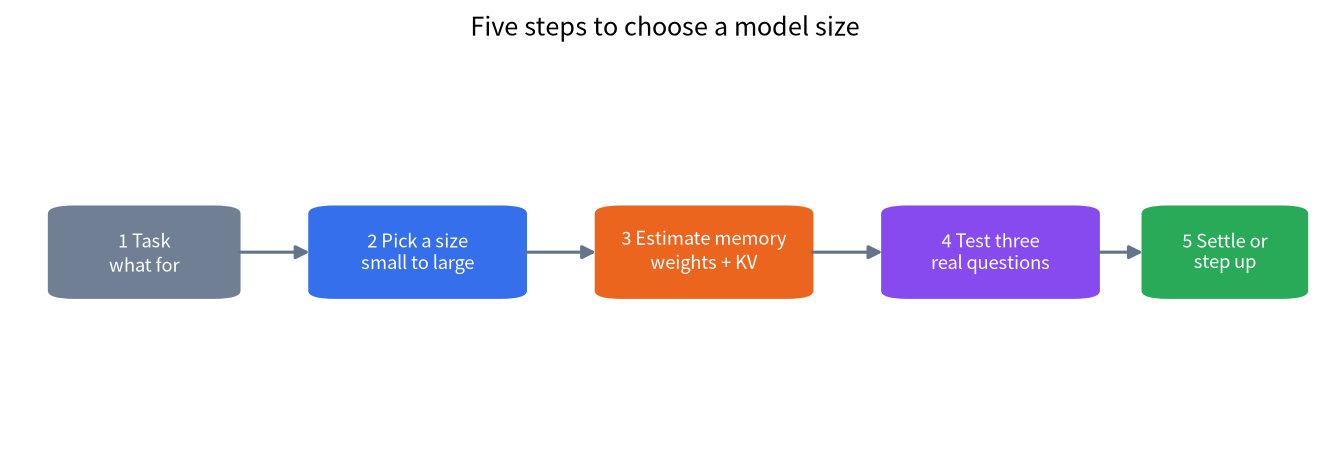
Pick three questions from your actual work: one easy, one medium and one hard. Run them on the smallest plausible size, with the settings you will really use, and judge the answers yourself. Write down whether it was right, how long it took and how much memory it used, which ollama ps shows. Then run the same three on the next size up. If the smaller model answers all three well, you are done. If it fails the hard one, decide whether that kind of task is frequent enough to justify the larger model. This takes thirty minutes and prevents most oversized purchases.
For coding, test with a task from your own codebase, and see our coding assistant guide for the other pieces. For document questions, use a real document, since retrieval quality often matters as much as model size.
Step 5: Settle, or Step Up on Purpose
When a size passes your three questions, settle on it and stop shopping. When it fails, step up one size, not two, and repeat the test. The cost of each step is not linear: going from 14B to 32B roughly doubles the memory and slows each token by a similar factor, because generation speed is limited by how fast the weights can be read. By our derived ceiling, a 9GB model on a card with 448 GB/s of bandwidth is limited to about 50 tokens per second and a 20GB model on 936 GB/s to about 47, but real speeds are lower and we have not measured them.
Also consider the other levers before buying hardware: a better prompt, a retrieval step, a different model family at the same size, or a reasoning model at a modest size. Our VRAM guide covers which hardware tiers make sense when you do need more.
Worked Examples
Imagine a writer who wants help drafting and summarising on a 12GB card. Starting with the 8B at about 4.9GB leaves lots of room for a long context, so a long draft fits easily. The 14B at 8.6GB plus 1.5GB of cache at 8K is around 10GB, which still fits but leaves little margin. The sensible path is to test the 8B first and move to 14B only if the summaries miss important points.
Imagine a developer with a 24GB card who wants a coding assistant. A 32B model at 19.7GB plus 2GB of cache at 8K is about 22GB, which fits but is tight, whereas a 24B at about 14.8GB leaves room for a longer context. The developer should try both on a real task and pick the one that is good enough, since a smaller model with a long context may help more than a larger one with a short one. These are illustrations of the method, not recommendations of particular models.
Unified-Memory Machines Change the Limit, Not the Rule
On a Mac or a machine with unified memory, the question is not VRAM but how much of the shared memory the GPU may use, and the speed limit is the memory bandwidth. Plenty of capacity does not mean fast answers. As derived ceilings, which are not measurements, the rule is bandwidth divided by the bytes read per token. A 70B Q4_K_M (43.1GB) on a machine with 273 GB/s of bandwidth, such as the DGX Spark, has a ceiling of about 6 tokens per second, and on a 307 GB/s Apple M5 Pro about 7. A 32B (19.7GB) on 273 GB/s gives about 14, and a 14B (8.6GB) on a 153 GB/s Mac mini about 18. Real speeds will be lower, but the pattern is useful: such machines let you load a large model, and the larger the model, the more patiently you will wait. For them, test a mid-size model first, as our Mac guide suggests.
Context Length Often Decides More Than Size
Two people with the same card can need different sizes because they use different amounts of context. Someone who asks short questions can run a larger model at 4K than someone who pastes long documents at 32K. Each 8K of context costs about 1GB for an 8B and 2.5GB for a 70B, so a long context on a large model eats memory quickly. If your work involves long documents, consider a smaller model with a larger context, or retrieval that sends only the relevant parts, as covered in our RAG guide. Ollama’s default context depends on available memory: 4K below 24GiB of VRAM, 32K between 24 and 48GiB and 256K at 48GiB or more, so check what your tool is actually using rather than assuming.
Re-Checking When New Models Arrive
Model releases change the picture every few months. When a new family appears, you do not need to relearn anything: look at the file size at your usual quantisation, add the KV cache for your context, compare with your VRAM, and rerun your three questions. Keep your three questions in a note, with the results for the model you use now. That small habit turns every release into a ten-minute check instead of a research project, and it keeps you from upgrading hardware for a gain that a better model of the same size could have delivered for free.
Common Mistakes
- Starting from the biggest model that fits. Start from the smallest that does the job.
- Forgetting the KV cache. Long contexts add gigabytes.
- Comparing sizes across different generations. A newer small model can beat an older large one.
- Using a harsher quantisation to squeeze in a bigger model. Quality drops, especially for reasoning.
- Buying hardware before testing. Test sizes on what you already have, or on a cloud trial.
- Ignoring speed. A model that fits but answers slowly will not be used.
FAQ: Local LLM Model Size Chooser
What is the best model size for 8GB of VRAM?
Usually a 7B to 8B model at Q4_K_M, which is about 4.7GB to 5.2GB of weights, with a short context.
Can I run a 32B model on a 24GB card?
Yes, with a short context. By our estimate a 32B Q4_K_M at 8K context needs about 22GB, so it is tight.
Is a bigger model always better?
Not always. A newer or better-trained smaller model can beat an older larger one, and bigger models are slower. Test on your own tasks.
How do I know if a model is too big for my GPU?
Run ollama ps. If the Processor column shows a CPU and GPU split, part of the model spilled to system memory.
Do reasoning models need a bigger size?
They need more context memory because they write long thinking text, so budget extra KV cache at the same size.
Should I use Q8 instead of Q4 if I have the memory?
It can improve quality slightly at roughly double the memory, so only use it if the larger memory does not force a smaller model.
Talk With Us
Tell us your card and your task in the community and we will help you pick a size, or email admin@microaione.com.
References: Qwen2.5-14B-Instruct model card, Ollama gpt-oss library page, NVIDIA GeForce RTX 3090 family.