
ComfyUI Hardware Requirements: How Much VRAM and RAM You Need for Image Generation
People who run local language models often add image generation next, and ComfyUI is the most flexible way to do it. Its node graph is powerful, but the first practical question is always the same: what hardware do I need? The ComfyUI hardware requirements depend almost entirely on which image model you want to run, and the model files tell you most of what you need to know. This guide lists the model sizes, explains how VRAM and system RAM share the work, compares GPU options with reference prices, and shows how to decide without guessing. If you have already chosen a card for language models, our VRAM guide applies here too, with a few differences.
Verification note: ComfyUI statements (supported operating systems and GPUs, Python and PyTorch versions, smart VRAM management, asynchronous weight streaming, the Flux example setup) come from the ComfyUI documentation and README, checked on 2026-10-30. File sizes come from Hugging Face model pages on the same date. The Flux fp8 size is our derivation from 12 billion parameters at one byte each. GPU prices are median reference prices from our own table, not quotes. We did not run image benchmarks for this article, so we give no images-per-minute numbers.
Key takeaways (Updated 2026-10-30)
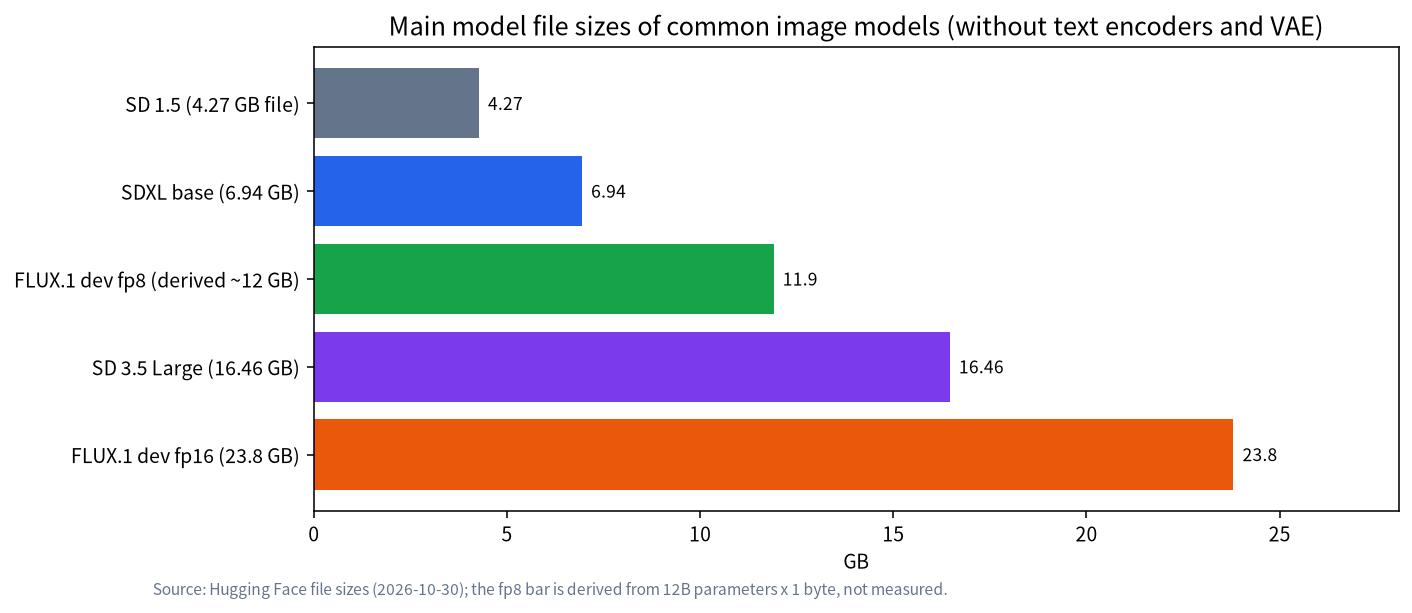
- Compare the main model file with your VRAM first: SD 1.5 is about 4GB, SDXL about 7GB, SD 3.5 Large about 16GB and the full FLUX.1 dev about 24GB, before text encoders and working memory.
ComfyUI can offload and stream weights to run big models on small cards, and its README mentions as low as 4GB VRAM plus 8GB RAM, but you trade speed for memory.
For comfortable work with current large models, 16GB is a practical floor and 24GB is relaxed; NVIDIA remains the best-supported path, and AMD, Intel and Apple Silicon are also supported.
What ComfyUI Needs From the Machine
ComfyUI runs on Windows, Linux and macOS. The documentation lists NVIDIA GPUs with current PyTorch and CUDA builds, AMD GPUs through ROCm, Intel Arc through PyTorch’s XPU support, Apple Silicon through Metal, and a slower CPU-only mode. It recommends recent Python versions, and the Windows portable build comes with its own Python, so you rarely need to manage that yourself. For most people on Windows with an NVIDIA or AMD card, the desktop app is the easiest start.
Unlike language models, where memory bandwidth decides speed, image diffusion models are compute-heavy, so GPU compute and VRAM both matter. The model has to be in memory while it works, so VRAM sets what runs well, and the GPU’s compute determines how long each image takes. Our own tests are not available here, so use the model file size as your guide for memory and treat vendor and community numbers for speed as indicative only.
Model Sizes: The First Number to Check
The chart above compares main files from Hugging Face. Stable Diffusion 1.5 is a 4.27GB file, SDXL base is 6.94GB, SD 3.5 Large is 16.46GB, and FLUX.1 dev is 23.8GB. ComfyUI’s documentation describes Flux as a 12-billion-parameter model with an original file of about 23GB, and it offers an fp8 quantized version that needs less memory at a small quality cost; at one byte per parameter, that is about 12GB, which is our derived estimate rather than a measured number.
These sizes are only the main diffusion model. A Flux workflow also loads text encoders and a VAE. The ComfyUI Flux tutorial shows a CLIP-L encoder, a T5-XXL encoder in fp16 or fp8, and an autoencoder, and it recommends the fp16 T5 encoder when you have more than 32GB of VRAM and the fp8 one when memory is tight. Working memory for the image itself also grows with resolution. Add a few gigabytes to every number in the chart.
| Model | Main file | Practical memory guide |
|---|---|---|
| SD 1.5 | 4.27GB | 6GB to 8GB cards are fine |
| SDXL base | 6.94GB | 8GB works, 12GB is easier |
| FLUX.1 dev fp8 | about 12GB, derived | 12GB is tight, 16GB is comfortable |
| SD 3.5 Large | 16.46GB | 16GB with offloading, 24GB comfortable |
| FLUX.1 dev fp16 | 23.8GB | 24GB card or offloading to system RAM |
The last column is our planning advice, not a vendor specification: it assumes you also want room for encoders, the VAE and a normal image size, and it assumes you accept some offloading on the tighter fits.
VRAM, System RAM and Offloading
ComfyUI’s README describes smart VRAM and RAM management and model offloading, and it claims that even the biggest open models can run on as little as 4GB of VRAM with 8GB of RAM using asynchronous weight streaming. That is a vendor statement we have not tested, and it matches how offloading works: parts of the model sit in system RAM and move to the GPU when needed. The cost is time, because moving data over the PCIe bus is slower than reading it from VRAM. So the practical guidance is that small VRAM can run big models slowly, while enough VRAM runs them at the speed the GPU’s compute allows.
System RAM therefore matters more than it does for a pure GPU workload. Plan for 32GB if you use large models or keep several loaded in a workflow, and use a fast SSD, because checkpoint files are large and loaded often. Our guide on RAM versus VRAM and CPU offloading explains the same trade-off for language models.
GPU Choices and Reference Prices
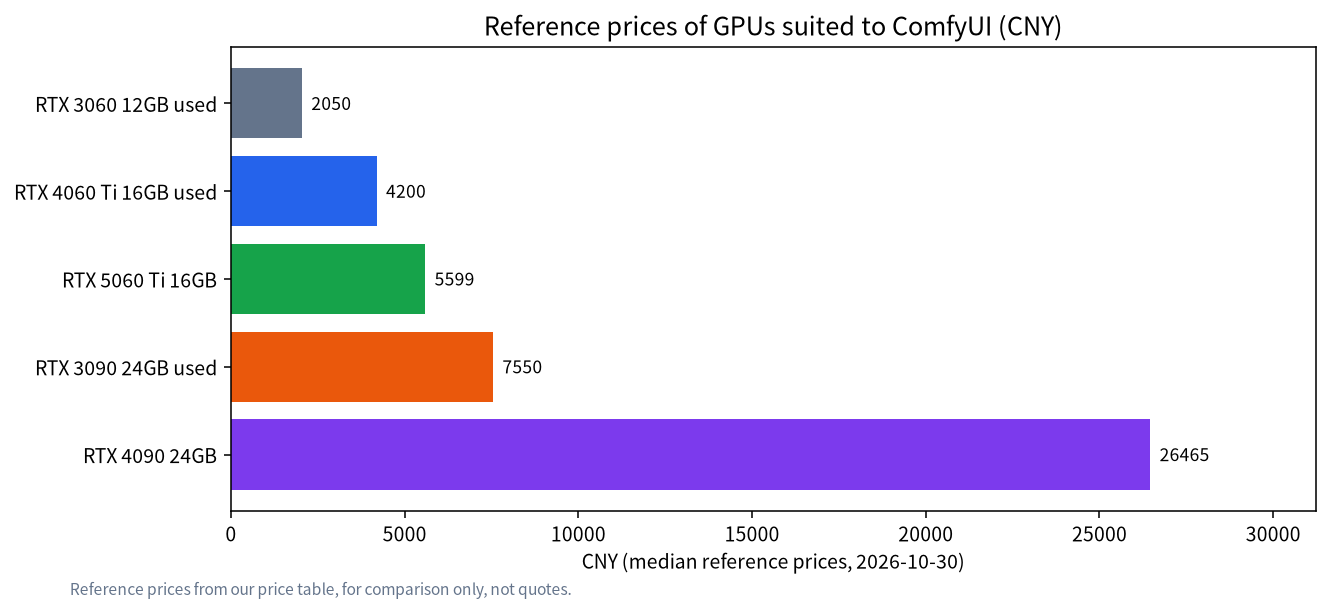
Prices below are the median reference prices from our table on 2026-10-30. They are for orientation, and used cards carry risk, so see our used GPU buying guide before you buy.
| GPU | VRAM | Reference price (CNY) | Suited to |
|---|---|---|---|
| RTX 3060 12GB, used | 12GB | 2050 | SD 1.5, SDXL, fp8 Flux with care |
| RTX 4060 Ti 16GB, used | 16GB | 4200 | SDXL, SD 3.5, fp8 Flux |
| RTX 5060 Ti 16GB | 16GB | 5599 | Same class, new warranty |
| RTX 3090 24GB, used | 24GB | 7550 | Full-size models, long workflows |
| RTX 4090 24GB | 24GB | 26465 | Same memory, much faster compute |
For language models the RTX 3090 and 4090 have similar memory, so the cheaper card is usually the better deal. For image generation, compute matters more, so the 4090 is noticeably faster per image than the 3090, and whether that is worth the difference in price depends on how many images you make. If you also use the machine for language models, our 24GB build guide and 12GB and 16GB guide help you choose a card that serves both jobs.
NVIDIA, AMD, Intel and Apple Silicon
NVIDIA is the safest path because most tutorials, custom nodes and optimizations target CUDA. The ComfyUI documentation does list AMD on Linux through ROCm and on Windows through AMD’s PyTorch packages for RDNA 2 to RDNA 4, Intel Arc, and Apple Silicon with Metal, and the desktop app supports Windows with NVIDIA or AMD and macOS with Apple Silicon. In practice, the further you move from NVIDIA, the more often a custom node or a new model needs extra steps, so read the issue pages of the nodes you rely on. Our AMD guide discusses the same trade-offs. On a Mac, ComfyUI uses PyTorch with the MPS backend rather than Apple’s MLX; unified memory lets large models load, but generation is generally slower than on a recent NVIDIA card.
What Pushes Memory Up Beyond the Model
Three habits raise memory use more than people expect. The first is resolution. Doubling the width and height of an image quadruples the number of pixels the model has to handle, so a workflow that is comfortable at 1024 by 1024 can run out of memory at 2048 by 2048. The usual remedy is to generate at a moderate size and upscale afterwards with a separate step, which uses memory in sequence rather than all at once. The second is batch size: generating four images in one pass needs more working memory than four passes of one image, and on a tight card the sequential way is safer. The third is stacking extras. ControlNet models, LoRA files, upscalers and video or inpainting models each add their own weights, and a complex graph can hold several of them at once.
ComfyUI is designed to re-run only the parts of a graph that changed and to unload models it does not need, which helps, but the peak still matters. When you hit an out-of-memory error, the order of fixes that costs the least quality is to reduce the image size or batch, then use an fp8 or otherwise quantized version of the model, then enable more aggressive offloading, and only then change the model. Our out-of-memory troubleshooting article walks through the same logic for language models.
Disk, Power and Cooling
Image workflows collect files quickly. A single Flux setup needs the main model, two text encoders and a VAE; add a few SDXL checkpoints and LoRAs and a model folder easily passes a few hundred gigabytes. A 1TB SSD is a sensible minimum, and a second drive for archives keeps the fast one free. Power and cooling deserve attention because image generation keeps the GPU close to its power limit for the whole run, unlike chat, which loads it in short bursts. Check that your power supply has headroom above the card’s rated board power, that the case has airflow, and that your room does not become uncomfortable during long batch jobs. If the machine is shared with a language model server, see our home server guide for the setup that keeps both stable.
How to Decide Without Guessing
- Name the model you want. If it is SDXL class, 8GB to 12GB is enough; if it is Flux or SD 3.5 class, plan for 16GB or more.
- Add four to eight gigabytes for encoders, the VAE and image size.
- Decide whether you accept offloading. If not, buy more VRAM; if yes, add system RAM and a fast SSD.
- Check the cooling and power supply, since image generation keeps the GPU at full load for long runs.
- Test on a cloud or borrowed machine before buying, if you can.
Common Mistakes
- Comparing only the main file. Encoders, the VAE and the image size add several gigabytes.
- Buying 8GB for Flux. It can run with heavy offloading, but it will be slow.
- Ignoring system RAM. Offloading moves weights into it, and 16GB can be tight.
- Assuming LLM and image choices are identical. Image generation is more compute-bound, so a faster GPU matters more.
- Using an old PyTorch build. ComfyUI recommends current PyTorch and CUDA builds for new cards.
FAQ: ComfyUI Hardware Requirements
How much VRAM does ComfyUI need?
It depends on the model. SD 1.5 and SDXL run on 6GB to 12GB cards; Flux and SD 3.5 Large are more comfortable at 16GB to 24GB.
Can ComfyUI run on 8GB of VRAM?
Yes for SDXL class models, and with offloading for larger ones, but expect slower generation on the larger ones.
Is 16GB of RAM enough?
It can work for small models, but 32GB is more comfortable for large models and offloading.
Does ComfyUI work on AMD or Mac?
Yes. The documentation lists AMD, Intel Arc and Apple Silicon support, though NVIDIA remains the best-supported path.
Is the RTX 3090 or 4090 better for ComfyUI?
Both have 24GB. The 4090 is faster, the used 3090 is much cheaper; choose by how many images you generate.
Can one GPU do both LLMs and image generation?
Yes, but not usually at the same time on a small card, because both need VRAM. Close one before starting the other.
Talk With Us
Choosing a GPU for ComfyUI and language models together? Join the community or email admin@microaione.com.
References: ComfyUI system requirements, ComfyUI Flux tutorial, ComfyUI README, SDXL base model page.