
How to Run an LLM Locally: Hardware You Need and How to Pick a Model (2026)
Fact-check note: Commands, versions and model file sizes were re-checked on 30 October 2026 against the official Ollama and LM Studio documentation and the model pages cited below (latest Ollama release at the time: v0.40.13, published 2026-10-28). We did not run our own speed benchmarks, so there are no self-measured tokens-per-second figures here; third-party numbers are labelled with their source. Models change fast, so treat the official pages as the final word.
To run an LLM locally means downloading the model file to your own computer or server and doing the inference there. Your prompts never leave the machine, it keeps working offline, and you decide which model and settings to use. The trade-offs are just as clear: you supply the hardware, the size of model you can run is capped by your VRAM and memory, and open models still trail the very best closed cloud models on the hardest tasks.
This guide answers three questions: what hardware you need, which model size to pick, and how to get a first model running. If you are still fuzzy on the basic idea, start with What Is a Local LLM? and come back.
Why Running an LLM Locally Is Mostly a VRAM Problem
What actually sits in memory
While a model runs, your GPU memory (or a Mac’s unified memory) holds three things:
- Model weights: the downloaded file itself. Quantization shrinks it considerably.
- KV cache: memory that stores the conversation so far. It grows with context length.
- Runtime overhead: compute buffers in the inference engine plus space reserved by the driver.
So the file size is a floor, not a budget: real usage is weights + KV cache + overhead. For the exact arithmetic see How Much VRAM Does an LLM Need?
A rule of thumb that holds up
PromptQuorum’s 2026 hardware guide gives a rough rule for 4-bit quantization: VRAM in GB is about the parameter count in billions times 0.6. That lines up with the Ollama file sizes below (an 8B model is roughly 5GB, 14B about 9GB, 32B about 20GB). It is an estimate; the real figure depends on runtime, quantization and context. The same guide suggests adding headroom for the KV cache: about 25% more at 8K context, and up to nearly double at 32K.
Advertised and usable VRAM also differ. CanRun’s example: an 8GB RTX 4060 has around 7.4GB actually available, because the driver and desktop take a slice.
Quantization in one paragraph
Quantization stores weights at lower precision, cutting file size and VRAM use at some cost in accuracy. Most tutorials default to Q4_K_M, a 4-bit format that is a common compromise between size and quality. The full trade-off is covered in LLM Quantization Explained.
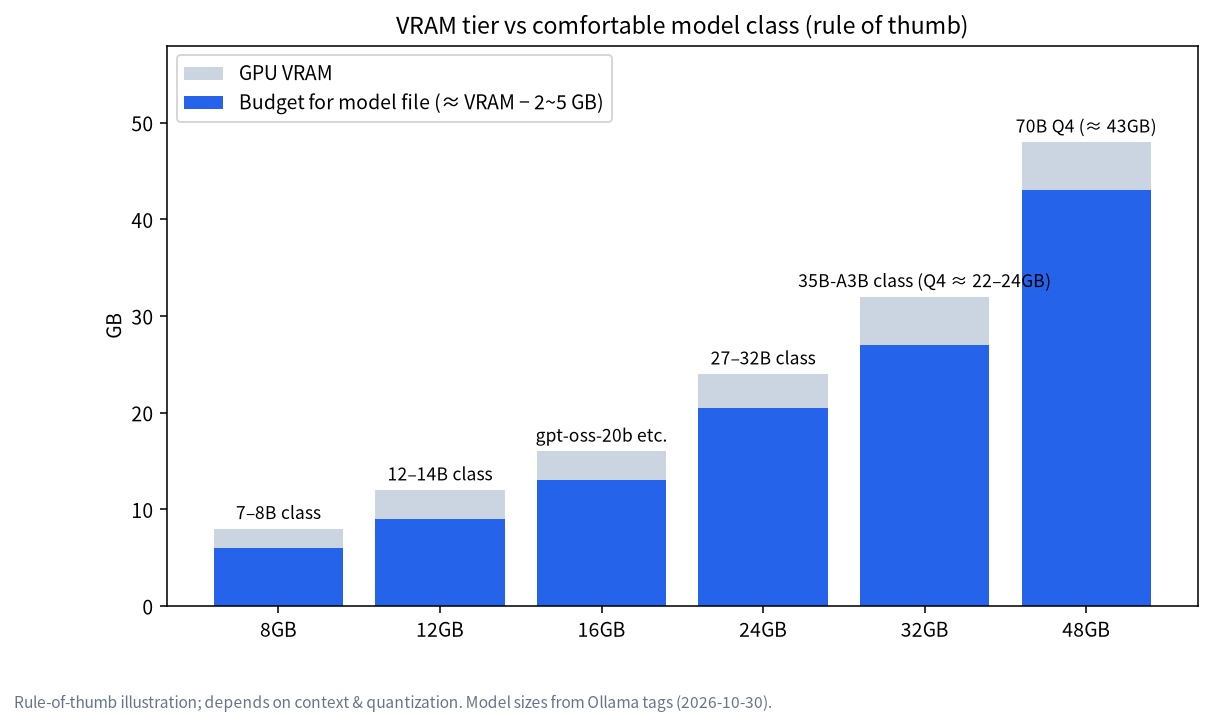
Local LLM Hardware Requirements by VRAM Tier
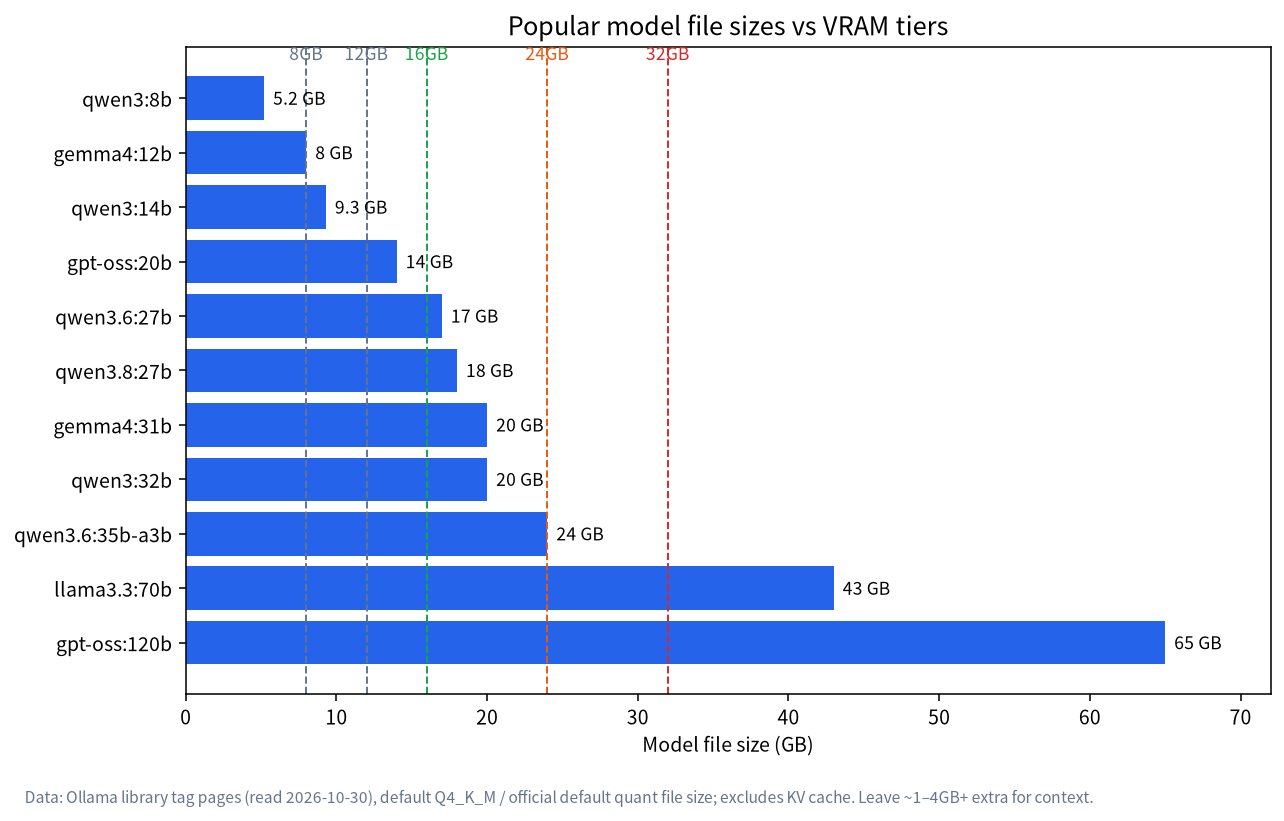
The file sizes below come from the tag pages in the Ollama model library, read on 2026-10-30. They are download sizes at Q4_K_M or the official default quantization. The tier mapping is our rule-of-thumb synthesis of third-party guides, not a guarantee.
| Usable VRAM / unified memory | Typical model class | Ollama tag (file size) | Note |
|---|---|---|---|
| 8GB | 7B–8B | qwen3:8b (5.2GB), deepseek-r1:8b (5.2GB), gemma4:12b (8.0GB, tight) |
Keep context modest |
| 12GB | 12B–14B | gemma4:12b (8.0GB), qwen3:14b (9.3GB), deepseek-r1:14b (9.0GB) |
14B leaves little headroom |
| 16GB | about 20B | gpt-oss:20b (14GB) |
A 20B-class model fits |
| 24GB | 27B–32B | qwen3.6:27b (17GB), qwen3.8:27b (18GB), qwen3:32b (20GB), gemma4:31b (20GB) |
The sweet spot |
| 32GB | 35B-class MoE | qwen3.6:35b-a3b (24GB) |
Room for longer context |
| 48GB+ | 70B | llama3.3:70b (43GB), deepseek-r1:70b (43GB) |
Multi-GPU, big Mac or pro card |
| 64GB+ | 100B+ | gpt-oss:120b (65GB) |
Workstation or unified-memory machine |
Remember that a file size is not the runtime total. CanRun estimates gpt-oss-20b at roughly 12.3GB at 8K context while Ollama lists a 14GB download; the two numbers measure different things. Always leave room for context and the OS. To go from tiers to specific cards, read Best GPU for Local LLMs and What Can an 8GB GPU Run?
Which kind of machine should you use?
| Machine | Strengths | Limits | Best for |
|---|---|---|---|
| NVIDIA GPU | Most mature software support, fast | VRAM is limited; big cards are expensive | Most individual users |
| AMD GPU | Can offer better value | Shorter compatibility list; check ROCm/Vulkan support | People happy to tinker |
| Apple Silicon Mac | Unified memory fits larger models; quiet and efficient | Memory can’t be upgraded later; bandwidth below high-end GPUs | Mac owners, quiet setups |
| PC with no discrete GPU | No extra cost | CPU-only inference is slow | Trying 1B–4B models |
NVIDIA: Ollama’s hardware docs list support for GPUs with compute capability 5.0 or higher and driver 550+; on Windows the stated requirement is driver 551.61 or newer. On Linux, nvidia-smi shows whether the driver is healthy. AMD works through ROCm (v7 on Linux) or Vulkan, so check the official support list before buying. Macs need macOS 14 or later; see Running LLMs on a Mac. No GPU? It runs, but when VRAM is short Ollama spills into system RAM and answers slow down, so start with 1B–4B models.
Match the Hardware to the Job
Chatting and running agents place very different demands on your machine. This starter table is our own synthesis of Ollama’s context guidance and the rules of thumb above; treat it as orientation, not a performance promise.
| What you want to do | Model requirement | Starting hardware | Tip |
|---|---|---|---|
| Everyday Q&A, rewriting | 7B–14B is fine | 8–12GB VRAM or a 16GB Mac | 4k–8k context is usually enough |
| Local knowledge base (RAG) | 14B–32B, longer context | 16–24GB VRAM | Embedding model plus chat model both need room |
| Coding assistant | 27B–32B class is steadier | 24GB VRAM or a Mac with 32GB+ | Ollama recommends at least 64000 tokens for coding tools |
| Agents, web search | Tool calling and long context | 24GB+, budget for KV cache | Count the long context in your memory plan |
| Just curious | 1B–4B small model | Any recent laptop | Don’t expect web-chatbot smarts |
For many people the first “local LLM machine” is simply the gaming PC they already own. Prove the workflow on that card first, then decide whether an upgrade is worth it; it’s an easier path than buying a dedicated box up front.
Practical Checks Before You Download Anything
A few unglamorous details save a lot of frustration:
- Disk space. The model files in the table above range from about 5GB to 65GB each, and you will probably try several. Leave at least 50–100GB free on an SSD; Ollama’s Windows installer alone needs around 4GB.
- Memory that stays busy. By default Ollama keeps a model loaded for five minutes after the last request. If you want the memory back immediately, run
ollama stop <model>. - Power and cooling. A desktop GPU running a model for long sessions draws real power. NVIDIA’s own spec pages list board power and recommended PSU wattage for each card, which is worth reading before you plan an upgrade, for example the page for the GeForce RTX 5090 (575W board power, 1000W recommended PSU).
- Licences. Most of the families named here are published under permissive licences (Qwen3.x, Gemma 4 and gpt-oss are Apache-2.0 on Hugging Face; Llama 3.3 uses Meta’s own community licence). Read the licence before commercial use.
None of this needs a new purchase. It is mostly about starting with realistic expectations, which is the real theme of local deployment: pick the model that fits the machine you have, then upgrade only when you can name the specific limit you hit.
Pick a Tool: Ollama, LM Studio or llama.cpp
| Tool | Who it suits | Key facts |
|---|---|---|
| Ollama | Command-line users, anyone wiring models into other software | Windows, macOS, Linux; local API at http://localhost:11434 |
| LM Studio | People who want a graphical app | Windows: 16GB RAM and at least 4GB of dedicated VRAM recommended; Mac needs Apple Silicon |
| llama.cpp | Tinkerers who want full control | Command line first; the engine under many other tools |
Beginners should start with Ollama; the walkthrough is in Ollama Install Guide. If you prefer a GUI, see LM Studio Tutorial.
Five Steps to Your First Local Model
- Check your hardware. Windows: Task Manager > Performance > GPU > Dedicated GPU memory. Mac: About This Mac. Linux with NVIDIA:
nvidia-smi. - Install Ollama using the install guide for your OS.
- Pick a model that fits your VRAM. On an 8GB machine, try:
ollama run qwen3:8b
The first run downloads the model, then drops you into a chat. Type /bye to exit.
- Confirm it is using the GPU:
ollama ps
100% GPU in the PROCESSOR column means the model sits fully on the GPU; 100% CPU means system RAM only; a mix means partial offload.
- Tune context length if needed. This differs from older tutorials. Per the official Ollama docs, the default now depends on VRAM: 4k below 24GiB, 32k for 24–48GiB, and 256k at 48GiB or more. Tasks such as web search, agents and coding tools should be set to at least 64000 tokens. Change it with the
OLLAMA_CONTEXT_LENGTHenvironment variable or/set parameter num_ctxin a chat. More context means more memory.
If DeepSeek is your first target, jump to Run DeepSeek Locally.
Common Mistakes When You Run an LLM Locally
Mistake 1: bigger is always better. Larger models are usually stronger, but if one doesn’t fit in VRAM part of it lands in system RAM and speed can collapse. A mid-size model that fits entirely on the GPU often feels better than a large one squeezed in.
Mistake 2: watching VRAM and ignoring RAM. VRAM decides whether the model fits on the card, but system RAM matters too. LM Studio recommends at least 16GB RAM, and CanRun’s estimates say gpt-oss-120b needs around 64GB of system memory even with a 12GB+ GPU.
Mistake 3: assuming a local model equals the website. A model with the same name run locally is often a smaller or quantized variant, not the full hosted model.
Mistake 4: opening the context window as wide as possible. Long context inflates the KV cache, and the effect differs by model: at 8K context CanRun lists about 1.1GB of cache for Llama 3.1 8B but only about 0.2GB for gpt-oss-20b. Estimate before you raise it.
FAQ
What is the minimum hardware to run an LLM locally?
Ollama’s quickstart suggests 8GB of available VRAM or unified memory for its roughly 7.2GB example model, and LM Studio recommends 16GB RAM plus at least 4GB of dedicated VRAM on Windows. You can go lower with smaller models, but expect slower answers.
Can I run an LLM locally without a GPU?
Yes, on CPU and system RAM, but responses are much slower. Stick to 1B–4B models.
What can an 8GB GPU run?
Several sources agree on the 7B–8B class. See What Can an 8GB GPU Run? for specific picks.
Is a Mac or a Windows GPU better for local LLMs?
It depends. A Mac’s unified memory fits bigger models; NVIDIA GPUs offer the most mature ecosystem and speed. Compare What Can a 24GB GPU Run? with Running LLMs on a Mac against your budget.
Does a local model really keep my data private?
Ollama’s FAQ states that when you run models locally it does not see your prompts or data; cloud-hosted models are processed on their servers. For fully local use, choose only local models and turn off cloud features as documented.
Next Steps and Community
If you’d like experienced people to sanity-check your setup or model choice, you’re welcome to join our community (join the community). If you would rather have a ready-to-run local LLM machine, our team in Shenzhen sources, assembles and tests builds around your budget and models. There’s no obligation; talking through requirements is where we start.
Further reading: Ollama Troubleshooting: GPU Not Used.
Sources
- Ollama docs: Context length and the hardware support page
- Ollama model library (file sizes, read 2026-10-30)
- Third-party estimates: CanRun VRAM guide (updated 2026-10) and PromptQuorum’s 2026 hardware guide