
MLX vs llama.cpp on Mac: Which Runtime Should You Use for Local LLMs on Apple Silicon?
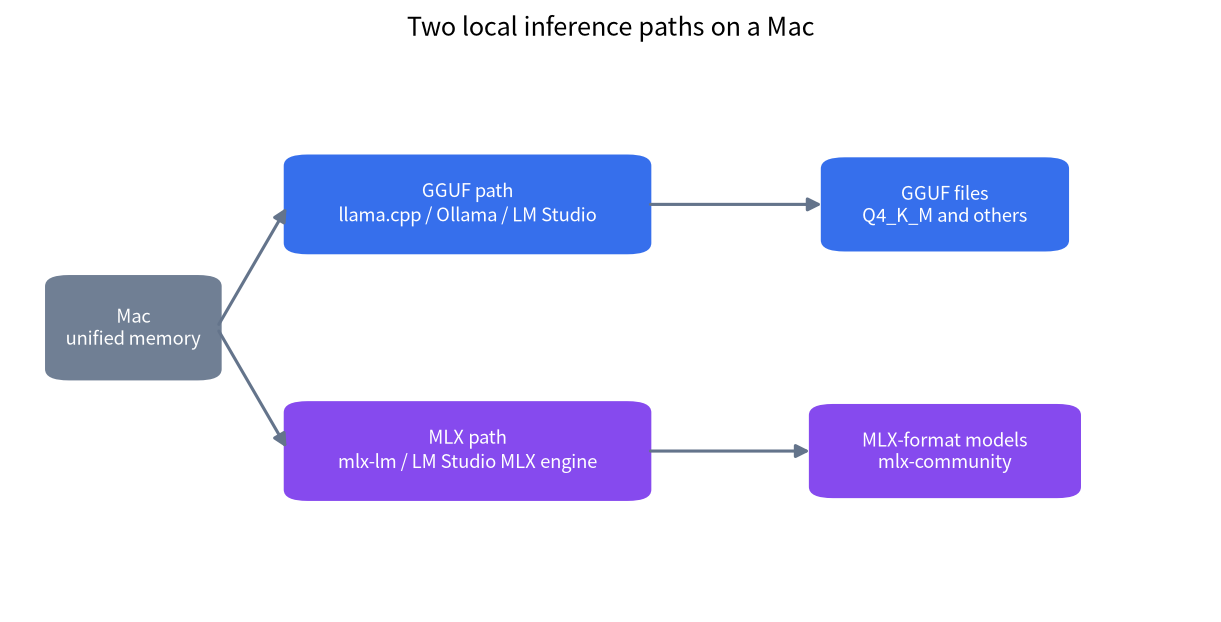
Mac owners who run local models soon meet two names. llama.cpp, with its GGUF files, sits underneath Ollama and LM Studio. MLX is Apple’s own array framework for Apple silicon, and its language-model package, mlx-lm, runs models in a different format. Both use the Mac’s unified memory, and both can be fast. This guide to MLX vs llama.cpp on Mac explains what each is, how to install and run them, how the model formats differ, which memory limit you may need to raise, and how to choose without trusting hearsay. If you are new to Macs for local AI, read our Mac guide first.
Verification note: Install requirements and commands come from the MLX installation page, the mlx-lm README and the llama.cpp README, all read on 2026-10-30. Speed figures are derived from memory bandwidth and are not measured. We did not benchmark either runtime for this article, and we do not claim that one is faster than the other; the honest answer is that it depends on your model, quantisation and version.
Key takeaways (Updated 2026-10-30)
- MLX needs Apple silicon, macOS 14.0 or later and Python 3.10 or later; install the language-model tools with
pip install mlx-lm.llama.cpp is cross-platform and treats Apple silicon as a first-class target through ARM NEON, Accelerate and Metal; it uses GGUF files that also work on Windows and Linux.
Pick by workflow, not by rumour: GUI users should try both inside LM Studio, Python users on a Mac-only setup can use mlx-lm, and anyone who shares files across systems should stay with GGUF.
MLX vs llama.cpp on Mac: What Each One Is
MLX is described in its repository as an array framework for machine learning on Apple silicon, created by Apple machine learning research. It has a NumPy-like Python API, lazy computation, dynamic graphs and a unified memory model: arrays live in shared memory and operations run on the CPU or the GPU without copying data. The mlx-lm package builds on it for text generation and fine-tuning, with Hugging Face integration, quantisation tools, a chat command and a server. The MLX Community organisation on Hugging Face hosts thousands of models already converted.
llama.cpp is a plain C and C++ implementation without dependencies that runs on many kinds of hardware. Its README states that Apple silicon is a first-class citizen, optimised through ARM NEON, the Accelerate framework and Metal. It reads GGUF files, a single-file model format described in our GGUF guide, and it is the engine underneath Ollama and LM Studio’s GGUF mode. The README shows commands to download a model from Hugging Face and run it as a chat or as an OpenAI-compatible server.
Installing and Running Each One
For MLX, make sure you have a native Python 3.10 or later and macOS 14.0 or later, then install the package and run a model:
pip install mlx-lm
mlx_lm.generate --prompt "How tall is Mt Everest?"
mlx_lm.chat
The default model in the README is a 4-bit Llama 3.2 3B from MLX Community, and you choose another with the --model flag. The package can also start an API server with mlx_lm.server, and convert and quantise a model from Hugging Face with its convert function.
For llama.cpp, the simplest route on a Mac is usually not to build it yourself but to use a tool that includes it. Ollama and LM Studio both do, and our Ollama guide and LM Studio tutorial show the steps. If you want the project itself, the README describes installing and running a model straight from Hugging Face, and the build guide covers compiling from source. Newer versions show unified commands for chat and for serving; older builds use the separate llama-cli and llama-server programs, so read the README for your version.
Model Formats and Quantisation
The two worlds use different files. llama.cpp uses GGUF with quantisation types such as Q4_K_M, which we explain in our quantisation guide. MLX uses its own format, usually from the mlx-community organisation, with quantisation chosen when the model is converted, such as 4-bit or 8-bit. A file for one does not run on the other, so you download the version that matches your tool. A 4-bit MLX model and a Q4_K_M GGUF are of similar size but not identical, and their quality can differ slightly, so compare them with your own prompts instead of assuming equality.
| Aspect | MLX (mlx-lm) | llama.cpp (GGUF) |
|---|---|---|
| Platforms | Apple silicon, with a CUDA backend also available | Apple silicon, NVIDIA, AMD, Vulkan, CPU |
| Model file | MLX format from mlx-community or your own conversion | GGUF from Hugging Face and many publishers |
| Install | pip install mlx-lm |
Via Ollama, LM Studio or the project itself |
| Interfaces | Python API, chat, generate, server | Command line, server, many tools built on it |
| Fine-tuning | LoRA and full fine-tuning in mlx-lm | Not its main purpose |
| Sharing files across machines | Mac only in practice | Same file on Windows, Linux and Mac |
Memory Limits on Apple Silicon
The memory of a Mac is shared between the CPU and GPU, but macOS limits how much of it the GPU may wire. The mlx-lm README explains that models large relative to the machine’s RAM can be slow, and that on macOS 15.0 or later, mlx-lm tries to wire the memory that the model and cache occupy. If you see its warning that the model needs more memory than allowed, you can raise the limit with sudo sysctl iogpu.wired_limit_mb=N, where N is larger than the model’s size in megabytes and smaller than the machine’s memory. Leave enough memory for macOS and your other applications, and remember that the setting does not persist after a reboot unless you make it so. The same arithmetic applies to llama.cpp: weights plus KV cache must fit in the memory the GPU can use, as in our context guide.
Speed: What We Can and Cannot Say
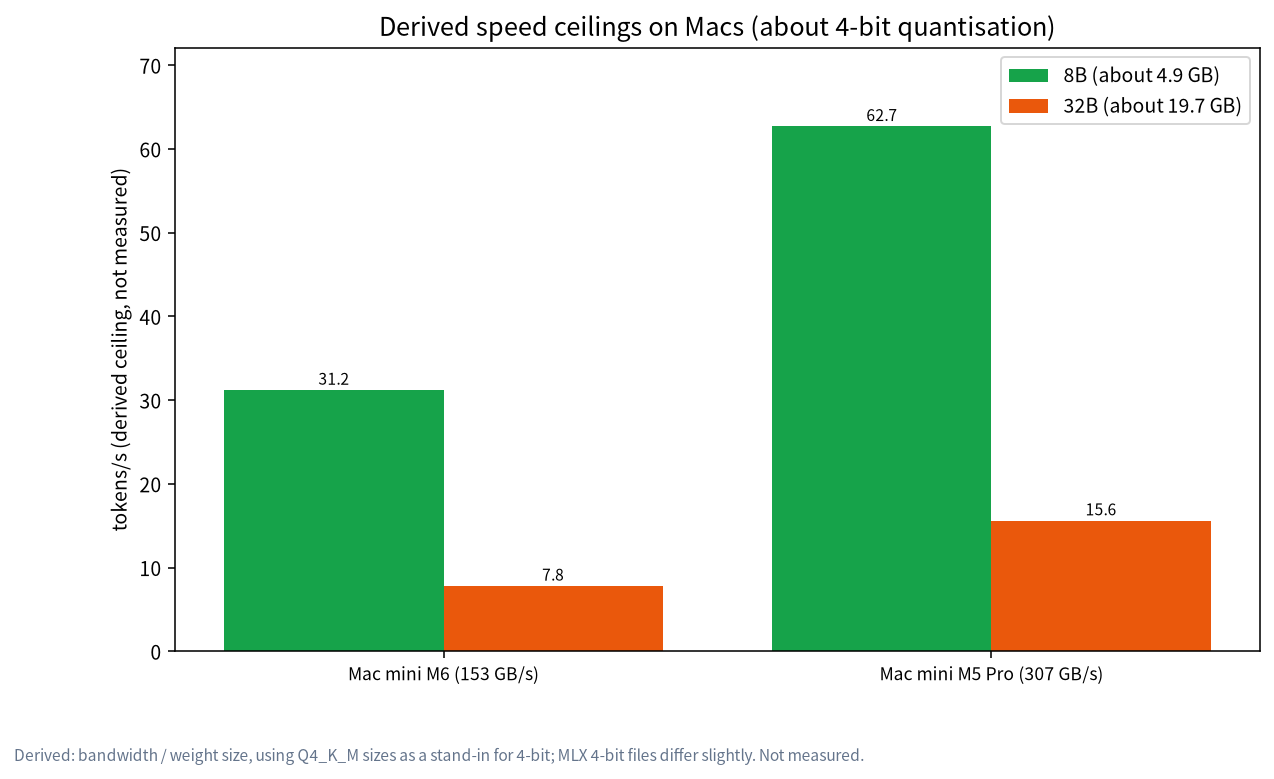
Generation speed depends on memory bandwidth for both runtimes. Dividing the bandwidth we have on file by the size of an 8B Q4_K_M model of about 4.9GB, a Mac mini M6 at 153 GB/s has a derived ceiling of about 31 tokens per second, and a Mac mini M5 Pro at 307 GB/s about 63. For a 32B model of about 19.7GB, the ceilings are about 8 and 16. These are upper limits and not measurements. Which runtime gets closer to the ceiling depends on the version, the model and the settings; both projects optimise quickly, and published comparisons age fast. If speed matters to you, test both on your own machine with your own model, as in our benchmark reading guide.
Choosing a Runtime
Choose by how you work, not by which name is trending. The table below turns the differences into a decision, and the figure repeats it in short form.
| If you… | Start with | Because |
|---|---|---|
| Want a graphical app and the simplest setup | LM Studio or Ollama | Both hide the details and handle downloads |
| Share model files with a Windows or Linux machine | GGUF with llama.cpp tools | One file works everywhere |
| Write Python on a Mac and want to script or fine-tune | mlx-lm | Python API, quantisation and LoRA tools |
| Need an OpenAI-compatible endpoint for other apps | Ollama, llama.cpp server or mlx_lm.server | All three can provide one |
| Cannot decide | Run both on your own prompts | Quality and speed depend on your model |
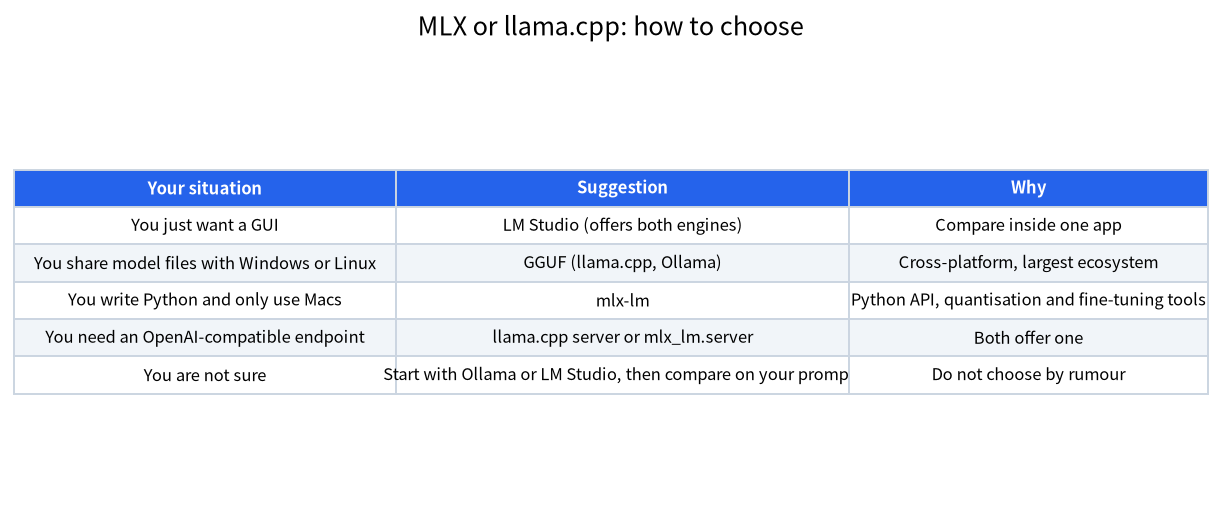
A fair test is simple. Pick one model that exists in both formats at similar quantisation, run the same prompts with the same context length, and record the prompt processing time, the generation speed and the answer quality. Repeat after each update of either project, because both are changing quickly. If one tool is clearly better for your workload, use it; if they are close, pick the one with the better workflow for you. Our comparison of Ollama, LM Studio and llama.cpp lists the practical differences between the GGUF-based tools.
For long prompts, check prompt processing speed as well as generation. mlx-lm offers a configurable prefill step size, default 2048, and a prompt cache command to reuse a long context, which helps assistants that send the same system prompt every time. llama.cpp servers also cache prompts. Test the feature in the tool that you use rather than assuming.
Fine-Tuning on a Mac
If you want to adapt a model to your own data, mlx-lm includes LoRA and full fine-tuning with support for quantised models, according to its README. That makes it one of the easiest ways to try fine-tuning on a Mac, within the limits of memory. Our LoRA guide explains how much memory a fine-tuning run needs, and why a Mac with large unified memory can be attractive for small experiments but slow compared with a GPU server.
Which Mac Do You Need?
The runtime matters less than the memory. Our reference prices list a Mac mini M6 with 24GB and 512GB of storage at 9,999 yuan, a Mac mini M5 Pro with 64GB and 1TB at 24,249 yuan, and a Mac Studio M5 Max with 128GB and 1TB at 41,749 yuan. These are official list prices as of 2026-10-30, and they exclude any upgrades. With 24GB of unified memory, you can run 8B and 14B models comfortably and a 32B model only with a short context, since macOS keeps part of the memory for itself. With 64GB, 32B models run with a long context and a 70B model at Q4_K_M, which needs about 43.1GB, fits with a modest cache. With 128GB, you can run very large mixture-of-experts models.
Bandwidth is the other half of the story. The bandwidth we have on file is 153 GB/s for the M6 mini and 307 GB/s for the M5 Pro, so the faster chip roughly doubles the generation ceiling for the same model. If you plan to use large models often, buy memory first and bandwidth second; if you mostly chat with 8B models, you will not notice the difference between the sizes. Our Mac mini server guide goes through the trade-offs for an always-on machine.
A Practical Setup
Many Mac users end up with both. They keep Ollama or LM Studio for daily chat and for tools that expect an OpenAI-compatible endpoint, and they install mlx-lm in a virtual environment when they want to try an MLX model or run an experiment. Give each tool its own model folder, watch your disk, since a single 70B file takes tens of gigabytes, and keep a short note of which model files work with which tool. For a small always-on server, see our Mac mini server guide.
Common Mistakes
- Downloading the wrong format. GGUF files do not run in mlx-lm, and MLX models do not run in llama.cpp.
- Trusting a speed claim from an old post. Both projects change quickly; test your version.
- Filling all the memory. Leave room for macOS and your applications.
- Using an Intel Mac for MLX. It needs Apple silicon.
- Mixing Python environments. Use a clean virtual environment for mlx-lm.
FAQ: MLX vs llama.cpp on Mac
Is MLX faster than llama.cpp on a Mac?
It depends on the model, quantisation and versions. We have not benchmarked them, so test both with your own model.
What do I need to install MLX?
Apple silicon, macOS 14.0 or later and a native Python 3.10 or later, then pip install mlx-lm.
Can I use GGUF files with MLX?
No. mlx-lm uses its own model format, often from the mlx-community organisation on Hugging Face.
Does LM Studio support both?
LM Studio offers GGUF through llama.cpp and an MLX engine on Apple silicon, so you can compare them in one app; check its current documentation.
How do I raise the memory limit for a big model?
On macOS 15 or later, mlx-lm suggests sudo sysctl iogpu.wired_limit_mb=N, with N above the model size and below your total memory.
Which is better for a beginner?
Start with Ollama or LM Studio, then try mlx-lm if you want Python control or fine-tuning.
Talk With Us
Running local models on a Mac and unsure which tool to use? Join the community or email admin@microaione.com.
References: MLX installation guide, mlx-lm repository, llama.cpp repository, MLX Community on Hugging Face.