Mac mini as a Local LLM Server: Setup, Memory Tiers, and What Size of Model It Can Run
A Mac mini is small, nearly silent, and sips power at idle, so it fits on a shelf or in a network cabinet and can stay on all day, serving models to a family or a small team. Using a Mac mini as a local LLM server comes down to three things: choosing the right memory tier, making the service reachable from other devices on your network, and making sure it does not drop offline because of sleep or a power cut. This guide uses the Apple specifications and China list prices we verified earlier to explain the M6 and M5 Pro lines, how much memory to buy, how to expose Ollama on the network, and when a Mac mini is the wrong choice. For the basic Mac route, see running local LLMs on a Mac.
Verification note: Mac mini bandwidth and China list prices come from the Apple pages (and reposts of them) that we collected earlier, read in 2026-10. The prices are official list prices, not market transaction prices, and Apple has adjusted configurations and prices several times recently because of memory costs, so check Apple’s site before you buy. For model sizes, 8B comes from the llama.cpp documentation and the others are extrapolated at about 0.61-0.62GB per billion parameters. Speed ceilings are theoretical, derived from bandwidth, and are not measurements. The Ollama network settings come from its official FAQ. We did not benchmark individual Mac mini models.
Key takeaways (Updated 2026-10-30)
- The Mac mini M6 has about 153-170 GB/s of bandwidth and the M5 Pro has 307 GB/s, so two machines with 24GB feel different in generation speed.
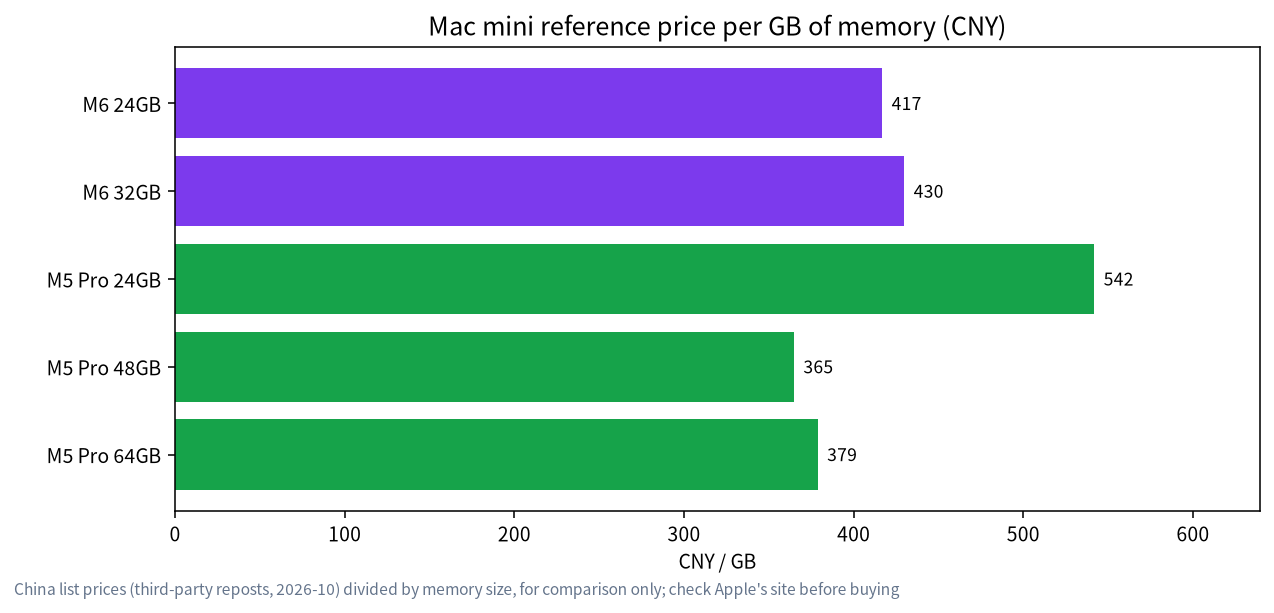
Reference price per GB of memory: the M5 Pro’s 48GB and 64GB tiers are better value than its 24GB tier; the M6’s 24GB and 32GB tiers have the lowest entry price.
As a server, set
OLLAMA_HOST, turn off automatic sleep, and use a wired network.
Mac mini as a Local LLM Server: Pick Memory and Chip First
Mac unified memory is shared by the CPU and GPU, so memory capacity directly decides how large a model fits. The table below lists the two lines and the official China list prices (2026-10).
| Configuration | Memory bandwidth | China list price (CNY) | Per GB of memory (CNY, estimate) | Model size it suits (4-bit, estimate) |
|---|---|---|---|---|
| Mac mini M6 24GB / 512GB | about 153-170 GB/s | 9,999 | about 417 | 7B to 14B |
| Mac mini M6 32GB / 1TB | about 170 GB/s | 13,749 | about 430 | 14B to 24B |
| Mac mini M5 Pro 24GB / 512GB | 307 GB/s | 12,999 | about 542 | 14B to 24B, faster |
| Mac mini M5 Pro 48GB / 512GB | 307 GB/s | 17,499 (derived) | about 365 | 32B with a long context |
| Mac mini M5 Pro 64GB / 1TB | 307 GB/s | 24,249 | about 379 | 32B and above; consider MoE models |
These are official list prices, not market medians, and they move with memory costs, so use them only to compare tiers against each other and not as final prices. Estimate the memory you need before choosing; the method is in how to calculate LLM VRAM requirements. macOS and your other apps also use memory, so do not hand all of the unified memory to the model; reserve several gigabytes.
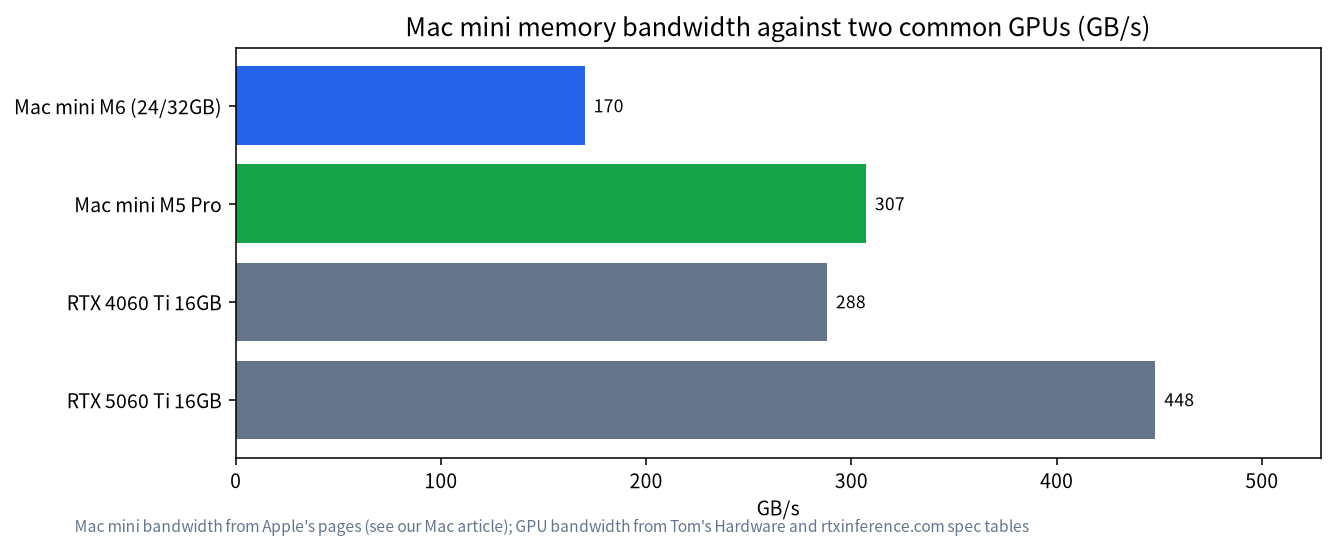
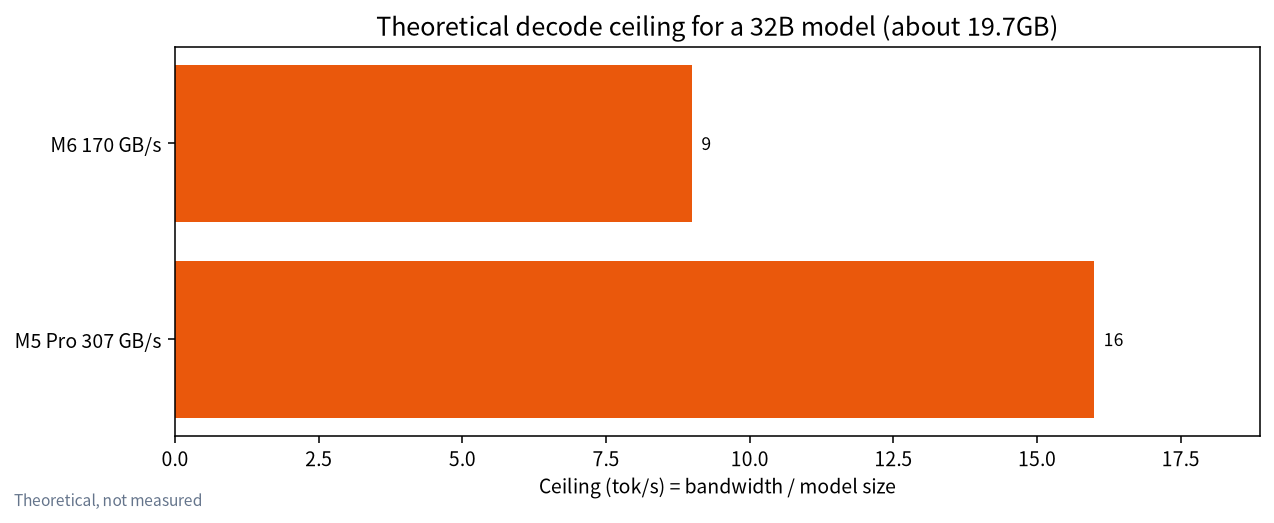
Bandwidth decides generation speed. The M5 Pro’s 307 GB/s is close to a 4060 Ti 16GB at 288 GB/s, while the M6’s 153-170 GB/s is lower. For a 32B model of about 19.7GB, the M5 Pro’s theoretical ceiling is about 16 tokens per second and the M6’s about 9, and real speeds will be lower. So the M6 suits models up to 14B, and only the M5 Pro is a sensible long-term home for 32B-class models.
Configuring the Mac mini as a Server
- Install Ollama: see the Ollama install guide and first run a model locally with
ollama run. - Make it reachable on the LAN: Ollama’s official FAQ says it listens only on the local machine by default, and you must set
OLLAMA_HOSTto serve other devices. On macOS, runlaunchctl setenv OLLAMA_HOST "0.0.0.0:11434"and restart Ollama. Think about your network boundary before opening it up, and never expose it directly to the internet. - Turn off automatic sleep: in the energy settings, disable options that put the machine to sleep when the display is off, and set it to restart automatically after a power failure so the service does not quietly go offline.
- Use a wired network: Ethernet gives better latency and stability than Wi-Fi.
- Add a web interface: give family and colleagues a chat page with Open WebUI; see Open WebUI with Ollama.
- Verify from another computer: from a machine on the LAN, open
http://<Mac-mini-IP>:11434; an Ollama response means it works.
Mac mini Compared with Other Options
| Option | Strengths | Weaknesses |
|---|---|---|
| Mac mini (M5 Pro 64GB) | Small, quiet, efficient, large memory, easy to run | 307 GB/s bandwidth is below high-end GPUs; memory cannot be upgraded |
| Ryzen AI Max+ 395 mini PC | 128GB capacity and a low price per GB; see large-memory mini PCs | About 256 GB/s of bandwidth and a smaller ecosystem than CUDA |
| Desktop with a discrete GPU | More bandwidth and VRAM per dollar, upgradeable | Loud, power-hungry, takes space |
| Cloud API | Nothing to maintain | Data leaves your premises and long-term cost is opaque; see local deployment versus a cloud API |
A Method for Choosing a Tier
Choosing a tier takes three steps. First, write down the two or three models you use most and their 4-bit sizes, for example about 8.6GB for 14B and about 19.7GB for 32B. Second, add the context cache and system overhead, typically another 6GB to 10GB. Third, compare the total with the memory tiers: if it is under 20GB, a 24GB machine just fits; if it is under 30GB, 48GB is safer; and only when you need two models loaded at once, or want to try bigger models such as MoE, is 64GB worth considering.
On price, upgrades between tiers are not linear. From the list prices we read, the M5 Pro’s step from 24GB to 48GB costs about 4,500 CNY more, and the cost per GB actually falls. If you expect to want larger models within six months, buying 48GB once is often better value than buying 24GB and replacing the machine later. This is only a reference, since prices change; check Apple’s site.
Three Questions Before You Buy
First, who will use the server? If only you or your family use it occasionally, the M6 with 24GB or 32GB is plenty; for a team of five or more, consider the memory and bandwidth pressure of concurrency. Second, do you value silence and efficiency, or higher speed? The Mac mini excels at the former and trails high-end GPUs on the latter. Third, can you accept memory that cannot be upgraded? If not, buy the right size up front, or choose a desktop where the GPU can be swapped.
Planning Memory for Several Users
If several people will ask questions through Open WebUI at once, remember that each concurrent request adds context cache. A simple rule is to confirm single-user memory headroom first, then add users gradually while watching Activity Monitor for memory pressure turning yellow or red. If pressure stays high, drop to a smaller model or limit how many people use it at once.
If you simply want to try the idea first, buy an entry tier and treat it as a learning and validation machine. Once you are sure you need larger models, it can become a spare or a client machine, which is a safer path than buying the top configuration on day one. Keep notes on which models you actually use during the first month, because that record is the best guide for any later upgrade. It also tells you whether a faster chip or simply more memory would have helped, and that answer differs from person to person more than most buying guides admit.
Common Mistakes
- Looking at memory but not bandwidth: with the same 24GB, the M6 and M5 Pro feel clearly different.
- Forgetting system overhead: macOS and other apps use unified memory, so the model cannot take all of it.
- Exposing port 11434 to the internet: Ollama has no authentication by default; use it only on a trusted LAN or behind an authenticated reverse proxy.
- Assuming bigger is always better: with a limited budget, first decide whether your main model is 14B or 32B, then choose the tier.
- No plan B: memory and storage cannot be upgraded later, so choose the configuration deliberately.
When Not to Choose a Mac mini
- You need to serve many concurrent users: unified-memory bandwidth is limited, and concurrency slows everyone down.
- You plan to fine-tune or rely on CUDA-only tools: Mac support is less complete than NVIDIA’s.
- You want to upgrade memory later: the Mac mini’s memory is soldered.
Day-to-Day Operations
After the server goes live, the real time goes into maintenance. Pin one version of Ollama and test a new version on another machine before updating, in case it affects the models you rely on. Check disk space monthly, because model files fill a drive quickly; use ollama list to see them and remove models you no longer use. If family or colleagues use it, agree a simple convention: which model is the default, when to use a large model for long documents, and when a small one is enough. That prevents several people from loading different large models and forcing memory to swap in and out.
A small uninterruptible power supply is also a worthwhile investment. It keeps running jobs from being lost during a brief outage and protects the drive. In an office, also confirm that the network allows devices to reach each other, because some company networks isolate endpoints by default.
FAQ: Mac mini as an LLM Server
Can a Mac mini work as a local LLM server?
Yes. It is small, quiet, and low-power at idle, and with Ollama and Open WebUI it can serve models to devices on your network.
Should I choose the M6 or the M5 Pro?
The M6 is cheaper and suits models up to 14B; the M5 Pro has about 307 GB/s of bandwidth and is better for running 24B to 32B models long term.
Should I buy 24GB, 48GB, or 64GB?
24GB suits quantized 14B to 24B models, 48GB holds a 32B model with room for context, and 64GB suits larger models or loading several models at once.
How do I let other computers reach Ollama on the Mac mini?
Set OLLAMA_HOST to 0.0.0.0:11434, restart Ollama, and connect to the Mac mini’s IP from your LAN. Do not expose it to the internet.
Will a Mac mini go offline because of sleep?
It can. Turn off automatic sleep in the energy settings and set it to restart after a power failure.
Will the prices change?
Yes. The figures here are official list prices, and Apple has adjusted prices several times because of memory costs; check Apple’s site before ordering.
Need Help Choosing?
If you are not sure which tier your home or team needs, tell us your budget and the models you want in our community, or email admin@microaione.com. For the broader buying approach, see the all-in-one local LLM buying guide.
References and further reading: Ollama FAQ (network settings), Apple: Mac mini technical specifications.