LLM on Phone Offline: Run a Local Model on Android or iPhone with AI Edge Gallery, MLC Chat or Termux
A modern phone has a fast chip, several gigabytes of memory and a lot of storage, so it is natural to ask whether it can run a language model with no internet at all. It can, within limits. Running an LLM on phone offline works well for short questions, rewriting, translation and summaries of small texts, and it is private because nothing leaves the device. It will not match a desktop GPU, and it will make your phone warm. This guide lays out five practical routes, from a ready-made app to building your own, estimates how large a model your phone’s RAM allows, and gives tips on heat, battery and privacy. If the vocabulary is new, read what a local LLM is first.
Verification note: the facts about Google AI Edge Gallery (open source, offline, Android 12 and up, iOS 17 and up, chat, agent skills and model import) come from its GitHub README, and the MediaPipe and Gemma mobile facts from Google AI for Developers documentation. MLC LLM facts come from its documentation, and the Termux route from the llama.cpp Android documentation, all checked on 2026-10-30. We did not benchmark any phone, so we give no speeds. Model sizes are estimates extrapolated from llama.cpp’s published Q4_K_M sizes.
Key takeaways (Updated 2026-10-30)
- The easiest route is a ready-made app such as Google AI Edge Gallery; after the model is downloaded it needs no internet.
Choose a small model, roughly 1B to 4B parameters for most phones, and keep the file under about half of your RAM as a rule of thumb.
Expect heat and battery drain: use short sessions, and treat the phone as a convenience tool, not a replacement for a PC.
Why Run an LLM on Phone Offline
There are three honest reasons. Privacy: prompts and documents stay on the device. Availability: it works in a tunnel, on a flight or in a place with no signal. Cost: there is no per-token fee. There are also honest limits. Phone chips share memory with the operating system and other apps, sustained heavy compute makes the device throttle, and the models that fit are small. A small model is useful for everyday tasks but is less capable at difficult reasoning or long documents, so keep expectations realistic.
Five Routes, From Easy to Advanced
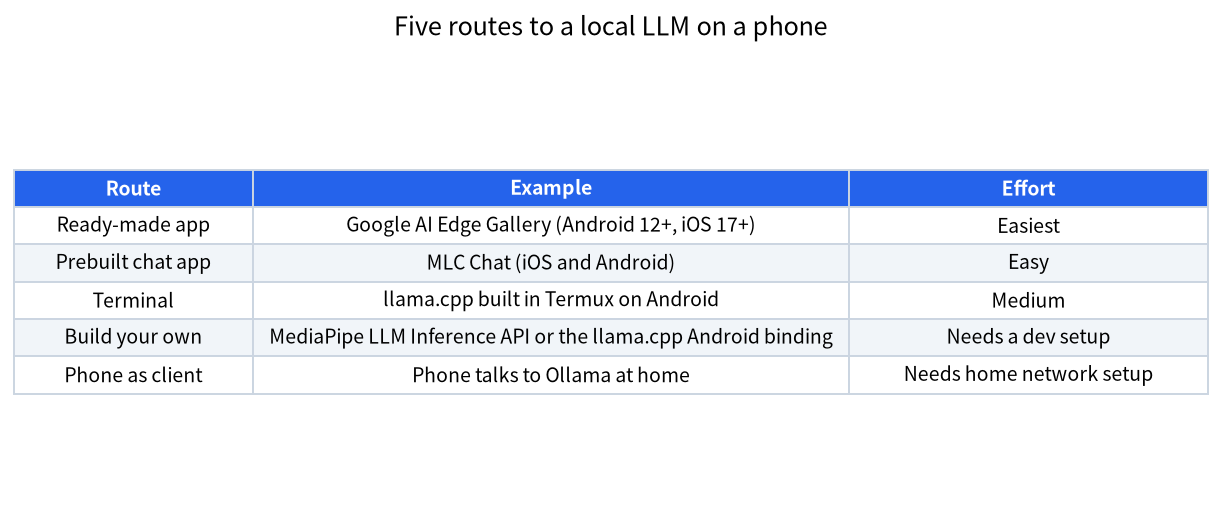
| Route | Example | Best for | Main limit |
|---|---|---|---|
| Ready-made app | Google AI Edge Gallery | Trying a model in minutes | Limited to supported models and features |
| Prebuilt chat app | MLC Chat on iOS and Android | Chatting with several open models | Model list depends on the app build |
| Terminal | llama.cpp in Termux on Android | Learning and scripting | Compiling and typing commands on a phone |
| Build your own | MediaPipe LLM Inference API, llama.cpp Android binding | Developers adding AI to an app | Needs Android Studio or Xcode |
| Phone as client | Phone talks to Ollama on your home PC | Using a big model from anywhere at home | Needs your home network and security setup |
Route 1: Google AI Edge Gallery
The project’s README describes it as an open-source app that runs open models on your device, fully offline and private once downloaded. It requires Android 12 and up or iOS 17 and up, and you can install it from Google Play or the App Store; users without Google Play can install an APK from the latest release. Features listed in the README include AI chat with speech input, agent skills that can call tools, and the ability to import your own models. Google’s Gemma documentation also points to the app as the way to try the MediaPipe LLM Inference API and to import your own task bundle models. For most readers this is the first thing to try: install it, download a small Gemma model while on Wi-Fi, then switch on airplane mode and chat.
Route 2: MLC Chat
MLC LLM provides prebuilt apps for iOS and Android and also documents how to build them from source. The Android documentation says you need Rust, Android Studio with NDK and CMake, and a physical phone, because emulators are not supported. If you only want to chat, use the prebuilt app. If you want to bundle weights into an app, the project documents a setting for that, but this is a developer task.
Route 3: llama.cpp in Termux
The llama.cpp Android documentation describes building the command-line tools in Termux, a terminal emulator that needs no root. You install a few packages, build with CMake following the normal build instructions, download a GGUF model and run llama-cli. The documentation advises placing the model in your home directory for best performance and starting with a modest context size such as 4096, because otherwise memory can spike and kill your terminal. It also describes an Android app binding with hardware acceleration up to SME2 on Arm. This route teaches you a lot, but it is slower to set up. For background on the format, see the GGUF and llama.cpp introduction.
Route 4: Build Your Own
Developers can use the MediaPipe LLM Inference API, which Google documents for Android and iOS and describes as a wrapper for on-device text generation such as information retrieval, email drafting and document summarization. The llama.cpp Android binding is the open alternative. Both need a development environment, and both are beyond what most readers need.
Route 5: Use the Phone as a Client
Sometimes the best “phone LLM” is not on the phone at all. If you run Ollama on a PC at home, a phone on the same Wi-Fi can use it through a web interface; see Open WebUI with Ollama. Ollama listens only on the local machine by default, so exposing it on your network needs deliberate configuration and authentication, as its documentation explains. This route gives you a much larger model than the phone could hold, but it only works while you are connected to your home network, unless you set up secure remote access yourself.
How Big a Model Can Your Phone Run
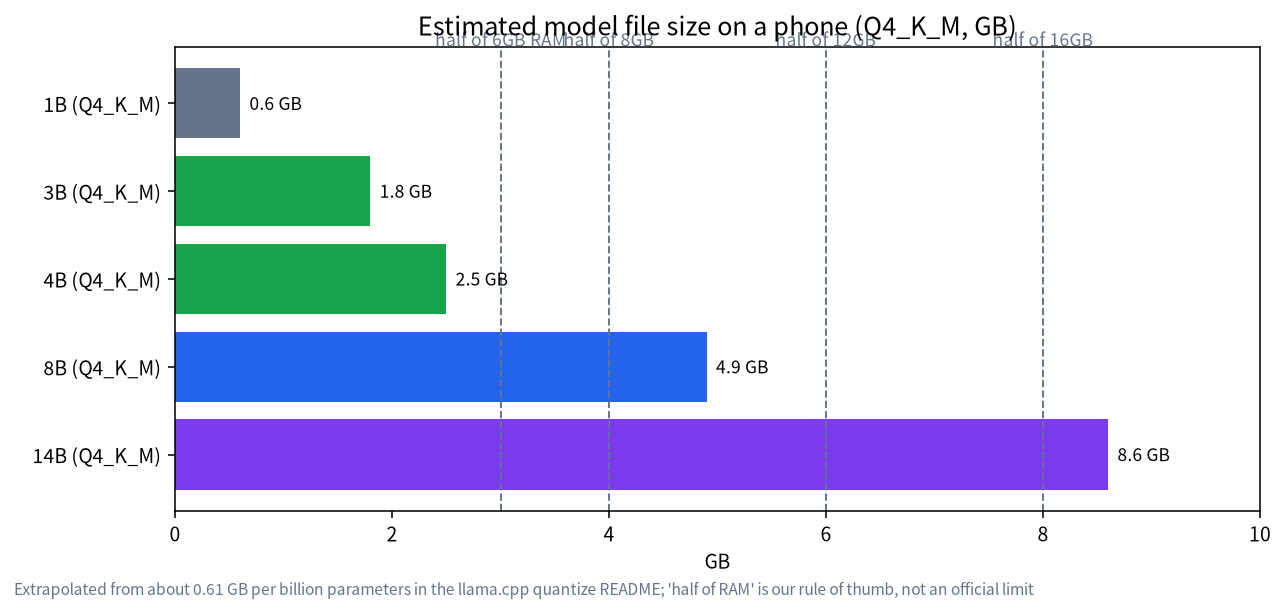
Memory is the limit. The llama.cpp documentation lists Llama 3.1 8B at about 4.9GB in Q4_K_M, which works out to roughly 0.61GB per billion parameters. Extrapolating that, a 1B model is about 0.6GB, a 4B model about 2.5GB and an 8B model about 4.9GB. Your phone must hold the file plus working memory for the context, while the operating system and other apps also need RAM. As a rule of thumb, keep the model file under about half of your RAM. On that rule a phone with 8GB of RAM is comfortable with models up to roughly 4B, while 12GB to 16GB phones can try 8B at short context. This is our rule of thumb, not an official limit, and your results depend on the app and the operating system.
| Phone RAM | Comfortable model size (rule of thumb) | Example idea |
|---|---|---|
| 6GB | 1B to 3B | Quick questions, rewriting |
| 8GB | up to about 4B | Gemma e2b or e4b class, see the Gemma guide |
| 12GB | up to about 7B | Short documents |
| 16GB | up to about 8B | Short context only |
Quantization matters too: a Q4 file is far smaller than the original, which is why phones can run these models at all; see Q4_K_M explained. For a formula-based way to estimate memory on a PC, see the VRAM calculator guide.
Heat, Battery and Practical Tips
Running a model keeps the chip busy, so the phone gets warm and the battery drains faster than normal. Use it in short bursts, keep it out of direct sunlight, avoid charging while running a heavy session, and close other apps before you start. If speed drops after a few minutes, the phone is probably throttling to control temperature. Downloading models is large, so do it on Wi-Fi and check the free storage first. Keep the context short: long chats use more memory and slow down.
Privacy: What “Offline” Really Means
Offline running protects your prompts only if the app does not also send data to a server. Open-source apps let you check what they do; for closed apps, read the privacy policy and test in airplane mode. Speech input and some agent features may use extra components or the network, so test each feature you rely on. Models themselves are downloaded once, and you should take them from the app’s own list or a trusted source, as the same supply-chain care applies on a phone as on a PC.
A Simple First Session
If you want to try this today, set aside twenty minutes. Connect to Wi-Fi, check that you have a few gigabytes of free storage, install a ready-made app such as Google AI Edge Gallery and choose one of the smallest models it offers. Once the download finishes, switch on airplane mode and ask a few short questions, so you know the setup works with no connection. Then try a task you actually have, such as rewriting a paragraph or translating a short phrase, and notice how the answers compare with a cloud assistant. Pay attention to how warm the phone becomes and how much battery a ten-minute session uses. That experience will tell you more about whether a phone model is useful for you than any specification sheet, and it costs nothing but some storage.
Common Mistakes
- Choosing a model that is too big: the app crashes or the phone freezes; start with 1B to 4B.
- Downloading on mobile data: models are large; use Wi-Fi.
- Judging by a PC standard: a small phone model is a convenience, not a workstation.
- Leaving it running: heat and battery wear; close the app when done.
- Forgetting storage: several models fill a phone quickly.
- Exposing a home server carelessly: if you connect a phone to Ollama at home, keep authentication on and do not open the port to the internet.
When a Phone Is the Wrong Tool
If you need to process long documents, write long essays or run a model with strong reasoning, a phone is the wrong tool. Even a modest desktop with a 12GB graphics card can run models several times larger than a phone can hold, with far better sustained speed. The phone shines for short, private, on-the-go tasks: translating a sign, summarizing a paragraph you copied, drafting a short message or asking a quick question in a place with no signal. A sensible plan is to use both: keep a small model on the phone for convenience and a larger one on a home machine, reachable through the route 5 setup, for heavier jobs. See the local deployment guide for choosing the home machine.
FAQ: LLM on Phone Offline
Can I really run an LLM on a phone without internet?
Yes, after the model is downloaded. Apps such as Google AI Edge Gallery run models on the device and document offline use.
Which phone do I need?
Google AI Edge Gallery lists Android 12 and up and iOS 17 and up. More RAM lets you use bigger models; as a rule of thumb keep the model file under half of your RAM.
What model size should I choose?
Start with a model of roughly 1B to 4B parameters. Gemma’s small edge models are a common choice; see our Gemma guide for sizes.
How fast is it?
We have not benchmarked phones, so we give no figures. Speed depends on the chip, the model, the quantization and the app, and it can drop when the phone gets hot.
Is it private?
The model runs on the device, but check the app’s privacy policy and test features in airplane mode, because some features may use the network.
Can my phone use my home PC’s model instead?
Yes, through a web interface connected to Ollama on your home network. Keep authentication on and do not expose the service to the public internet.
Tell Us What Worked
If you tried a phone model, we would like to hear the phone, app and model that worked for you. Join the community or email admin@microaione.com.
References: Google AI Edge Gallery on GitHub, Gemma on mobile devices (Google AI for Developers), MLC LLM Android documentation, llama.cpp Android guide.