Laptop for Local LLMs: How to Choose VRAM, Bandwidth, Cooling and Mac Options (2026)
Plenty of people want one laptop that handles office work, travel, and local AI. It is possible, but the buying logic is very different from a desktop. When you pick a laptop for local LLMs, the key is not the CPU and not the “AI TOPS” in the marketing; it is the GPU’s VRAM capacity, memory bandwidth, and sustained power. VRAM is soldered to the graphics board and cannot be upgraded, and power and cooling decide whether the machine can hold its speed for long sessions. This guide uses NVIDIA’s official RTX 50 laptop specifications, plus the Mac unified-memory route, to show what each tier can run and which traps to avoid. For VRAM fundamentals, read VRAM and local LLMs: how to choose a GPU.
Verification note: Laptop GPU VRAM, bandwidth, and power ranges come from NVIDIA’s RTX 50 laptop page and spec tables derived from it. For model sizes, the 8B Q4_K_M figure (about 4.9GB) is from the official llama.cpp quantize documentation; the others are extrapolated at roughly 0.61-0.62GB per billion parameters and are estimates only. We did not benchmark individual laptops, so speed ceilings are theoretical values derived from bandwidth. Our reference price table has no verified laptop prices, so we give none here and compare only with the desktop reference builds at the end.
Key takeaways (Updated 2026-10-30)
- Laptop VRAM is fixed: RTX 5090 Laptop 24GB, 5080 Laptop 16GB, 5070 Ti Laptop 12GB; the 5070 and 5060 laptops are mostly 8GB (the 5070 also appears with 12GB, so check the exact model).
Laptop GPUs have less bandwidth than their desktop namesakes and power limits of roughly 45-150W, so sustained speed is cooling-bound.
For more capacity consider Mac unified memory; for the best value, a desktop is still cheaper.
Laptop for Local LLMs: VRAM Is the Hard Limit
NVIDIA’s official specifications for the RTX 50 laptop GPUs are below. Note that “VRAM” here means the GPU’s own GDDR7, not the 16GB or 32GB of system memory on the product page.
| Laptop GPU | VRAM | Memory bandwidth | GPU power range (as listed by NVIDIA) |
|---|---|---|---|
| RTX 5090 Laptop | 24GB GDDR7 | 896 GB/s | 95-150W |
| RTX 5080 Laptop | 16GB GDDR7 | 896 GB/s | 80-150W |
| RTX 5070 Ti Laptop | 12GB GDDR7 | 672 GB/s | 60-115W |
| RTX 5070 Laptop | 8GB or 12GB (depends on model) | 384 GB/s | 50-100W |
| RTX 5060 Laptop | 8GB GDDR7 | 384 GB/s | 45-100W |
One trap deserves attention: NVIDIA’s US page lists both 8GB and 12GB configurations for the RTX 5070 Laptop GPU, while some regional pages still show 8GB. There is no single answer to “how much VRAM does a 5070 laptop have”, so always read the full specification sheet of the exact laptop model, not just the GPU name.
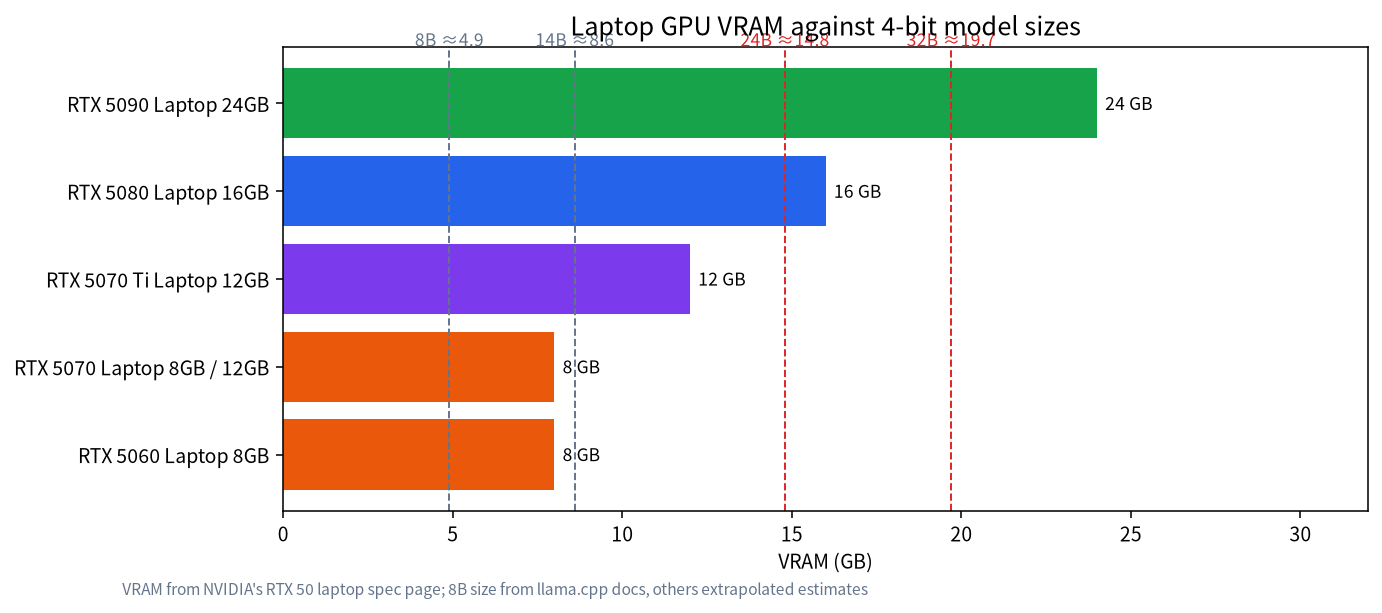
Putting the chart next to the model sizes makes the tiers clear. An 8GB laptop suits the 7B to 8B class, as covered in what an 8GB GPU can run. Twelve and 16GB cover 14B to 24B; see 12GB and 16GB VRAM for local LLMs. Only the 24GB RTX 5090 laptop has a chance of holding a 32B-class 4-bit model, discussed in 24GB VRAM for local LLMs. Every tier still needs headroom for the context cache; the estimating method is in how to calculate LLM VRAM requirements.
Bandwidth and Power: Why Laptops Are Slower Than Desktops
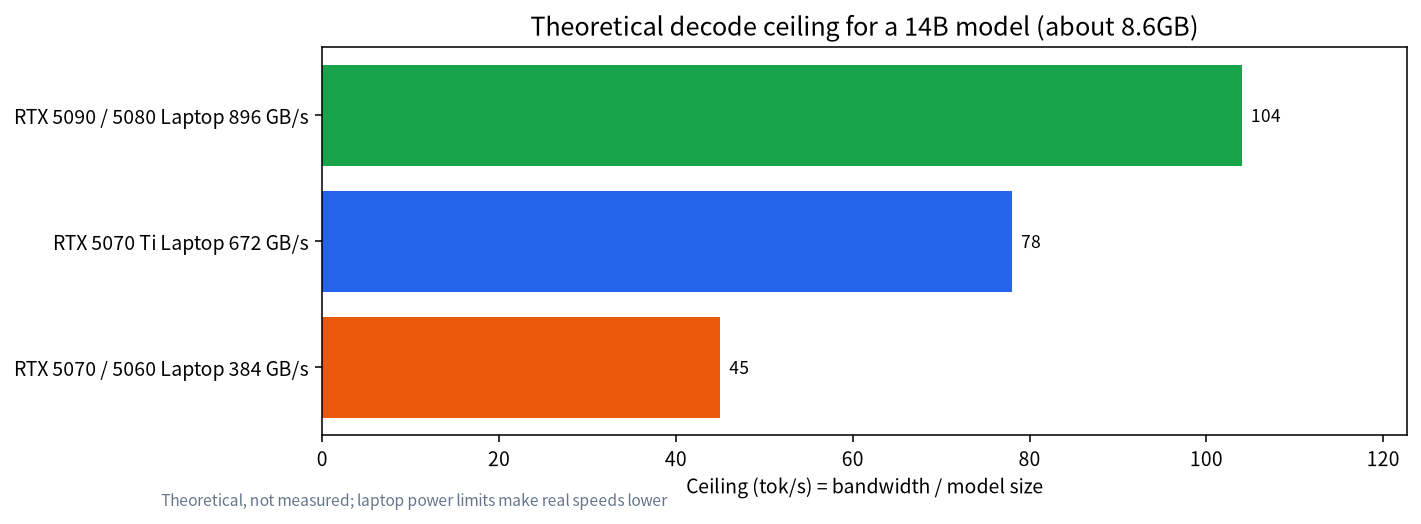
Decode speed is roughly capped by memory bandwidth divided by model size. For a 14B model of about 8.6GB, the 896 GB/s 5090 and 5080 laptops have a ceiling near 104 tokens per second, the 672 GB/s 5070 Ti laptop about 78, and the 384 GB/s 5070 and 5060 laptops about 45. These are theoretical values, not measured speeds. Because of power and cooling limits, real laptop speeds will be lower.
Power is the other difference. The listed power ranges are the allowed envelope, and each manufacturer and model sets its own power limit. Two laptops sold as “5080 laptop” can differ widely in sustained performance depending on whether the chassis is thin or thick. When comparing, do not stop at the GPU name: look at how many watts the GPU gets, how large the cooling module is, and whether the fan noise under sustained load is acceptable to you.
System RAM, VRAM, and Unified Memory Explained
Three kinds of memory get confused on laptop product pages. System RAM is the DDR memory the CPU uses; on many laptops it can be upgraded. VRAM is the GDDR attached to the GPU; on a laptop it is fixed at purchase. Unified memory, used by Apple silicon, is one pool shared by the CPU and GPU, which is why a Mac can offer a large amount of memory to a model even though it has no separate VRAM.
For a Windows laptop, a model that fits entirely in VRAM runs fastest. When it does not fit, runtimes such as Ollama place some layers in system RAM, which works but slows generation sharply because system memory is much slower than VRAM. That is why this guide treats VRAM as the primary filter and system RAM as the safety net rather than the other way round. For a Mac, the question changes to how much of the unified memory the system will let the GPU use, and how much you need to leave for macOS and your other apps; our Mac guide walks through that.
Windows Laptop, Mac, or Desktop
| Option | Strengths | Weaknesses | Best for |
|---|---|---|---|
| NVIDIA gaming or creator laptop | Best software ecosystem, CUDA tools work, portable | Small fixed VRAM, power and thermal limits, high price | People who travel and still want models on the machine |
| Mac (unified memory) | Memory capacity can be large, quiet and efficient; see running local LLMs on a Mac | Bandwidth below high-end discrete GPUs; some tools favor CUDA | People who want large models, quiet operation, and battery life |
| Desktop with a discrete GPU | More VRAM and bandwidth per dollar, upgradeable | Not portable | People who mostly work in one place |
| Laptop plus a remote desktop | The laptop is just a terminal; the model runs at home or the office | Needs a stable network and an always-on machine | People who already own a desktop or mini PC |
As a desktop price anchor: in the reference builds we compiled on 2026-10-30, the entry 12GB tier costs about 7,899 CNY and the mainstream 16GB tier about 10,853 CNY (reference prices; they vary by region and time). Compare those with the laptop you are considering. You will often find the same budget buys much more VRAM in a desktop.
Buying and Acceptance Checklist
- Decide the model first, then the VRAM: 8GB for 7B to 8B, 12GB to 16GB for 14B to 24B, and 24GB or a Mac for 32B and above.
- Verify the exact model: VRAM and power limits can differ under the same GPU name, so read the full specification.
- Check cooling and the power limit: long inference keeps the GPU at full load, and thin laptops throttle sooner.
- Leave room in system RAM: at least 32GB is a comfortable target, because layers that do not fit spill into RAM and speed drops noticeably.
- Verify on arrival: confirm VRAM with
nvidia-smi, run an 8B model while watching power and temperature, and only then decide to keep it. Keep track of the return window.
How to Test a Laptop Before You Commit
Whatever you buy, treat the first week as a test. Install Ollama or LM Studio, pull an 8B model, and run a long prompt while watching nvidia-smi in a second window. Note the VRAM in use, the power draw, and the GPU temperature after ten minutes. Repeat on battery to see how much speed you lose. Then load a larger model that only just fits and check that ollama ps reports it fully on the GPU. If the numbers disappoint you, return the machine within the return window instead of hoping that a driver update will fix a hardware limit. A single afternoon of testing costs nothing and can save you from an expensive mismatch.
Common Mistakes
- Treating system RAM as VRAM: the 32GB on a product page is usually system memory; VRAM is a separate number.
- Judging by GPU name only: VRAM and power can differ between laptops that share a GPU name.
- Running on battery: most laptops cap GPU power when unplugged, so speed drops noticeably; plug in.
- Expecting an NPU to solve everything: marketing “AI compute” is not the same as running a large model. Capacity and bandwidth matter most.
- Discovering it does not fit after buying: do the estimate first, then order.
Choosing by Use Case
If you mainly write, translate, and ask everyday questions, 8GB of VRAM with a well-quantized 7B or 8B model is enough, and the money you save is better spent on a good display, battery life, and cooling. If you want coding assistance or long-document summaries, aim for at least 12GB to 16GB, because those tasks have longer contexts and the cache eats a lot of VRAM. If you run several apps at once, such as a browser, editor, and model server, count system memory too; 32GB is a comfortable starting point.
For models of 32B and above on a laptop, there are realistically only two roads: a 24GB flagship laptop or a high-memory Mac. Both cost a lot, so ask first whether the quality gain from that model is truly necessary for your tasks. Very often, a better-quantized 14B model solves most of the need.
Habits That Keep a Laptop Stable
During long inference sessions, plug in, use the manufacturer’s performance mode, and raise the laptop on a stand so the intake vents are not blocked. Close unused programs to leave VRAM for the model. Watch temperature and power for a while; if it keeps throttling, shorten the context or drop to a smaller model instead of chasing a bigger parameter count. These habits cost nothing and noticeably improve the experience.
If Your Budget Is Limited
If your budget only covers a laptop with 8GB of VRAM, do not give up. A well-chosen quantized 7B or 8B model handles daily writing, summarizing, and simple Q&A. When you need a larger model, treat the laptop as a terminal and run the model on another machine, or use a cloud API temporarily. Local deployment versus a cloud API can help you decide. The important thing is to define your use case first, then decide whether the money goes into a laptop or into a better-value desktop.
FAQ: Laptops and Local LLMs
Can a laptop run local LLMs?
Yes. As long as the VRAM can hold the model and you are plugged in, a laptop can run quantized models from 7B to 24B smoothly, depending on VRAM.
How much VRAM do I need in a laptop?
8GB if you only want 7B or 8B; 12GB to 16GB for 14B to 24B; 24GB for 32B-class models. Longer contexts need more headroom.
Does the RTX 5070 laptop have 8GB or 12GB?
Both exist, and official regional pages disagree, so read the specification sheet of the exact laptop model.
Laptop or Mac: which is better for local LLMs?
It depends. NVIDIA laptops have higher bandwidth and a mature ecosystem but small VRAM; Macs offer large unified memory, quiet operation, and efficiency, but lower bandwidth.
Does laptop cooling affect LLM speed?
Yes. Laptop GPUs have lower power limits and may throttle under sustained load, so sustained speed is often below the theoretical ceiling.
Can I use the laptop as a terminal and run the model elsewhere?
Yes. Running the model on a home machine and reaching it over the network from the laptop is a budget-friendly approach.
Need Help Choosing?
If you are unsure whether a particular laptop fits your needs, tell us your budget and the models you want to run in our community, or email admin@microaione.com. For a systematic comparison of configurations, see local LLM PC build configurations.
References and further reading: NVIDIA: GeForce RTX 50 Series laptops, llama.cpp: quantize documentation.