

LLM Out of Memory Fix: A Local OOM Troubleshooting Checklist (Ollama and llama.cpp)
A model that refuses to load, crashes halfway through a long chat, or suddenly runs like it is wading through mud usually has one cause: not enough VRAM. This LLM out of memory fix checklist walks through the problem in the order we would work it. First confirm that memory really is the issue, then adjust context length, parallelism, the KV cache and quantization, and only after that consider a smaller model or new hardware. Every setting here comes from the official Ollama and llama.cpp documentation. If you are not yet sure how much memory a given model needs, read our VRAM guide first and come back here to troubleshoot.
Verification note: variable names, defaults and the “about 1/2 and about 1/4” figures come from the Ollama FAQ. The
--n-gpu-layers,--ctx-size,--cache-type-kand--fitdescriptions come from the llama.cpp server README. Docs change between versions, so check the one for the version you run. We did not reproduce every error on a specific card for this article, and the worked examples are hypothetical.Key takeaways (updated 2026-10-30)
- Run
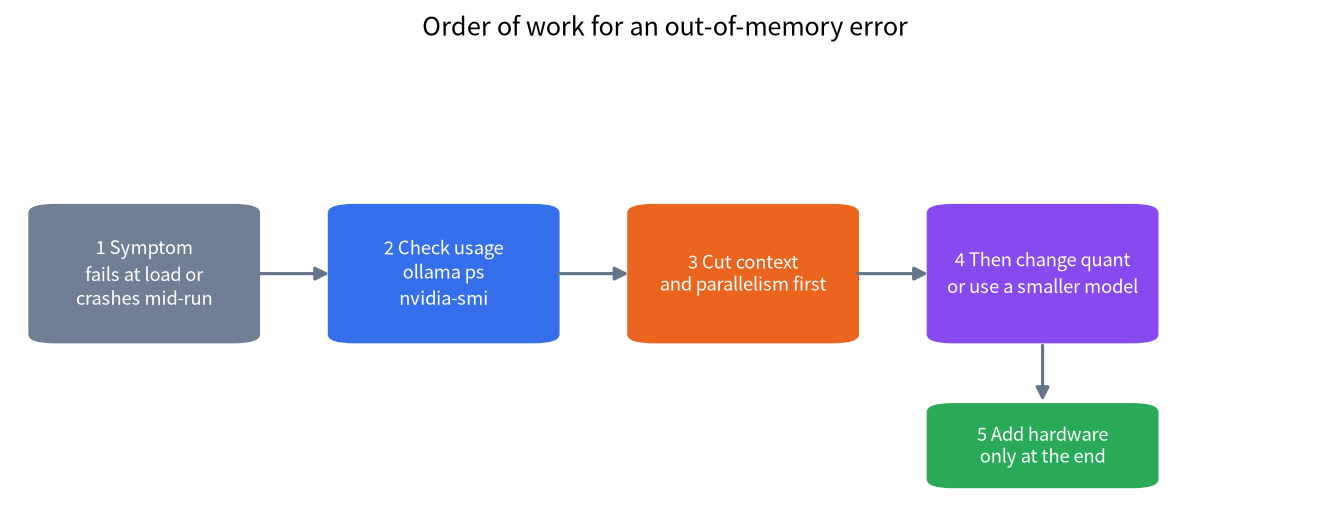
ollama psfirst.100% GPUmeans the model is wholly on the card,100% CPUmeans wholly in system memory, and a split such as48%/52% CPU/GPUmeans part of it spilled over.The order that usually pays off: close GPU-hungry apps, lower context, set parallelism to 1, quantize the KV cache to q8_0, and only then use a lower-bit model file.
Context and parallelism multiply. The Ollama docs say memory scales with
OLLAMA_NUM_PARALLELtimesOLLAMA_CONTEXT_LENGTH.
First, Decide Whether It Really Is Out of Memory
An out-of-memory problem shows up in three common ways, and each needs a different response. The first is a failure at load time, with a log message about memory, which means the weights plus the context do not fit. The second is a model that loads but crashes in a long conversation, which is usually context or parallelism inflating the KV cache. The third is the easiest to miss: no error at all, just slow output, because some layers were placed in system memory.
The Ollama FAQ gives a simple check. Run ollama ps and read the Processor column. 100% GPU means the model sits entirely on the GPU, 100% CPU means it sits entirely in system memory, and a value like 48%/52% CPU/GPU means it is split. If you expected the whole model on the card and see a split or pure CPU, you are short of VRAM and Ollama quietly offloaded for you. How that offload works is in our RAM versus VRAM guide.
The table below connects each symptom to its likely cause and the first thing to try.
| Symptom | Most likely cause | First thing to do |
|---|---|---|
| Fails at load | Weights plus context do not fit | Lower context, or use a lower-bit quant file |
| Crashes mid-conversation | KV cache grows with context and parallelism | Lower context, set parallelism to 1, quantize the KV cache |
| No error but very slow | Some layers sit in system memory | Confirm with ollama ps, then follow the order below |
| Worked until you switched models | An old model still holds VRAM | ollama stop the old model |
If ollama ps shows everything on the GPU and you still get an error, rule out a different class of problem before you buy anything: the driver or the GPU is not being detected. That is covered in our GPU troubleshooting article and is not an out-of-memory problem.
Step 1: See Who Is Using the VRAM
Before changing anything, look at actual use. On NVIDIA cards, nvidia-smi lists total memory, used memory and the processes holding it. Browser hardware acceleration, video players, a second inference program and a model that was never unloaded all compete for the same memory as your model.
The Ollama FAQ says models stay in memory for five minutes by default before they are unloaded. So if you switch from one model to another, the first may still hold VRAM. ollama stop followed by the model name unloads it at once, and setting the API keep_alive parameter to 0 does the same. In the other direction, a negative keep_alive or the OLLAMA_KEEP_ALIVE variable keeps a model resident, and you should remember that it will hold that memory the whole time.
Ollama can also load several models at once. OLLAMA_MAX_LOADED_MODELS defaults to three times the number of GPUs, provided the models fit. If different tools on your machine use different models, you can end up with two or three resident without noticing. Lower the value or let idle models unload when VRAM is tight.
Step 2: Lower the Context Length
Context length is the most common hidden cost. Every token the model processes takes space in the KV cache, so a longer context means a bigger cache. The Ollama FAQ states a default context window of 4096 tokens, which you can change with the OLLAMA_CONTEXT_LENGTH environment variable, with /set parameter num_ctx in an interactive session, or with num_ctx in an API call.
In llama.cpp the matching option is -c or --ctx-size. The server README gives a default of 0, meaning the value is loaded from the model. That deserves care: some models ship with a very large context, and if you do not set a value yourself the program asks for a cache sized to the model. Setting it explicitly to what you actually need, say 8192, often solves the problem on its own.
A hypothetical example shows the idea. Say you have a 12GB card and an 8B model at Q4 whose file is around 5GB, so the weights fit comfortably. If you open the context to 32K, the KV cache plus runtime overhead can consume the rest. Dropping to 8K and trying again is the cheapest fix. How the KV cache is calculated and why it grows with length is explained in our context length and KV cache guide.
Step 3: Set Parallelism to 1
Parallelism is the second multiplier people overlook. The Ollama FAQ says that processing parallel requests for one model increases the context size by the number of parallel requests. Its example is a 2K context with four parallel requests becoming an 8K context with extra memory allocated. OLLAMA_NUM_PARALLEL defaults to 1, and the docs add that required memory scales with OLLAMA_NUM_PARALLEL times OLLAMA_CONTEXT_LENGTH.
So if you raised parallelism to 4 so that several people could chat at once, then also kept a long context, your memory need is four times larger. For personal use, leave it at the default of 1. For shared use, work out the numbers before deciding whether you need a bigger card; our local API server guide discusses this in more detail.
llama.cpp’s server has similar parallel slots. Check the README for your version for the exact option names, because they change between releases.
Step 4: Turn On Flash Attention and Quantize the KV Cache
The Ollama FAQ says Flash Attention can significantly reduce memory use as the context grows. Ollama uses it automatically when the backend and device support it, and OLLAMA_FLASH_ATTENTION=1 forces it on. In llama.cpp the option is -fa with values on, off or auto, and the default is auto.
With Flash Attention enabled, the KV cache itself can be quantized. In Ollama the variable is OLLAMA_KV_CACHE_TYPE and the default is f16. According to the docs, q8_0 uses approximately half the memory of f16 with a very small loss in precision and usually no noticeable effect on quality, and it is the recommended choice if you are not using f16. q4_0 uses approximately a quarter, with a small to medium precision loss that may be more noticeable at higher context sizes. In llama.cpp the matching options are -ctk and -ctv, accepting types such as f16, q8_0 and q4_0, with f16 as the default.
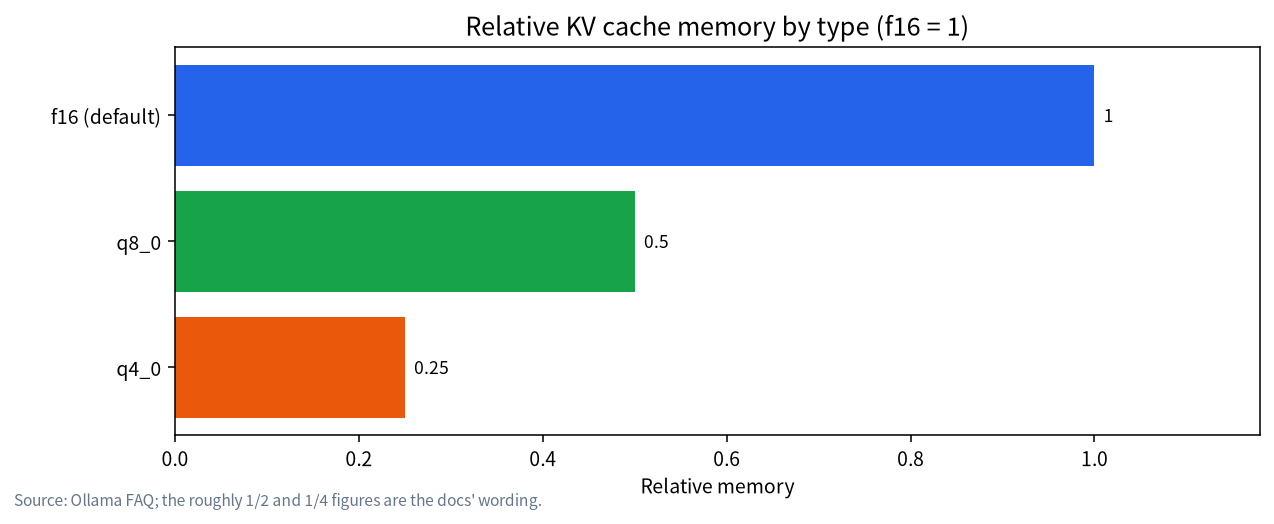
Notice that this saves KV cache, not weights. It matters most at long context and does little at short context, where the cache is small anyway. The docs also say you may need to experiment to find the right balance between memory use and quality.
LLM Out of Memory Fix: Every Lever, Its Saving and Its Cost
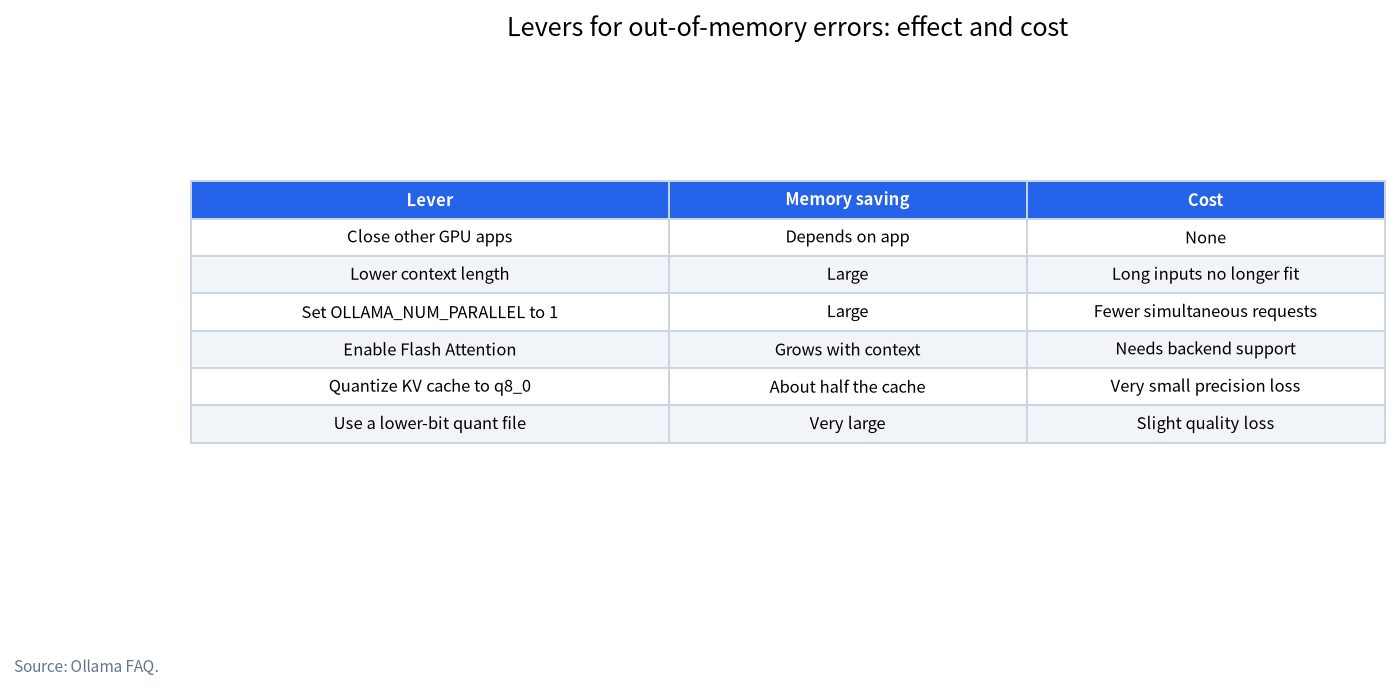
| Lever | Memory saving | Cost | Our suggested order |
|---|---|---|---|
| Close other GPU apps | Depends on the app | None | Step 1 |
| Lower context length | Large | Long inputs no longer fit | Step 2 |
OLLAMA_NUM_PARALLEL to 1 |
Large | Fewer simultaneous requests | Step 3 |
| Enable Flash Attention | Grows with context | Needs backend and card support | Step 4 |
| KV cache at q8_0 | About half the cache | Very small precision loss | Step 5 |
| Lower-bit quant file | Very large | Slight quality loss | Step 6 |
| Smaller model | Very large | Less capable | Step 7 |
| More VRAM or a new card | Complete | Money | Last |
The last column is our own suggestion rather than anything official. It simply puts the cheapest changes first.
Step 5: Change the Quant File or Use a Smaller Model
If you have done all of the above and it still does not fit, the weights themselves are too large. You then have two options: a lower-bit quantization or a smaller model. Our quantization guide explains the formats and trade-offs; as a general pattern, fewer bits mean a smaller file and slightly lower quality.
Our rule of thumb is to prefer a smaller model with a good quant over a larger model squeezed hard. A 14B file at Q3 and an 8B file at Q6 can be close in size, and the 8B at Q6 is usually the steadier choice. That is a judgment, not a measured result. The model size chooser applies the same thinking to picking a size for your VRAM.
llama.cpp has one more option worth knowing: -ngl, also written --n-gpu-layers, which sets how many layers go into VRAM. The default is auto, and you can give an exact number, auto or all. Placing fewer layers on the GPU and the rest in RAM lets you run a larger model at a cost in speed. The server README also says --fit defaults to on, which adjusts unset arguments to fit device memory, with --fit-target defaulting to a margin of 1024 MiB per device. In recent versions llama.cpp therefore tries to protect you from running out of memory, but if you hard-code many arguments yourself it has less room to adjust. Our GGUF and llama.cpp introduction covers the options.
A Hypothetical Troubleshooting Run
Suppose you have a 12GB card and run a 14B Q4 model in Ollama that crashes halfway through a chat. This is how we would work it:
- Run
ollama psand see70%/30% CPU/GPU. Part of the model has spilled to system memory, so you are already tight. - Run
nvidia-smiand find a browser holding some VRAM. Close it and load the model again. - Lower
OLLAMA_CONTEXT_LENGTHto 8192 and confirmOLLAMA_NUM_PARALLELis 1. - Set
OLLAMA_FLASH_ATTENTION=1andOLLAMA_KV_CACHE_TYPE=q8_0, restart Ollama and checkollama psagain. - If any CPU share remains, switch to an 8B model or to a lower-bit quant of the same 14B.
This demonstrates the method, and the numbers are invented. The point is to change one thing at a time and watch ollama ps after each change, so you know which step actually worked.
When the VRAM Is Fine but Something Else Is Not
Sometimes the error is not about the card. If system RAM runs out, the part offloaded to the CPU fails too, and if disk space runs out, downloading or unpacking a model fails. Both can be confused with a VRAM error. When you see “out of memory”, check which kind it is: reported by CUDA, or by the operating system. On Windows through WSL 2, the memory limit of WSL itself also constrains you; see our WSL 2 and Docker guide for how to set it.
If your card has 8GB or less, many of these limits are simply expected, and a smaller model is easier than endless tuning. Our 12GB and 16GB guide explains what fits at different capacities.
Common Mistakes
- Buying a card straight away. Most out-of-memory problems come from context or parallelism, and a setting fixes them.
- Looking only at file size. Real use includes the KV cache and runtime overhead, so leave headroom.
- Changing too much at once. If you change five settings together, you cannot tell which one helped.
- Forgetting the old model. Check with
ollama psand unload withollama stop. - Treating KV cache quantization as a cure-all. It saves cache only, not weights, and helps little at short context.
- Using a
q4_0cache at very long context. The docs warn that the precision loss can be more noticeable there.
FAQ: LLM Out of Memory Fix
Does running out of VRAM make a model slower?
Yes. When some layers are placed in system memory there is no error, but speed drops noticeably. Check the Processor column in ollama ps to confirm everything is on the GPU.
Why does a 5GB model file overflow a 12GB card?
Because besides the weights you need room for the KV cache and runtime overhead, and the cache grows with context length and parallel requests.
What is Ollama’s default context length?
Per the current FAQ it is 4096 tokens, changeable with OLLAMA_CONTEXT_LENGTH. Check the docs for the version you installed.
How much quality does KV cache quantization cost?
The docs say q8_0 has a very small precision loss and usually no noticeable effect, while q4_0 has a small to medium loss that may show at long context. We have not measured specific numbers ourselves.
How do I make Ollama free VRAM immediately?
Run ollama stop with the model name, or set keep_alive to 0 in an API call. By default models stay loaded for five minutes.
How do I control how many layers llama.cpp puts in VRAM?
Use -ngl or --n-gpu-layers with an exact number, auto or all. The default is auto.
Talk With Us
Send your card, model and error message to the community and we will help you track it down, or email admin@microaione.com.
References: Ollama FAQ, Ollama troubleshooting docs, llama.cpp server README, NVIDIA nvidia-smi documentation.