Local LLM for Coding: Build a Private Coding Assistant with Ollama, Continue and Qwen Coder (2026)
Sending proprietary source code to a cloud service is a deal breaker for many developers and companies, and even for hobby projects an offline assistant is attractive because it works on a plane and has no per-token bill. A local LLM for coding can give you chat about your code, inline autocomplete and even multi-file edits, all running on your own GPU. This guide shows a practical setup with Ollama as the model server and the Continue extension as the editor integration, explains which Qwen coding models fit which amount of VRAM, how to split autocomplete, chat and agent work between different models, and which traps (mainly context length and speed) catch beginners. If Ollama is not installed yet, start with the Ollama install guide.
Verification note: model names, sizes and context windows come from the Ollama library pages for qwen2.5-coder and qwen3-coder, and the configuration facts come from the Continue documentation, all checked on 2026-10-30. We did not benchmark coding quality or speed ourselves, so we make no claims about how good any model is compared with cloud assistants. VRAM suggestions are rules of thumb built from file sizes.
Key takeaways (Updated 2026-10-30)
- Use a small, fast model for autocomplete and a larger one for chat: one model rarely does both well.
The 30B Qwen3-Coder is a mixture-of-experts model that is 19GB on disk with only 3.3B parameters active, which makes it a good fit for 24GB cards or large unified memory.
Context length is the hidden cost: Continue’s default context can be higher than other tools use, so set it deliberately and watch
ollama ps.
What You Get from a Local LLM for Coding
A coding assistant is really three different jobs. Autocomplete suggests the next few tokens or lines while you type and must answer within a fraction of a second. Chat answers questions about selected code, explains errors and drafts functions, and users tolerate a few seconds of waiting. Agent or multi-file edit modes read several files, plan a change and apply it, which needs the largest context and the strongest model. The Continue extension for VS Code and JetBrains exposes exactly these modes: agent, chat, edit and autocomplete, plus a command-line tool.
Because the jobs differ, the best setup usually uses more than one model, and the table below shows the idea.
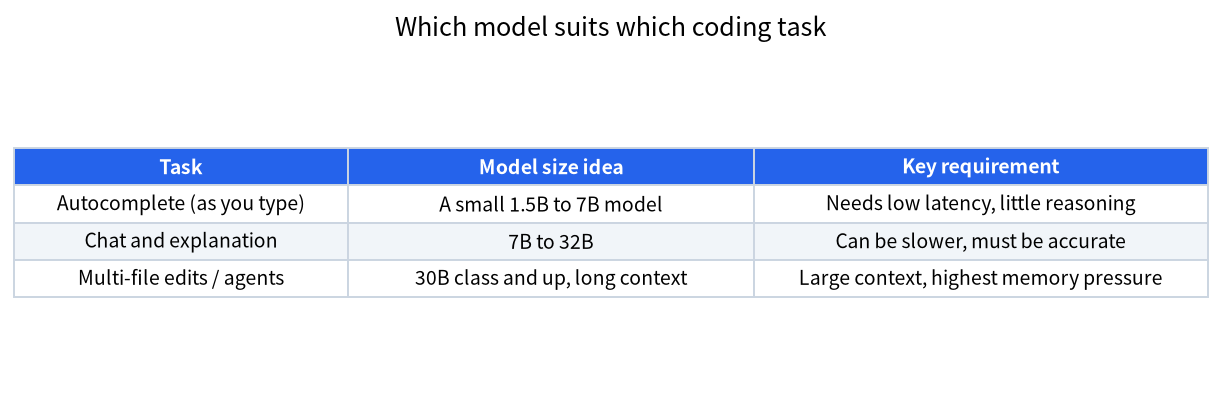
| Task | Model idea | What limits you |
|---|---|---|
| Autocomplete | 1.5B to 7B | Latency; a slow model is useless for inline suggestions |
| Chat and explanation | 7B to 32B | Answer accuracy and VRAM |
| Multi-file edits and agents | 30B class and larger with long context | Context memory and speed |
Pick a Model by VRAM
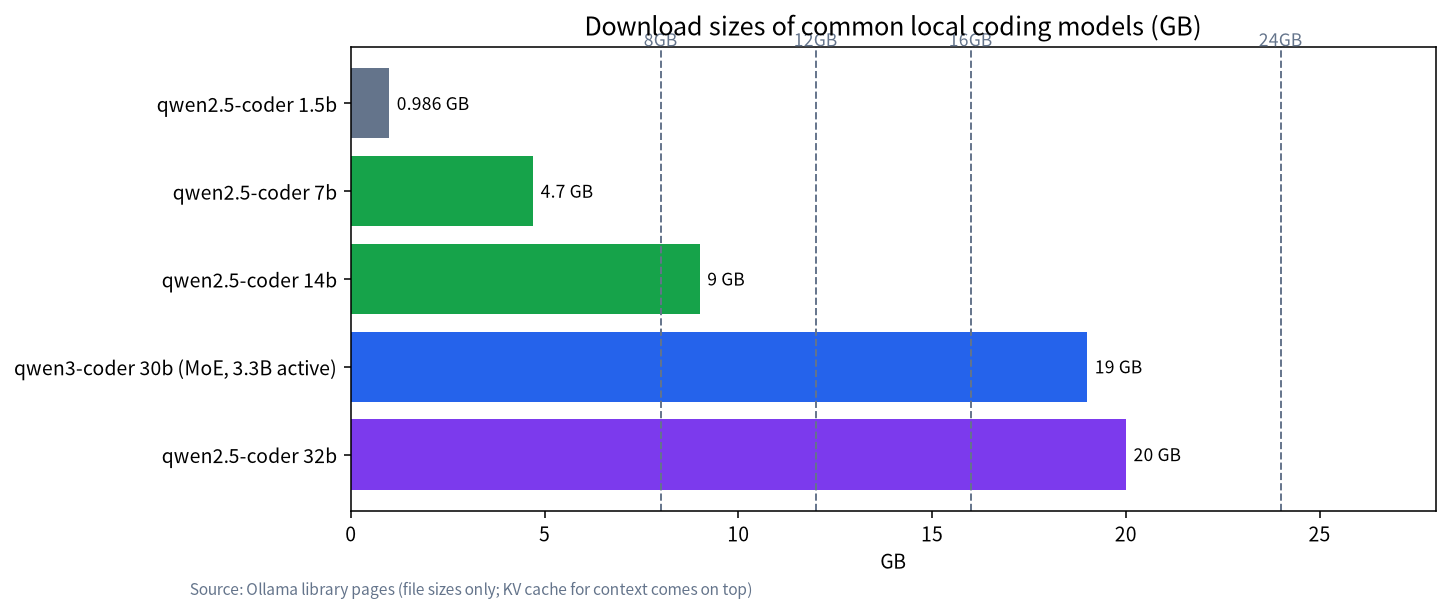
The Ollama library lists the Qwen2.5-Coder series in six sizes: 0.5B, 1.5B, 3B, 7B, 14B and 32B, all with a 32K context window. The file sizes are 398MB, 986MB, 1.9GB, 4.7GB, 9.0GB and 20GB. Qwen3-Coder is offered as a 30B model with 3.3B active parameters, 19GB, and a 256K context window, and as a 480B model of 290GB that Ollama says needs at least 250GB of memory or unified memory. The 480B model is out of reach for ordinary hardware, so the realistic choices are the smaller ones.
| Your VRAM or memory | Chat or agent model | Autocomplete model | Notes |
|---|---|---|---|
| 8GB | qwen2.5-coder 7b (4.7GB) | qwen2.5-coder 1.5b | Short context only; see 8GB VRAM guide |
| 12GB | qwen2.5-coder 14b (9.0GB) | 1.5b or 3b | Leave room for the KV cache |
| 16GB | 14b with longer context | 1.5b or 3b | More headroom than 12GB, see 12GB and 16GB guide |
| 24GB | qwen3-coder 30b (19GB) or qwen2.5-coder 32b (20GB) | 1.5b | Tight with long context, see 24GB guide |
| 64GB or more unified memory | qwen3-coder 30b with long context | 7b | Speed depends on memory bandwidth |
These suggestions are rules of thumb: the file size is only the weights, and the KV cache for your context adds more. Use the VRAM calculator guide to estimate the cache for your chosen context length.
Set Up Ollama and Continue
The Continue documentation recommends pulling models with ollama pull rather than ollama run, because run starts an interactive session you do not need. Use the exact tag listed on the model page, because the default tag may be a different size from what you expect.
ollama pull qwen2.5-coder:1.5b
ollama pull qwen3-coder:30b
ollama list
curl http://localhost:11434
The last command should return a short message saying Ollama is running. Then install the Continue extension from the VS Code marketplace and edit its configuration. A model entry in the config file names the provider, the model tag and optional completion options.
name: My Local Config
version: 0.0.1
schema: v1
models:
  - name: Qwen3 Coder 30B
    provider: ollama
    model: qwen3-coder:30b
    defaultCompletionOptions:
      contextLength: 16384
The documentation also shows pre-made model blocks, but a block only supplies configuration: the model itself must still be pulled locally. If you see an error about the model needing more system memory, the documentation says Continue may use a higher default context length than other tools and suggests lowering contextLength or using a smaller model. Our guide to Ollama and the GPU explains how to confirm where the model is running.
Context Length Is the Hidden Cost
Coding assistants love context: they send the current file, related files and a long conversation. A large context makes the KV cache grow, and on a card where the weights barely fit, a larger context can push part of the model into CPU memory and slow everything down sharply. Start with a modest context such as 8K to 16K, check ollama ps to see whether the model is fully on the GPU, and only increase the context while it stays there. Remember that long context in the model is not the same as long context at your hardware: Qwen3-Coder supports 256K tokens natively, but your VRAM decides what you can really use.
A Practical Workflow
- Install Ollama and pull one small autocomplete model and one chat model.
- Configure Continue with separate entries for chat and autocomplete.
- Test on a real file: ask for an explanation, then a small refactor, then a unit test.
- Watch the latency of autocomplete. If suggestions arrive late, use a smaller model.
- Keep a note of which models and contexts work on your machine.
For general model choices beyond coding, see the best local LLM models and the Qwen deployment guide; if you have a large-memory machine and want an OpenAI-style reasoning model, see the gpt-oss guide.
Why a Mixture-of-Experts Coder Fits Mid-Range Hardware
The Qwen3-Coder 30B listing says it has 30B total parameters with only 3.3B activated per token. That matters for two reasons. First, the whole 19GB of weights still has to be stored somewhere, so VRAM or unified memory capacity decides whether it fits. Second, because only a small part of the network is used for each token, generation can be faster than a dense model of the same file size, provided the weights sit in fast memory. This is why a 24GB card or a Mac with plenty of unified memory is a comfortable home for this model, while an 8GB card is not. If part of the weights spill into ordinary system memory, you lose much of the benefit, so treat the 19GB figure as the minimum and leave room for context.
Tuning Tips That Actually Help
Keep the autocomplete model loaded all the time and let the chat model load on demand if you are short of VRAM; Ollama keeps models in memory for a while after use, and loading a large model takes several seconds. Lower the temperature for code tasks so answers are more repeatable. When you ask for an edit, give the model the smallest useful context: the function, its callers and the failing test are better than a whole directory. Finally, keep your prompts specific, such as the language, the framework version and the style you want, because small models benefit more from clear instructions than large ones do.
Common Mistakes
- One huge model for everything: autocomplete becomes too slow; use a small model for it.
- Ignoring context: the model is fully on the GPU at 4K and half on the CPU at 32K.
- Using
ollama runto download: it opens an interactive session; useollama pull. - Pulling the wrong tag: the default tag may not be the size you wanted.
- Expecting cloud-level quality: smaller local models are useful but not equal to the biggest hosted ones; test on your own code.
- Forgetting privacy settings in other tools: a local model protects you only if the extension does not also send code to a cloud service.
Privacy and Licensing Notes
Running the model locally means your prompts and code stay on your machine, which is the main reason many teams choose this route. Still, check that every extension in your editor is configured to use the local endpoint only, and review the license of the model you use before relying on it in commercial work, since licenses differ between model families. The Ollama FAQ also describes a setting, OLLAMA_NO_CLOUD=1, that disables cloud features if you want to be certain nothing leaves the machine.
How to Judge Whether It Is Good Enough
Do not judge a coding model from a single impressive demo. Pick ten small tasks from your real work, such as explaining a confusing function, writing a unit test, converting a snippet to another language, fixing a failing test and renaming something across a file. Run each task on the local model and on whatever you used before, and note how many answers you could use without edits, how many needed small fixes and how many were wrong. Repeat the same list when you try a new model or a new quantization, so you compare like with like. Also measure how it feels: autocomplete that appears late is worse than no autocomplete, and a chat answer that takes a minute breaks your flow even if it is correct. Many developers end up using the local model for private repositories and quick questions, and keeping a cloud tool only for the hardest problems.
FAQ: Local LLM for Coding
Which local model is best for coding?
For most people with 12GB to 24GB of VRAM, a Qwen coder model is a sensible start: the 14B for 12GB to 16GB cards and the 30B Qwen3-Coder or the 32B Qwen2.5-Coder for 24GB. Test on your own code, because suitability depends on the language and the task.
Can a local model replace a cloud assistant?
For many everyday tasks it can be good enough, especially with private code, but we have not benchmarked quality, and the largest hosted models are generally more capable on hard problems.
How much VRAM do I need?
An 8GB card can run a 7B coder with short context. 12GB to 16GB suits 14B, and 24GB suits the 30B class, with context length adding to the memory need.
Should autocomplete and chat use the same model?
Usually not. Autocomplete needs very low latency, so a 1.5B to 7B model works better, while chat benefits from a larger model.
Why is my assistant slow or running out of memory?
Often the context length is too large. Reduce contextLength in Continue, use a smaller model, and check with ollama ps whether the model is on the GPU.
Is it really private?
The model runs on your machine, but you should verify that every extension uses the local endpoint only and consider setting OLLAMA_NO_CLOUD=1.
Share Your Setup
If you build a local coding setup, we would like to hear what worked. Join the community or email admin@microaione.com with your GPU, model and editor, and we can help you tune it.
References: Ollama library: qwen3-coder, Ollama library: qwen2.5-coder, Continue guide: Ollama, Ollama FAQ.