Run Kimi Locally: Requirements, Steps, and Cost (K2/K3)
Searches for how to run Kimi locally jumped after Moonshot AI released the Kimi K3 weights in July 2026. The short answer: yes, Kimi can run on your own hardware or in a private data center, but it is not a model you run because you have a good gaming GPU. K2 is a Mixture-of-Experts model with roughly one trillion parameters, and K3 has roughly 2.8 trillion. The weights alone are measured in terabytes. This guide pulls the facts from the official model cards, then lays out hardware requirements, deployment steps, license terms, cost ranges, and the realistic alternatives for individual users.
Verification note: Parameter counts and file sizes come from the official moonshotai repositories on Hugging Face, checked on 2026-11-05. Hardware and cost figures are team estimates based on public specs and market pricing. They are not quotes and not benchmarks. Kimi releases move quickly, so confirm against the Kimi K3 model card and the official deployment docs before you buy anything.
Key points (updated 2026-11-05)
- K2: MoE, about 1T total parameters, about 32B activated per token.
K3: MoE, about 2.8T total, about 104B activated, native MXFP4 weights around 1.56 TB, 1M-token context, image input.
Officially recommended engines: vLLM, SGLang, and TokenSpeed, all aimed at multi-GPU servers.
A personal PC cannot hold the original weights. Use the official API or a smaller open model instead.
The license allows commercial use and fine-tuning, with extra conditions for large Model-as-a-Service businesses and very large products.
Before you run Kimi locally: understand the model size
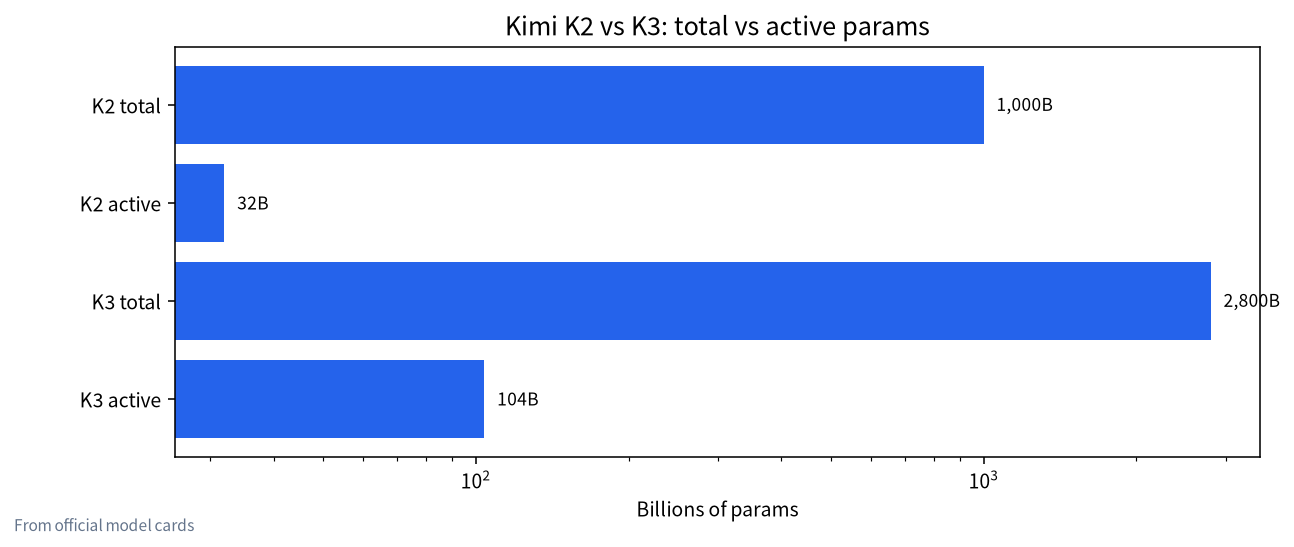
Mixture-of-Experts models have a huge total parameter count but activate only a slice of it for each token. The active count sets the compute per token, so inference is faster than a dense model of the same total size. But every expert’s weights still have to sit in GPU memory or system RAM, so memory and storage scale with the total. That is why Kimi computes like a model with tens of billions of parameters but deploys like a trillion-parameter one. Our guide to running MoE models locally explains the memory math in more detail.
| Item | Kimi K2 | Kimi K3 |
|---|---|---|
| Architecture | MoE | MoE (KDA + Gated MLA attention) |
| Total parameters | ~1T | ~2.8T |
| Activated parameters | ~32B | ~104B |
| Experts / selected per token | See official card | 896 experts, 16 selected |
| Context length | Varies by release; see card | 1,048,576 tokens |
| Modality | Text | Text + image (vision encoder ~401M params) |
| Official weight precision | Varies (FP8 and INT4 releases exist) | MXFP4 weights / MXFP8 activations (quantization-aware training) |
| Official download size | Around 1 TB class, varies by release | About 1.56 TB in 96 shards |
Kimi K3 hardware requirements
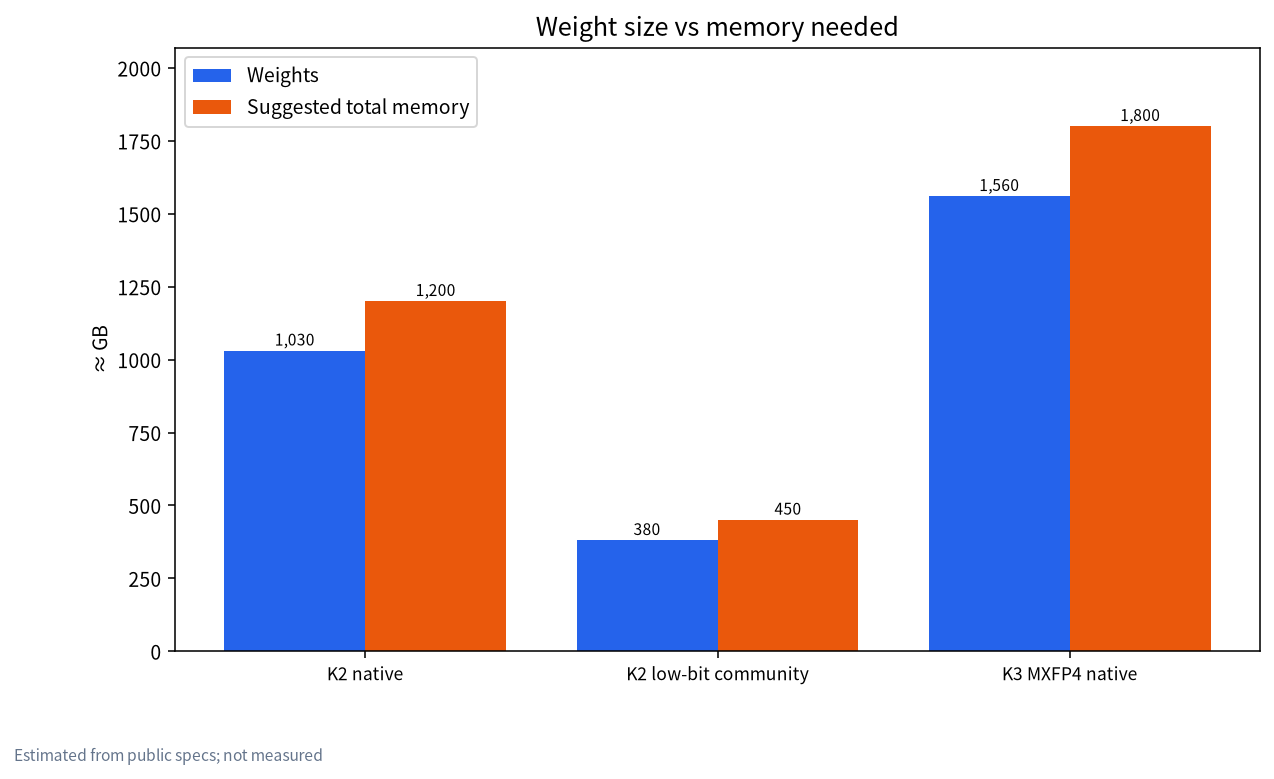
The core requirement for Kimi K3 is simple to state: enough combined GPU memory to hold about 1.56 TB of weights, plus KV cache and runtime overhead. A common rule of thumb is to have 15–30% more memory than the weight size. That gives these rough tiers:
| Setup | Rough configuration | Original K3? | Notes |
|---|---|---|---|
| Single consumer GPU (RTX 4090/5090) | 24–32 GB VRAM | No | Cannot even hold a few shards |
| Workstation with 512 GB RAM | 1–2 GPUs plus large RAM | No | Even very low-bit community K2 is a stretch |
| One node, 8×H200 (~1.1 TB VRAM) | Data-center GPUs | Original does not fit | Reasonable for K2 in FP8 |
| One node, 8×B200 / B300 class | 1.5–2.3 TB VRAM | Depends on memory and context | Blackwell supports MXFP4 natively |
| Two nodes, 16×H200 | ~2.2 TB VRAM | Yes | Needs fast interconnect and tensor or expert parallelism |
In practice, Kimi K3 needs one or two data-center GPU servers. What an individual developer can try is a community low-bit quantization of K2 on a server with a lot of RAM, using llama.cpp-style tools to keep most experts in system memory and a few layers on the GPU. It runs, but usually at single-digit tokens per second, which is fine for research and poor for production. See RAM vs VRAM and CPU offload for how that split works.
Do not forget storage. 1.56 TB of weights needs at least 2 TB of NVMe, and both downloading and loading take a long time. From China you can use ModelScope or a mirror; see our Hugging Face mirror guide. For drive sizing, see storage for local LLMs.
How to run Kimi locally on a server: steps
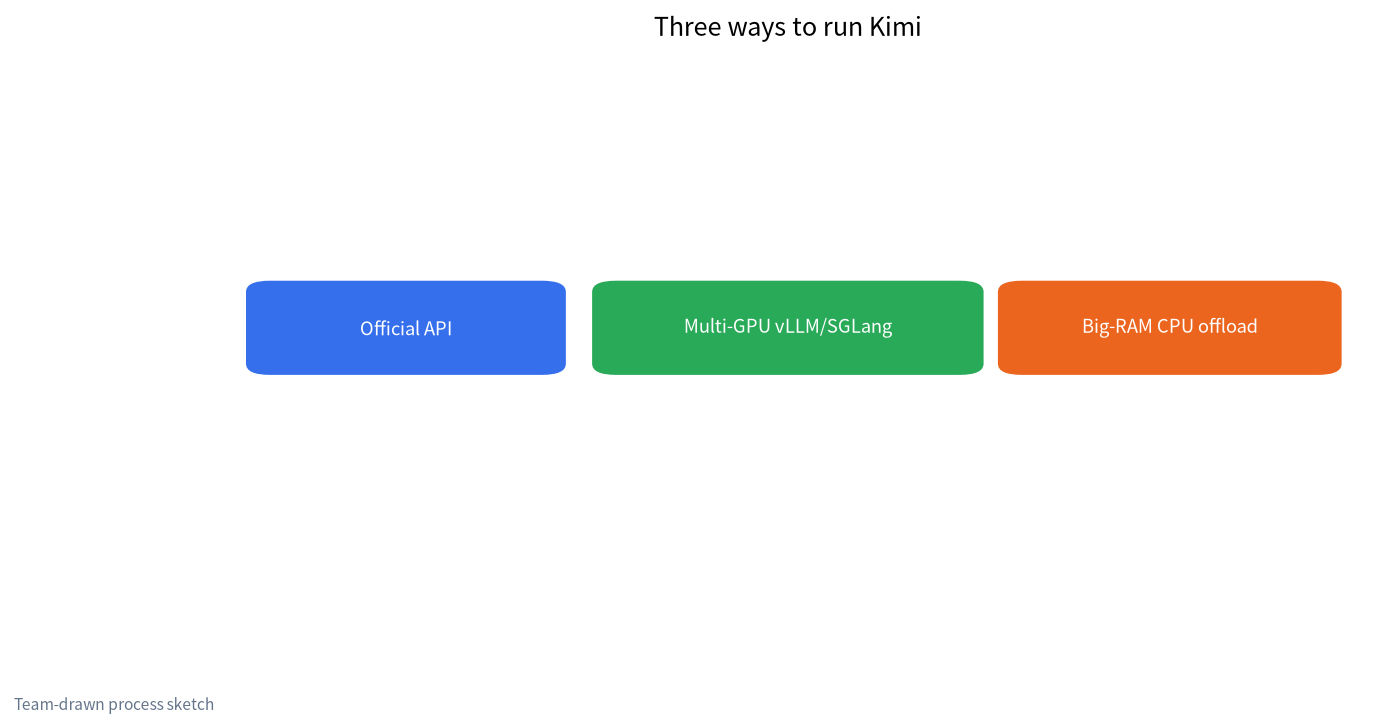
The general flow on a multi-GPU server is below. Exact flags come from the official vLLM or SGLang recipes.
- Check the driver and CUDA versions against the inference engine’s requirements, confirm NVLink or InfiniBand is healthy, and inspect the topology with
nvidia-smi topo -m. - Prepare storage. Use local NVMe, ideally RAID. Cold-loading terabytes from network storage is painfully slow.
- Download the weights with
hf download moonshotai/Kimi-K3 --local-dir /data/kimi-k3. Verify shard count and hashes afterward. - Install the inference engine at the version the official recipe specifies. Do not mix versions casually.
- Start the server with tensor or expert parallelism and a sensible maximum context. A 1M-token context massively increases KV cache use, so most deployments should start at 32K–128K.
- Expose an OpenAI-compatible API, then connect Dify, Open WebUI, or your own application.
- Load-test and monitor. Record time to first token, throughput, and peak memory before you set concurrency limits.
If what you need is Kimi’s capability rather than the weights physically in your building, the official API and certified inference partners cost far less. For data residency questions, see enterprise private deployment.
Common problems after deployment
Once Kimi is up, the trouble is usually not whether it starts but how it behaves:
- Slow cold starts. Loading terabytes from spinning disks or network storage can take tens of minutes. Keep weights on local NVMe and keep the service running.
- Context set too high. A 1M-token KV cache eats memory and collapses concurrency, sometimes straight into out-of-memory errors. Cap context to what the use case needs and use retrieval for long documents.
- Mixed versions. The engine, driver, and weight revision are tightly coupled. Use exactly what the recipe lists and test upgrades in staging.
- Power and cooling. An 8-GPU server under load can draw on the order of ten kilowatts, which ordinary offices cannot supply or cool. See our notes on power and cooling for LLM rigs.
- No monitoring. Without memory, temperature, and latency metrics you cannot tell whether the model is slow or the queue is. Wire up monitoring and alerts before launch.
A worked sizing example
Suppose a team wants to serve Kimi K3 internally to about 50 engineers for coding help, with a 64K context cap. Start with the weights: about 1.56 TB. Add roughly 20% for runtime buffers, CUDA graphs, and fragmentation, and you are near 1.9 TB before any KV cache. Each active long conversation then adds its own KV cache on top. K3’s mix of linear-style KDA layers and a smaller number of MLA layers keeps that cache smaller than a classic dense attention model would need, but at 64K context and a dozen simultaneous requests it still adds up to a meaningful slice of memory.
That puts the team in the range of a single high-memory Blackwell node at best, or two Hopper nodes more comfortably. Before buying, they should rent that exact configuration for a few days, replay real prompts from their engineers, and measure time to first token and tokens per second under concurrency. If the measured utilization is low, which is common for an internal tool used mostly in office hours, the API is the cheaper answer and the hardware budget is better spent on a smaller local model for sensitive code.
Kimi K3 deployment cost
Cost splits into one-time hardware and ongoing operation. These are rough ranges from public pricing in the second half of 2026, meant only to set expectations:
| Option | Up-front | Monthly | Good for |
|---|---|---|---|
| Rent cloud GPU nodes by the hour | None | Per hour, from hundreds to thousands of USD-equivalent per node-day | Evaluation, short projects |
| Buy an 8-GPU data-center server | Hundreds of thousands of USD class | Power, rack space, staff | Long-term high load, strict compliance |
| Big-RAM CPU server with low-bit K2 | Low tens of thousands of USD or less | Lower power | Research, offline batch jobs |
| Official API | None | Per token | Most individuals and small teams |
Our rent vs buy GPU comparison walks through the break-even math. A simple test: if your GPUs would sit below about 50% utilization most of the time, a self-hosted K3-class cluster will almost certainly cost more than the API.
License terms in plain language
Both the code and the weights of Kimi K3 are released under the Kimi K3 License. It allows use, modification, fine-tuning, redistribution, and commercial deployment, with a few conditions. A company that offers the model to third parties as a Model-as-a-Service business, with group revenue over USD 20 million in any 12-month period, must sign a separate agreement with Moonshot AI first. Commercial products with more than 100 million monthly active users or more than USD 20 million in monthly revenue must display “Kimi K3” prominently in the UI. Purely internal use is exempt from both. Read the official LICENSE yourself, and have counsel review it for any significant commercial project. Moonshot consistently calls this “open weight” rather than “open source”, a distinction we explain in what open-source LLMs are.
Realistic alternatives for individual users
With one 24 GB GPU or a 64 GB RAM desktop, fighting the original Kimi is not worth it. Better options:
- Use the official Kimi app or API to try its long context and coding ability.
- Run 7B–32B models locally, such as Qwen, DeepSeek distills, or GLM. See what an RTX 4090 can run and the model size chooser.
- Use the VRAM calculator before deciding whether to upgrade for bigger models.
Be very wary of anything sold as a “Kimi K3 lite” or a “one-click Kimi local pack”. Moonshot publishes weights only under the moonshotai organization. Anything else should be hash-checked before it touches your machine.
FAQ
Can I run Kimi locally on a personal computer?
Not the original weights. Both K2 and K3 are terabyte-scale, far beyond consumer VRAM and RAM. Community low-bit K2 builds can limp along on servers with huge RAM, but they are slow and lose quality.
What are the minimum Kimi K3 hardware requirements?
You need enough total GPU memory for about 1.56 TB of weights plus KV cache. In practice that means an 8-GPU Blackwell-class server or two 8×H200 servers. Follow the official recipes.
Is Kimi K3 open source?
It is an open-weight model. Weights and code are released under the Kimi K3 License, which allows commercial use and fine-tuning but adds conditions for large MaaS businesses and very large products. That is not the same as OSI open source.
How much does a Kimi K3 deployment cost?
Buying hardware runs to hundreds of thousands of US dollars. Renting cloud GPUs is billed by the hour. For most teams the official API is far cheaper overall.
Should I pick K2 or K3?
K3 is stronger and adds image input and a 1M-token context, but it needs roughly 1.5 times or more of K2’s memory. With limited hardware, a low-bit K2 or the API is more realistic.
Do I need to jailbreak Kimi to run it locally?
No, and we do not recommend it. This site does not publish ways to bypass safety behavior. For business use, add guardrails instead; see local guardrail models.
Want a second opinion on your Kimi plan?
Share your hardware list in the community or email admin@microaione.com. Our Shenzhen team can help estimate memory, parallelism, and cost.
Sources: Kimi K3 model card, Kimi K3 on GitHub, Kimi K3 License, vLLM docs, our vLLM and SGLang intro.