Gemma Local Deployment Guide: Run Gemma 4 and Gemma 3 with Ollama, Sized by VRAM
Gemma is Google DeepMind’s family of open-weight models, ranging from a few hundred megabytes to roughly thirty billion parameters, which makes it a good fit for personal computers. This Gemma local deployment guide is built on the pages of Ollama’s official model library. It explains which Gemma 4 and Gemma 3 variants exist, their sizes and context lengths, how to pick one for your VRAM, how to run and verify it, and how thinking mode, sampling settings, and common errors work. For installing Ollama itself, see the Ollama install guide; for the quantization concept, see what Q4_K_M quantization means.
Verification note: Variants, sizes, context lengths, commands, and recommended sampling settings come from the gemma4 and gemma3 pages of the Ollama library (ollama.com/library, read on 2026-10-30). Library sizes change with updates, and one tag can show a range across quantizations, so check the page before downloading. We ran no speed or quality evaluation of Gemma ourselves and do not quote vendor benchmark scores.
Key takeaways (Updated 2026-10-30)
- On Ollama, Gemma 4 comes in five tiers: e2b, e4b, 12b, 26b (mixture of experts, about 4B active parameters), and 31b (dense). Small models have a 128K context, larger ones 256K.
With 12GB of VRAM, try gemma4:12b first (about 7.7-8.0GB); with 24GB, consider the 26b or 31b (about 16-20GB).
Gemma 4 supports a thinking mode enabled by placing
<|think|>at the start of the system prompt; the recommended sampling is temperature 1.0, top_p 0.95, top_k 64.
Gemma Local Deployment: Know the Variants First
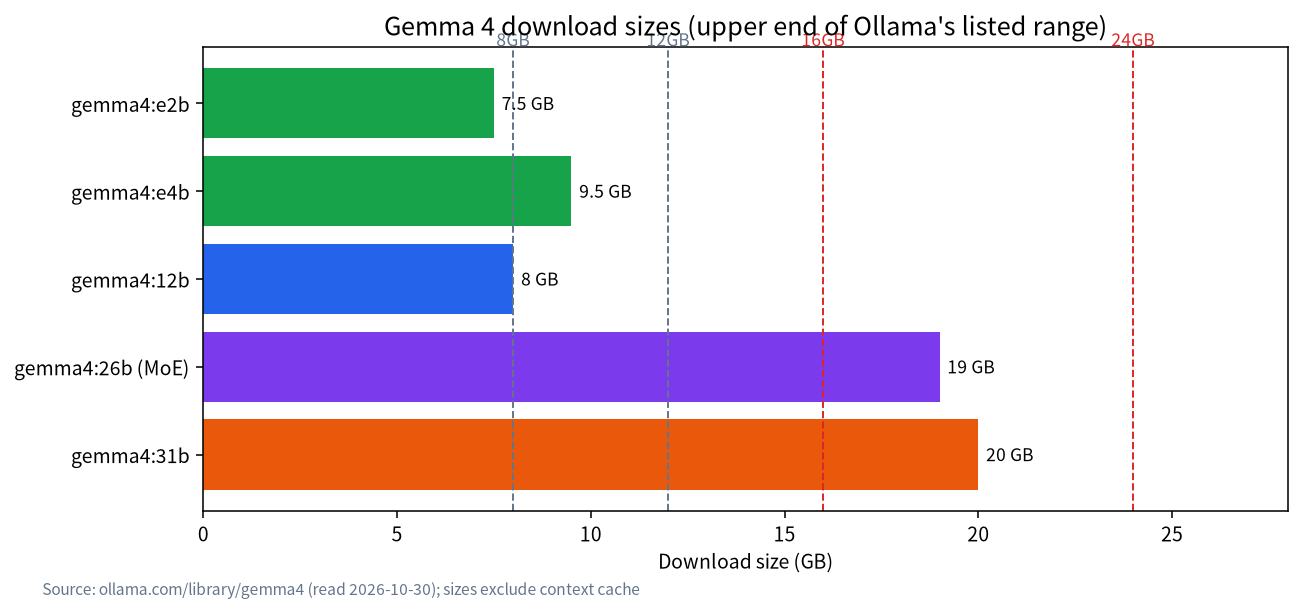
According to the Ollama library, the Gemma 4 tags are listed below. The download size is a range that depends on the quantization; the “E” stands for effective parameters and marks models aimed at edge devices.
| Tag | Download size (as listed by Ollama) | Context | Input types | Notes |
|---|---|---|---|---|
| gemma4:e2b | 4.6GB-7.5GB | 128K | Text, image (model card also lists audio) | About 2.3B effective parameters, edge devices |
| gemma4:e4b (latest) | 6.6GB-9.5GB | 128K | Text, image (model card also lists audio) | About 4.5B effective parameters; gemma4:latest points here |
| gemma4:12b | 7.7GB-8.0GB | 256K | Text, image | Workstation tier |
| gemma4:26b | 16GB-19GB | 256K | Text, image | Mixture of experts, about 25.2B total and 3.8B active |
| gemma4:31b | 19GB-20GB | 256K | Text, image | Dense, about 30.7B parameters |
The previous generation, Gemma 3, remains available and suits very small VRAM or legacy needs:
| Tag | Download size | Context | Input types |
|---|---|---|---|
| gemma3:270m | 292MB | 32K | Text |
| gemma3:1b | 806MB | 32K | Text |
| gemma3:4b (latest) | 3.4GB | 128K | Text, image |
| gemma3:12b | 8.2GB | 128K | Text, image |
| gemma3:27b | 17GB | 128K | Text, image |
Note that Gemma 4’s 26b is a mixture-of-experts (MoE) model: about 25.2B total parameters, but only about 3.8B are active for each token. The file size follows the total parameter count, while the speed is better than a dense model of the same size. We explain this in detail in a later article on MoE models.
Choosing a Version by VRAM
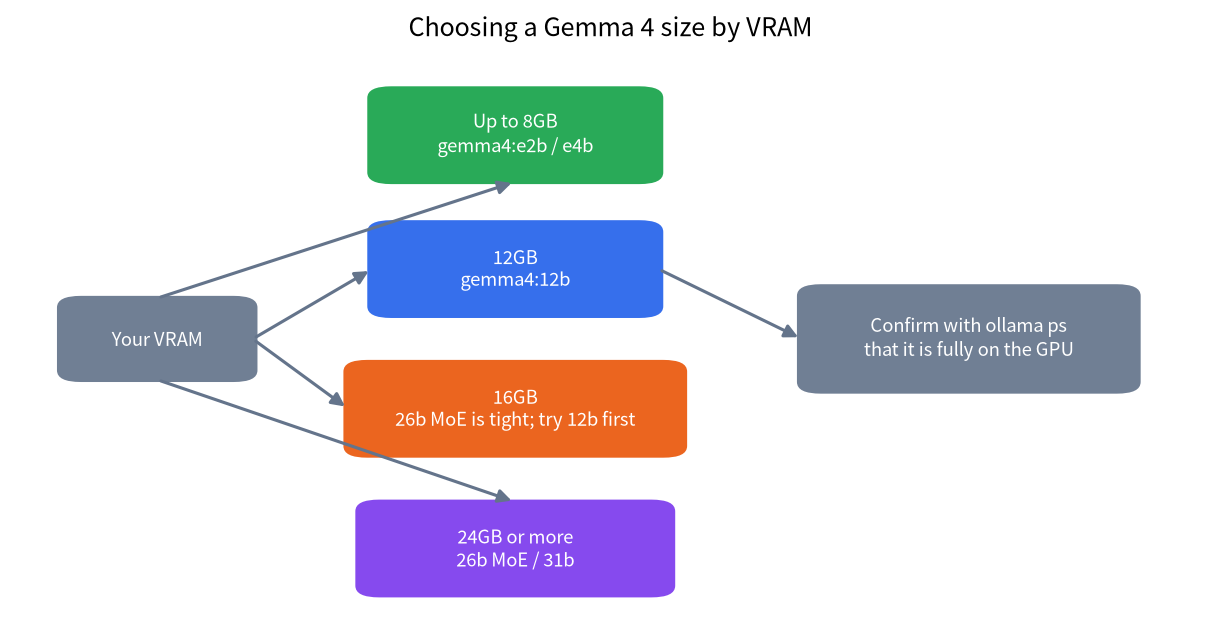
The download size covers only the weights, and you must leave room for the context cache. A simple rule is that the weight size plus 2GB to 4GB of headroom should not exceed your VRAM.
| VRAM | Suggested version | Notes |
|---|---|---|
| Up to 8GB | gemma4:e2b or e4b, or gemma3:4b | See what an 8GB GPU can run |
| 12GB | gemma4:12b | About 8GB, leaving room for a moderate context |
| 16GB | Try gemma4:12b, then evaluate 26b | The 26b’s 16GB-19GB is tight on 16GB; see 12GB and 16GB VRAM for local LLMs |
| 24GB and above | gemma4:26b or 31b | See 24GB VRAM for local LLMs |
Running and Verifying
- Update Ollama: newer models need a recent Ollama, so upgrade first.
- Run: type
ollama run gemma4:12bin a terminal; the first run downloads it. To download without running, useollama pull gemma4:12b. - Call the API: the Ollama model page gives a
curl http://localhost:11434/api/chatexample; set the model togemma4. - Verify: in another terminal run
ollama ps; the PROCESSOR column should read 100% GPU. If it shows a CPU share, VRAM is short or the driver has a problem; see Ollama not using the GPU. - Image input: Gemma 4, and Gemma 3 from 4b upward, accept images. The official guidance is to place the image before the text in your prompt.
Thinking Mode and Recommended Settings
The Gemma 4 page gives several usage tips, summarized here:
- Sampling: use temperature=1.0, top_p=0.95, and top_k=64 across all use cases.
- Enable thinking: put the
<|think|>token at the start of the system prompt; remove it to turn thinking off. - Multi-turn chats: keep only the model’s final answer in the history; do not feed earlier turns’ thinking back in.
- System role: unlike Gemma 3, Gemma 4 natively supports the system role.
- Image budget: Gemma 4 supports a configurable visual-token budget; a higher budget preserves more detail at a higher compute cost.
These tips come from the official model card as reproduced on the Ollama page. Ollama already handles the chat template, so you usually do not need to assemble the token format yourself.
Error and Speed Troubleshooting Table
| Symptom | Likely cause | Fix |
|---|---|---|
| Slow download | Network conditions | See Ollama downloads are slow; change network or set a proxy |
| Slow generation | Some layers landed on the CPU | Use a smaller version or shorten the context |
| Model not found | Wrong tag or an old Ollama | Check the tag and upgrade Ollama |
| Thinking markers appear in the answer | Thinking-mode output format | Use a client that understands the thinking field, or turn thinking off |
| Out of memory | Weights plus cache exceed VRAM | Use a smaller tier or a shorter context |
Beyond Weights: Estimating the Context Cache
Gemma 4’s 12b, 26b, and 31b support a 256K context, but that is the model’s ceiling, not a promise that your VRAM can hold it. The context cache grows with conversation length. If you run the 12b on 12GB of VRAM, the weights take about 8GB, and the remaining four or five gigabytes must cover the cache, display output, and system use, so the usable context is far below 256K. A safe approach is to start at around 8K, confirm that speed and memory look normal, then increase gradually until ollama ps shows some layers moving to the CPU, and step back one notch.
Open WebUI’s documentation notes that Ollama defaults to a 4096 context when VRAM is below 24GiB, and that you can raise it when needed; confirm your headroom before you do. The idea applies to every model, and the estimating method is in how to calculate LLM VRAM requirements.
A Minimal Verification Checklist
- Run
ollama --versionand confirm you have a recent release. - Use
ollama pullfor your chosen tag and check that the download is roughly the size shown on the page. - Do a first test with a prompt of about 200 words and confirm the answer is sensible.
- Run
ollama psand confirm the PROCESSOR column reads 100% GPU. - Send one image with a question to confirm multimodal input works.
- Finally, try a longer document and watch whether VRAM and speed stay acceptable.
Why Quantization Still Matters
Every size in the tables is already a quantized file, so the numbers are not the full-precision sizes. If a tag offers several quantizations, the smaller one saves memory at a small cost in accuracy, while the larger one keeps more quality but needs more VRAM. When you are right on the edge of your VRAM, moving one step down in quantization is usually a better trade than dropping a whole model tier, because the model keeps its capability and only loses some precision. Test both on your ten questions and judge the difference with your own eyes before committing to either one.
Keep a short log of which tag and quantization you chose and why, so that when a newer release arrives you can repeat the same comparison in minutes instead of starting from scratch.
What the Small Models Are For
The e2b and e4b edge models suit light work such as text classification, simple rewriting, extracting key points, or offline question answering on a laptop with no discrete GPU. Their strengths are quick startup and a small footprint; their weakness is that they trail the larger versions on complex reasoning and long documents. If your machine has only 8GB of VRAM, do not stretch to the 12b just for parameter count. A well-configured e4b with an adequate context is often more useful than a large model that barely fits and keeps paging. The same reasoning applies to phones and Raspberry Pi class devices, which a later on-device article covers.
How to Run a Fair Comparison Test
The most reliable way to choose a model is to compare them on your own tasks. Prepare ten representative real questions covering your usual uses, such as summarizing a passage, rewriting an email, explaining an error, and answering a specialist question. Give every model the same prompts and sampling parameters, save the answers to files, and review them a few days later. Choose the one that fits your needs best. This reflects your real experience better than any leaderboard and avoids being misled by vendor-published scores. Also record the version and tag you tested, because the library is updated and the same tag can point to a different quantized file weeks later.
Habits After Deployment
A few habits keep the experience stable. First, create separate model aliases for different jobs: a smaller version for everyday chat, and the larger one for long documents or hard reasoning. Second, longer context is not always better; 256K is the model’s capability, and VRAM use grows with it, so keep the context as large as you need and no larger. Third, clean up unused models regularly with ollama list and ollama rm so the disk does not fill. Fourth, if you want to serve other devices or applications, a friendlier front end helps; see the LM Studio tutorial or the Open WebUI approach.
Choosing Between Gemma and Other Models
Gemma is worth trying if your work leans toward multilingual text and image understanding. If you value coding or Chinese performance more, compare it with the choices in the Qwen local deployment guide. Our advice is to test on your own tasks. For a wider comparison, see best local LLMs in 2026.
FAQ: Gemma Local Deployment
Should I choose Gemma 4 or Gemma 3?
Try Gemma 4 first; it has more tiers and a longer context on Ollama. If VRAM is very small or you need legacy compatibility, Gemma 3’s 4b and 1b still work.
Why is Gemma 4’s 26b so large?
It is a mixture-of-experts model with about 25.2B total parameters. The file size follows the total, but only about 3.8B parameters are active for each token.
Which Gemma should I use with 12GB of VRAM?
Start with gemma4:12b. It is about 8GB and leaves room for context.
Can Gemma look at images?
Yes. The whole Gemma 4 family accepts images, as do Gemma 3’s 4b, 12b, and 27b.
How do I turn on Gemma 4’s thinking mode?
Put <|think|> at the start of the system prompt; remove it to turn thinking off.
Can I run Gemma in LM Studio or llama.cpp?
Yes. The principle is the same; you just need to pick the right GGUF file and quantization. See GGUF and llama.cpp for beginners.
Need Help Choosing a Version?
If you are not sure which Gemma version suits your card, tell us your GPU model and use case in our community, or email admin@microaione.com. For the basics, see VRAM and local LLMs: how to choose a GPU.
References and further reading: Ollama: gemma4 model page, Ollama: gemma3 model page.