Local LLM API Server: Turn Ollama or llama.cpp Into an OpenAI-Compatible Endpoint
Chatting in a window is only the start of what a local model can do. Editors, note apps, automation scripts and your own programs can all talk to it, if you run it as a service with an HTTP interface. A local LLM API server gives every one of those tools the same address to call, keeps your data on your own machine, and costs nothing per token. This guide shows how to turn Ollama or llama-server into an OpenAI-compatible endpoint, how to test it, how to make it reachable from other devices without leaving it open to everyone, and what to watch for when more than one client uses it. For installation basics, start with our Ollama install guide.
Verification note: Endpoint support, the default bind address and the OLLAMA_HOST setting come from the Ollama OpenAI-compatibility and FAQ pages, and llama-server options come from the llama.cpp server README, all read on 2026-10-30. Option names and defaults change between releases, so check
--helpfor your version. We did not benchmark throughput, and no speed figures are given here.Key takeaways (Updated 2026-10-30)
- Ollama listens on 127.0.0.1 port 11434 by default and supports a subset of the OpenAI API, including /v1/chat/completions, /v1/models and /v1/embeddings; the client needs an API key value, but Ollama ignores it.
To reach the server from other devices, change the bind address with OLLAMA_HOST, but treat that as an exposure decision: Ollama does not check keys, so add a firewall rule or a gateway first.
llama-server also offers OpenAI-compatible routes, with
--hostdefaulting to 127.0.0.1 and--parallelsetting the number of slots for multiple users.
Why Run a Local LLM API Server
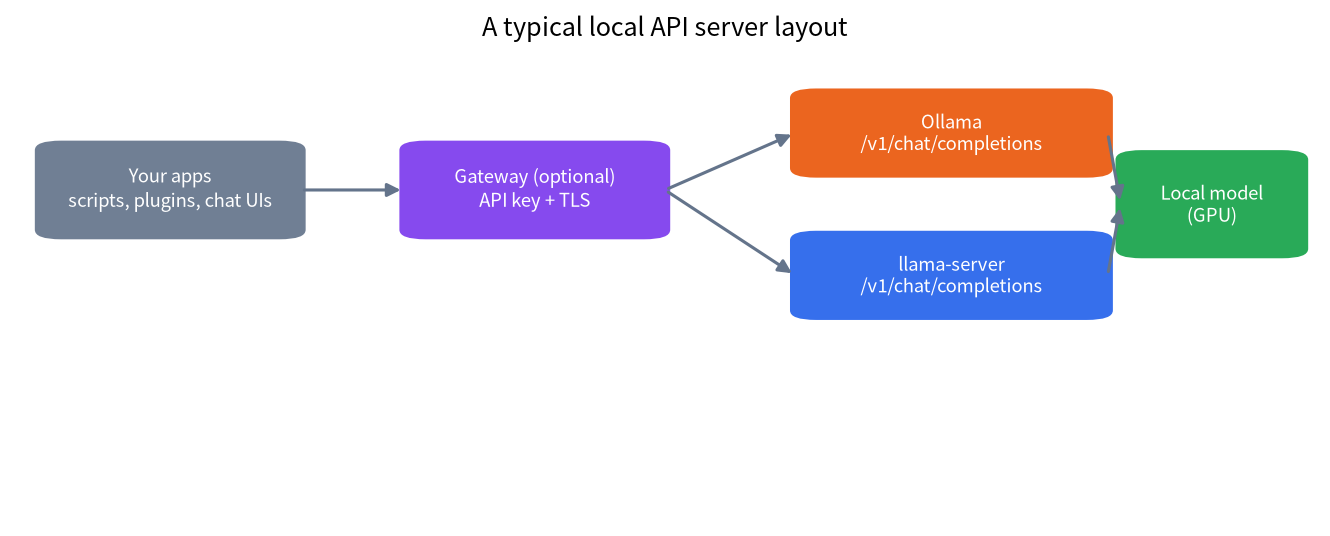
An API is what turns a model from a toy into infrastructure. Your coding assistant, described in our coding assistant guide, sends requests to it. A chat interface such as the one in our Open WebUI guide is just another client. A script that summarises documents or tags notes is a third. All of them speak the same language, because the OpenAI-style interface has become the common format, so switching from a cloud service to your own server often means changing one setting: the base URL.
The benefits are the ones that bring people to local models in the first place: prompts stay on your hardware, there is no per-token bill, and the service works offline. The costs are that you are now the operator. You decide who can connect, you keep it running, and you handle updates. Our local versus cloud comparison helps decide whether that trade suits your project.
Option 1: Ollama as the Server
If Ollama is installed, the server already exists. The documentation says that it supports a subset of the OpenAI API at http://localhost:11434/v1/, and the sample client code uses an API key such as “ollama”, described as required by the client but ignored by Ollama. The supported features listed for chat completions include streaming, JSON mode, reproducible outputs, vision, tools and reasoning control for thinking models, and the documentation also lists /v1/models, /v1/embeddings and other endpoints. Check the compatibility page for any field you depend on, since only a subset is supported.
A first test from the terminal looks like this:
curl http://localhost:11434/v1/chat/completions \
  -H "Content-Type: application/json" \
  -d '{"model": "qwen2.5:14b", "messages": [{"role": "user", "content": "Say hello in one sentence."}]}'
And from Python with the official OpenAI client:
from openai import OpenAI

client = OpenAI(base_url="http://localhost:11434/v1/", api_key="ollama")
reply = client.chat.completions.create(
    model="qwen2.5:14b",
    messages=[{"role": "user", "content": "Say hello in one sentence."}],
)
print(reply.choices[0].message.content)
If the model has not been pulled yet, pull it first. The model name in the request must match a name from ollama list.
Option 2: llama-server as the Server
The llama.cpp project ships its own server. Its README describes a set of REST APIs and a web interface, with OpenAI-compatible chat completions, responses and embeddings routes, parallel decoding for multiple users, continuous batching, function calling and a monitoring endpoint. You launch it with a model file, and the options we rely on are --host (default 127.0.0.1), --port, --ctx-size, --parallel for the number of slots (the default is automatic) and --alias to give the model a name for the API. Verify them with --help, because newer builds rename some commands. See our GGUF and llama.cpp guide for how to get model files.
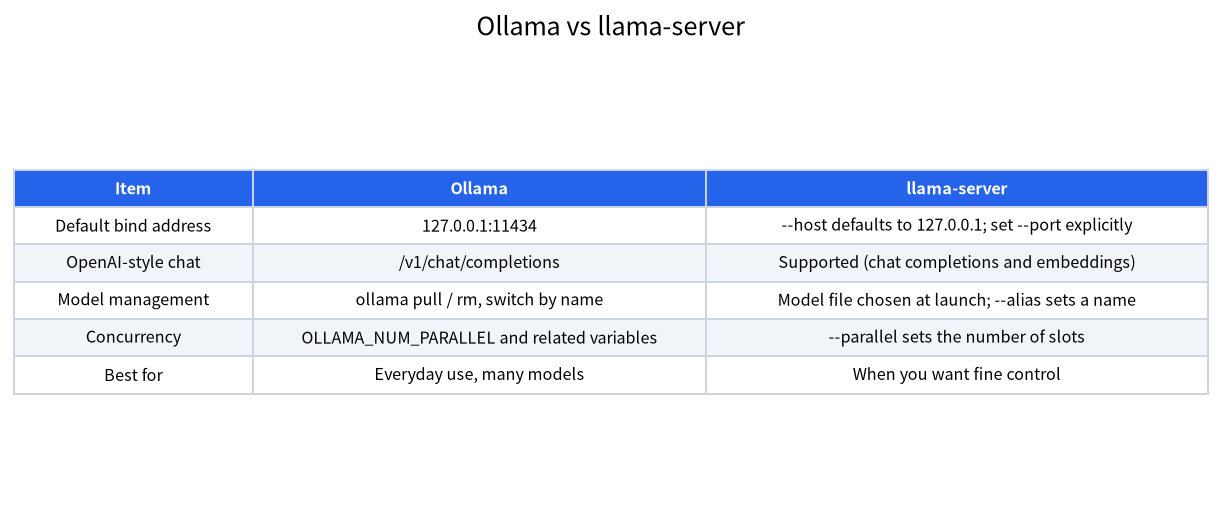
The choice between the two is mostly about habits. Ollama manages models by name and is the simpler everyday choice; llama-server gives direct control over each parameter. Our three-way comparison goes into detail, and the table summarises the differences relevant to an API.
| Item | Ollama | llama-server |
|---|---|---|
| Default bind address | 127.0.0.1:11434 | 127.0.0.1, set the port explicitly |
| OpenAI-style chat | /v1/chat/completions | Supported, plus embeddings |
| Model management | Pull, remove, switch by name | Model file chosen at launch, alias for naming |
| Concurrency setting | OLLAMA_NUM_PARALLEL and related variables | –parallel slots |
| Best for | Everyday use, many models | Fine control of parameters |
Making the Server Reachable From Other Devices
By default, both servers listen only on the local machine, which is safe and also useless for a phone or a second computer. Ollama’s FAQ states that it binds 127.0.0.1 port 11434 and that you change the bind address with OLLAMA_HOST. On Linux with systemd, you add Environment="OLLAMA_HOST=0.0.0.0:11434" through systemctl edit ollama.service, reload and restart; on macOS you use launchctl setenv, and on Windows you set a user environment variable and restart the application.
Stop and consider what that change means. The OpenAI-style interface accepts any key, so after binding to all interfaces, anyone who can reach the port can use your GPU and the models on it. That may be fine on a trusted home network, but it is not fine on a shared office network, a rented server or anything with a public address. Our remote service guide covers the system side, and the ladder below summarises how to widen access one step at a time.
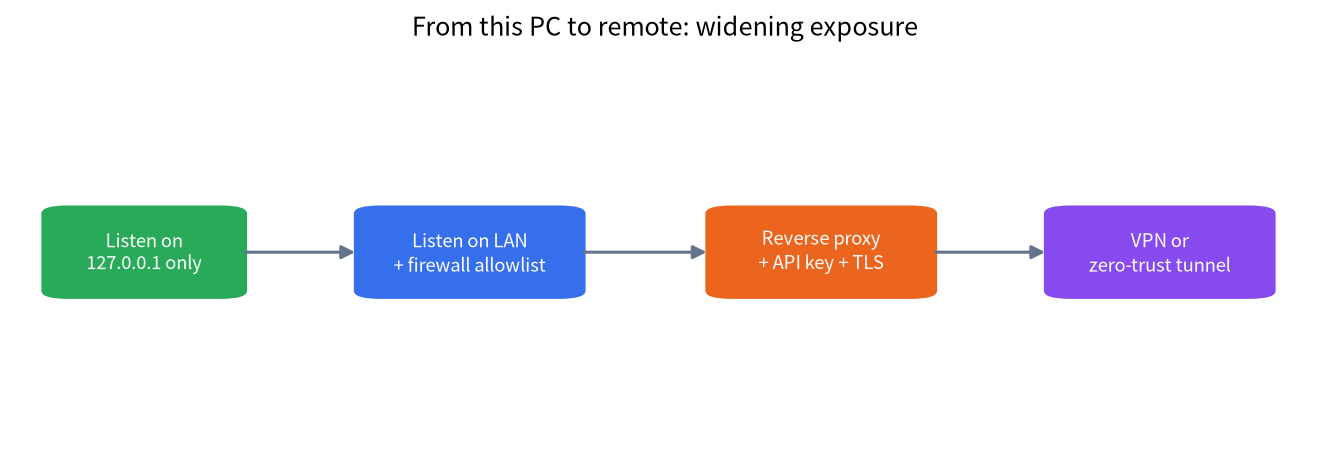
- This machine only. Leave the default. Apps on the same computer use localhost.
- Local network with a firewall allowlist. Bind to the network and allow only the devices that need access.
- Reverse proxy with an API key and TLS. Put a gateway such as nginx or Caddy in front, require a key, and encrypt traffic. The model server then listens only on localhost.
- VPN or a zero-trust tunnel. Reach the machine through a private network instead of opening a port.
For most households, step 2 or 4 is enough. For a team, step 3 gives per-user keys and logs, which we expand on in our shared team server guide. Never forward the port on your router to the internet.
Handling More Than One Client
A local model serves requests with limited memory, so concurrency has a cost. In Ollama, concurrent requests are controlled by environment variables such as OLLAMA_NUM_PARALLEL and OLLAMA_MAX_QUEUE, and each parallel request needs context memory, which is why our context length guide matters here. In llama-server, the --parallel option sets the number of slots, and the context size is shared between them, so more slots mean less context per user. Start with one or two parallel requests, test with your real workload, and raise the number only if memory allows.
For heavy multi-user serving, dedicated inference engines are designed for batching; see our vLLM and SGLang introduction. They need more setup but make better use of a GPU when many requests arrive together. We make no speed claims here, because the result depends entirely on your model, card and request mix.
Picking a Setup by Scenario
The right exposure level depends on who uses the service, not on what is technically possible. The table below maps common situations to a starting point; adjust it to your own network and risk tolerance.
| Scenario | Suggested setup | Protection | Main risk |
|---|---|---|---|
| One PC, your own scripts | Default localhost binding | None needed | Almost none |
| Laptop and desktop at home | Bind to the LAN, firewall allowlist | Router and host firewall | A guest device on the network |
| Family or housemates | LAN plus reverse proxy with keys | API key per person | Shared key leaks |
| Small team in an office | Gateway with keys, TLS and logs | Keys, TLS, audit logs | Misconfigured proxy |
| Working from outside | VPN or zero-trust tunnel | Private network access | VPN account compromise |
Keeping the Model Ready
A service that must reload the model on every call feels slow. Ollama unloads idle models after a while, and the OLLAMA_KEEP_ALIVE variable controls how long it keeps them in memory; set a longer period if your tools call the server only occasionally and you can afford the VRAM. The reverse is also true: if the server shares a GPU with games or other work, a short keep-alive frees the memory sooner. With llama-server, the model stays loaded as long as the process runs, so the question becomes whether to start it at boot, which you can do with a systemd unit or a Windows service wrapper.
Remember that the first request after a restart is slower, because the model must load from disk. If your clients time out on that first call, warm the model with a short request in the startup script.
Configuring Common Clients
Most tools that accept a custom OpenAI endpoint ask for the same three values: a base URL, an API key and a model name. For a local Ollama server, the base URL is http://localhost:11434/v1/, the key can be any string, and the model is the name from ollama list. For llama-server, use its host and port with the /v1 path, and the alias you set with --alias. If a tool insists on the cloud service, look for an “OpenAI-compatible” or “custom provider” option; many editors and chat applications have one. When a client sends fields the server does not support, it may ignore them or return an error, so test each feature you rely on, such as tool calls or image input, instead of assuming it works.
A common surprise is the context length. A client may believe that the model supports a large window while the server runs with a small default, so long documents are silently cut. Set the context explicitly on the server and test with a long prompt, as described in our context length guide.
A Short Hardening Checklist
Before anyone else uses the service, walk through this list. Confirm which interface the server listens on by checking the listening ports from another device. Add a firewall rule that allows only the machines that need access. If you use a gateway, test that a request without a key is rejected and that the model server itself is not reachable from outside the machine. Turn on TLS if traffic crosses anything you do not control, and keep the software updated, since server projects publish fixes regularly. Finally, decide who can see the logs, because prompts may appear in them.
Testing and Monitoring the Endpoint
After the first curl succeeds, test the things that break in practice. List the models with the /v1/models route to see whether your client sees the right names. Send a streaming request and confirm tokens arrive gradually. Send a request with a long prompt and check that nothing is truncated; Ollama’s default context window is small for machines with less than 24GiB of VRAM, so raise it through the documented settings if needed. Finally, run the same request from another device on the network to prove the bind address and firewall are correct.
Keep logs for the first week. On Linux, journalctl -u ollama shows the service logs, and the llama-server README describes monitoring endpoints you can enable. If requests slow down, run ollama ps to see which model is loaded and whether it fits on the GPU, since a model that spills to the CPU feels like a broken server.
Common Mistakes
- Binding to 0.0.0.0 and forgetting the firewall. Anyone on the network can then use the service.
- Assuming the API key protects Ollama. The key value is ignored, so it provides no security.
- Using localhost inside a container. Inside Docker, localhost means the container itself.
- Using a model name that was never pulled. The request fails with a model-not-found error.
- Raising parallel requests without checking memory. Each slot needs context memory.
- Port-forwarding to the internet. Use a VPN or a gateway with keys and TLS instead.
FAQ: Local LLM API Server
Is Ollama’s API really compatible with OpenAI clients?
Ollama supports a subset of the OpenAI API, so common chat and embedding calls work, but not every field. Check the compatibility page for the features you need.
What API key should I use?
Any non-empty string such as “ollama”. The client library requires a value, and Ollama ignores it.
How do I let another computer connect?
Set OLLAMA_HOST to a network address and restart Ollama, then allow the port in your firewall for the trusted devices only.
Can I add real authentication?
Yes, put a reverse proxy such as nginx or Caddy in front, require an API key there, and keep the model server on localhost.
Which should I choose, Ollama or llama-server?
Choose Ollama for simplicity and many models, and llama-server when you need direct control over parameters and slots.
How many users can one GPU serve?
It depends on the model, the context size and the request mix. We have not measured it, so test with your own workload and start with one or two parallel requests.
Talk With Us
Building an API service for your own tools? Tell us about it in the community or email admin@microaione.com.
References: Ollama OpenAI compatibility, Ollama FAQ, llama.cpp server README.