
RAM vs VRAM for Local LLMs: How CPU Offload Works and What It Costs in Speed
Sooner or later every local LLM user meets the same message: the model does not fit in the graphics card. The program does not stop. It quietly moves part of the model into system memory and keeps going, only much more slowly. To judge whether that is acceptable, you need to understand RAM vs VRAM: what each does, why one is far faster than the other, and what you actually gain by adding more of either. This guide explains CPU offload step by step with worked numbers that you can reproduce, and ends with rules for when extra system RAM is worth buying. It assumes you know the basics of GPU VRAM for local models.
Verification note: Statements about Ollama’s
ollama psProcessor column come from the Ollama FAQ; llama.cpp options (--n-gpu-layers,--cpu-moe, automatic fitting) come from the llama.cpp server documentation; GPU bandwidths come from NVIDIA specifications. DDR bandwidths are calculated from transfer rate times eight bytes times channels, and PCIe is a theoretical figure. The speed ceilings are our own derived estimates, labelled as such, and we did not benchmark offloading for this article.Key takeaways (Updated 2026-10-30)
- Generating each token reads essentially all the weights, so speed is limited by the bandwidth of the memory they sit in: roughly 936 to 1008 GB/s for a 3090 or 4090, but only about 50 to 100 GB/s for ordinary dual-channel system RAM.
Partial offload helps less than the fraction suggests: even with about half a 70B model on a 24GB card, our derived ceiling is only a few tokens per second, because the slow part dominates.
More system RAM lets a larger model load at all and helps with long context; it does not make offloaded layers fast. Mixture-of-experts models are the exception worth studying.
What RAM and VRAM Each Do
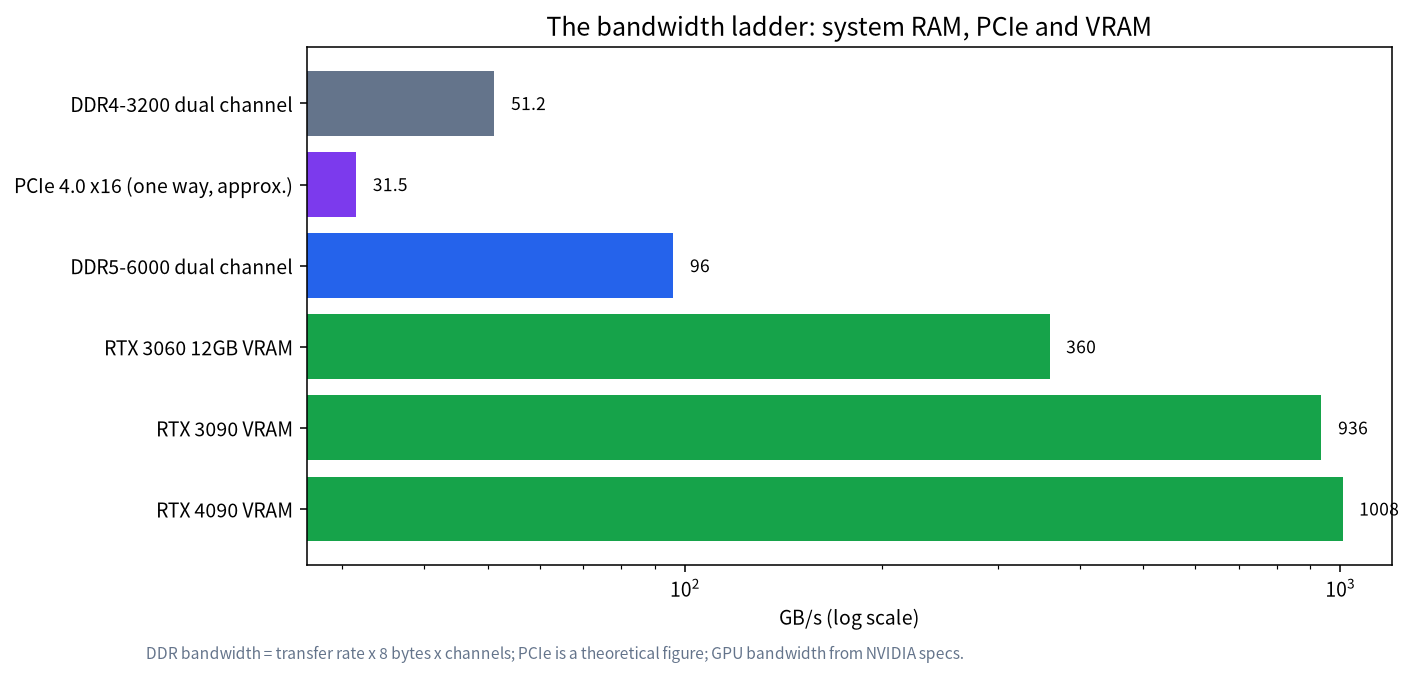
VRAM is the memory on the graphics card. It is connected to the GPU by a very wide, very fast bus, which is why a modern card reaches several hundred gigabytes per second or more: NVIDIA lists 936 GB/s of bandwidth for the RTX 3090 class and over 1000 GB/s for the RTX 4090. System RAM sits next to the CPU. Ordinary desktop memory with two channels gives far less, and the GPU cannot read it directly at full speed: data must cross the PCIe slot, which is slower still than either memory.
A language model generates one token at a time, and for each token the processor has to read the model’s weights. Capacity decides whether a model loads; bandwidth decides how fast it runs. Our article on calculating VRAM covers capacity, and this one covers what happens when capacity runs out.
The Bandwidth Ladder
The chart uses a log scale because the differences are large. A DDR4-3200 pair of channels delivers about 51 GB/s (3200 million transfers per second times 8 bytes times 2 channels). DDR5-6000 in two channels delivers about 96 GB/s by the same calculation. A PCIe 4.0 x16 slot carries about 31.5 GB/s each way in theory. Against that, an RTX 3060 12GB has 360 GB/s, an RTX 3090 936 GB/s and an RTX 4090 1008 GB/s. In other words, a modern GPU’s memory is ten times faster than good dual-channel DDR5 and nearly twenty times faster than DDR4. That ratio is the whole story of offloading.
How CPU Offload Works
Both llama.cpp and Ollama split a model by layers. The first layers go to the GPU until its memory is full, and the remaining layers are computed by the CPU from system RAM. In llama.cpp the number of layers on the GPU is controlled by --n-gpu-layers, which by default is chosen automatically to fit your device memory, and a fitting option adjusts unset arguments to leave a safety margin. Ollama makes the same decision for you and reports it: the ollama ps command shows a Processor column that reads 100% GPU when the model is entirely on the GPU, 100% CPU when it is entirely in system memory, and a split such as 48% CPU and 52% GPU when it is partly in each.
During each token, the GPU layers run quickly and the CPU layers run slowly, and the token is not finished until both are done. The total time is the sum of the two parts, which is why a small slow part can dominate.
A Worked Example With a 70B Model
A Llama 3.1 70B model at Q4_K_M is about 43.1GB in our size table. Suppose you have a 24GB RTX 3090 and put about 20GB of it on the card, leaving about 23GB in system RAM. For every token the GPU reads 20GB at 936 GB/s, which takes about 0.021 seconds, and the CPU reads 23.1GB from DDR5-6000 at about 96 GB/s, which takes about 0.24 seconds. The sum is roughly 0.26 seconds per token, or about 3.8 tokens per second as an upper bound. With DDR4-3200 the CPU part takes 0.45 seconds and the ceiling falls to about 2.1 tokens per second. All on the CPU, the ceilings are 2.2 tokens per second on DDR5 and 1.2 on DDR4. By contrast, two 24GB cards with everything in VRAM give a ceiling of about 21.7.
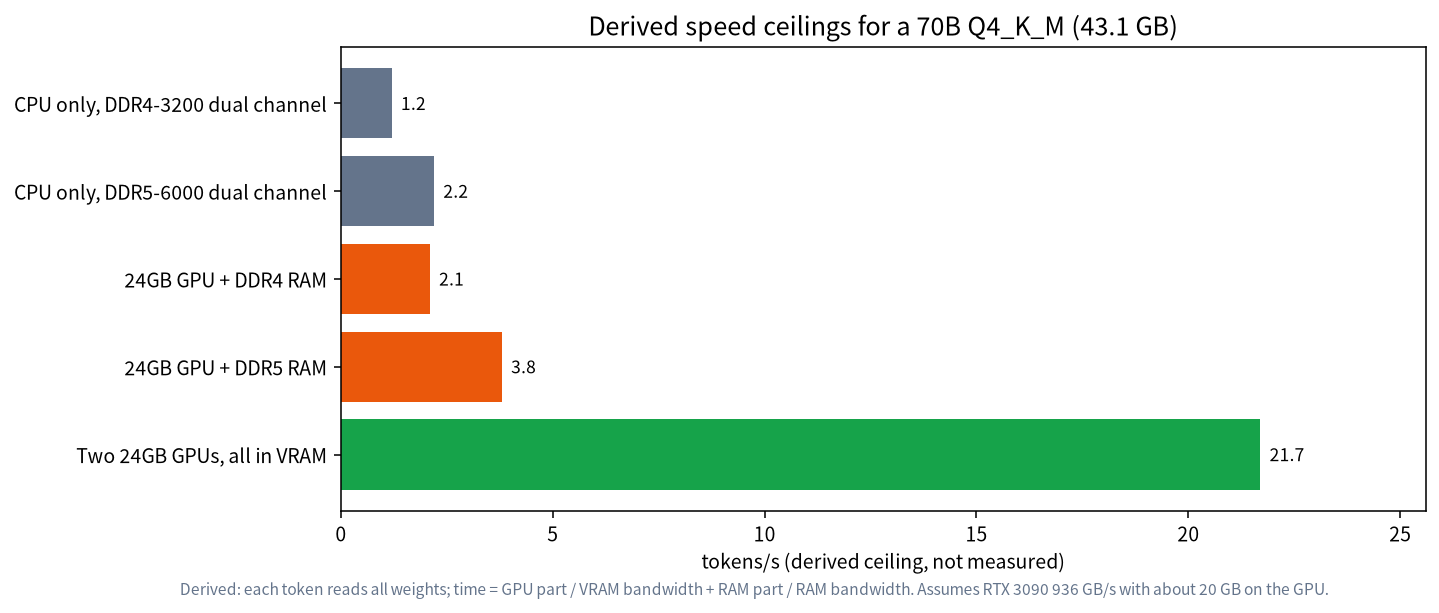
These are derived ceilings, not measurements. Real speeds are lower because of overhead, but the ordering is reliable: offloading gives only about 1.7 times the CPU-only ceiling in both memory cases, even though nearly half of the weights sit on a card with ten times the bandwidth. The slow part dominates. That is why the practical guidance is to buy enough VRAM for the model you want, and to treat offload as a way to run a model that is slightly too big rather than very much too big.
| Setup for a 70B Q4_K_M | Derived ceiling (tokens/s) | Verdict |
|---|---|---|
| CPU only, DDR4-3200 | about 1.2 | Too slow for chat |
| CPU only, DDR5-6000 | about 2.2 | Patient use only |
| 24GB GPU plus DDR4 | about 2.1 | Slow, but runs |
| 24GB GPU plus DDR5 | about 3.8 | Usable for non-interactive jobs |
| Two 24GB GPUs, all in VRAM | about 21.7 | Comfortable |
What Extra RAM Actually Buys You
More system RAM does three useful things. It lets a model that is larger than VRAM load at all, so you can try a 70B model on a 24GB card. It leaves space for the operating system and for large context caches, which matters for long contexts. And it helps CPU-only machines such as mini PCs with large unified memory, which our large-memory mini PC article discusses, because on those machines the memory bandwidth is higher than on ordinary desktops. What extra RAM does not do is make the offloaded layers fast. Doubling a desktop’s RAM from 32GB to 64GB lets you load a bigger model, not run it faster.
For dual-channel memory, faster kits and two matched modules matter more than capacity once you have enough. Four modules often run at lower speed than two, so choose two larger modules where you can. Enable the memory’s rated profile in the BIOS, because many boards default to a slow speed.
When Offload Is a Good Idea
Offload is a sensible choice in three cases. You want to try a model that is only a little bigger than your VRAM, for example a 14B model with a long context on a 12GB card; moving a few layers costs some speed but keeps it usable. You run non-interactive jobs, such as summarizing documents overnight, where tokens per second matters less than being able to run the model at all. Or you use a mixture-of-experts model, where only a fraction of the weights is read for each token, which is why llama.cpp offers options like --cpu-moe to keep expert weights in system memory while the rest stays on the GPU. Our article on MoE models covers that case, where RAM matters more than for dense models.
How to Measure Your Own Split
Do not rely on our arithmetic alone; check it on your machine in ten minutes. Load the model you care about and run ollama ps to see the Processor column. Then ask the same fixed prompt, such as a request for a four-hundred-word summary, and note the generation speed that Ollama or llama.cpp prints. If you use llama.cpp, repeat the run with different values of --n-gpu-layers and write down how the speed changes: it should rise steadily as more layers move to the GPU, then jump when the whole model fits. If the speed barely changes between two settings, the bottleneck is elsewhere, perhaps a thermal limit or a slow memory profile.
Keep two things constant between runs: the context length and the prompt. A longer context adds KV cache, which takes VRAM away from the layers and can push more of them to the CPU without you noticing. This is why the same model can feel fast in a short chat and slow in a long document. Record the numbers in a small table with the date; you will want them the next time you change a driver, a quantization or a memory kit.
Choosing Between More VRAM and More RAM
| Goal | Better investment | Why |
|---|---|---|
| Run a 7B to 14B model fast | VRAM | Fits entirely and runs at GPU speed |
| Try a 70B model occasionally | RAM, plus a 24GB card | Loads and runs slowly but works |
| Daily 70B use | More VRAM or a unified-memory machine | Offload is too slow |
| Large MoE model | RAM plus a decent GPU | Only some weights are read per token |
| Long context on a mid-size model | VRAM first | The KV cache is read often |
If you are choosing between buying more RAM and a bigger card, the bigger card almost always gives the better speed. See our 24GB VRAM guide and 8GB VRAM guide for what each size handles without offload, and Q4_K_M quantization for reducing the model size so that it fits.
Common Mistakes
- Expecting offload to scale linearly. The slow part dominates the time per token.
- Buying only RAM for a 70B plan. It loads, but it does not run quickly.
- Using four RAM sticks at a lower speed. Two modules often run faster.
- Forgetting the XMP or EXPO profile. Memory may run at a slow default speed.
- Ignoring
ollama ps. It tells you immediately whether the model is on the GPU.
FAQ: RAM vs VRAM
Can an LLM use system RAM instead of VRAM?
Yes. Both Ollama and llama.cpp can run layers on the CPU from system RAM, but the speed is much lower because RAM bandwidth is far below GPU memory bandwidth.
How much RAM do I need to offload a model?
At least the size of the part that does not fit in VRAM plus space for the operating system and context. Plan for the model size plus several gigabytes.
Is DDR5 much better than DDR4 for LLMs?
For CPU inference, higher bandwidth directly raises the ceiling. In our derived example, DDR5-6000 roughly doubles the ceiling of DDR4-3200.
How do I see whether my model is on the GPU?
Run ollama ps and read the Processor column, which shows 100% GPU, 100% CPU or a split.
Does offload hurt quality?
No. The same weights are used, so answers are the same; only the speed changes.
Is it better to buy a second GPU or more RAM?
For speed, a second GPU usually wins. For loading a very large model cheaply and slowly, RAM is cheaper.
Talk With Us
Planning a build around a large model and unsure how much memory it needs? Join the community or email admin@microaione.com.
References: Ollama FAQ, llama.cpp server documentation, NVIDIA RTX 3090 specifications, NVIDIA RTX 4090 specifications.