Offline LLM for PC: Do Local LLMs Need the Internet? Offline AI Software and Downloads (2026)
The first question most people ask about running a model at home is: does a local LLM need the internet? The short answer is that once the model file is on your disk, chatting does not need a connection, so an offline LLM for PC works on a machine that is completely unplugged from the network. But several steps do go online: downloading models, browsing a model catalog, checking for app updates and using cloud features, and some apps do these things by default. This guide splits the workflow into steps, shows which ones need a connection, how to switch the optional ones off, how to choose offline AI software, how long an offline LLM download takes, and how to install on an air-gapped machine. For the basics see what a local LLM is; for privacy see our local LLM privacy guide.
Key points (updated 2026-11-04)
- Inference is offline: weights sit on your machine and the computation runs on your own CPU or GPU, so it keeps working with the cable pulled.
The network is used in four situations: downloading models and runtimes, searching a model catalog, checking for updates, and using cloud models or web search.
Defaults differ by app: LM Studio needs the network for model search and update checks; Ollama has cloud models that
OLLAMA_NO_CLOUD=1disables; Open WebUI hasOFFLINE_MODE=true; llama.cpp has--offline; Hugging Face libraries honorHF_HUB_OFFLINE=1.Real isolation comes from a firewall or an unplugged cable; software switches reduce traffic but do not replace network isolation.
We did not test each app on a disconnected machine; behavior below comes from official documentation read on the date listed at the end.
Do local LLMs need the internet? Four separate steps
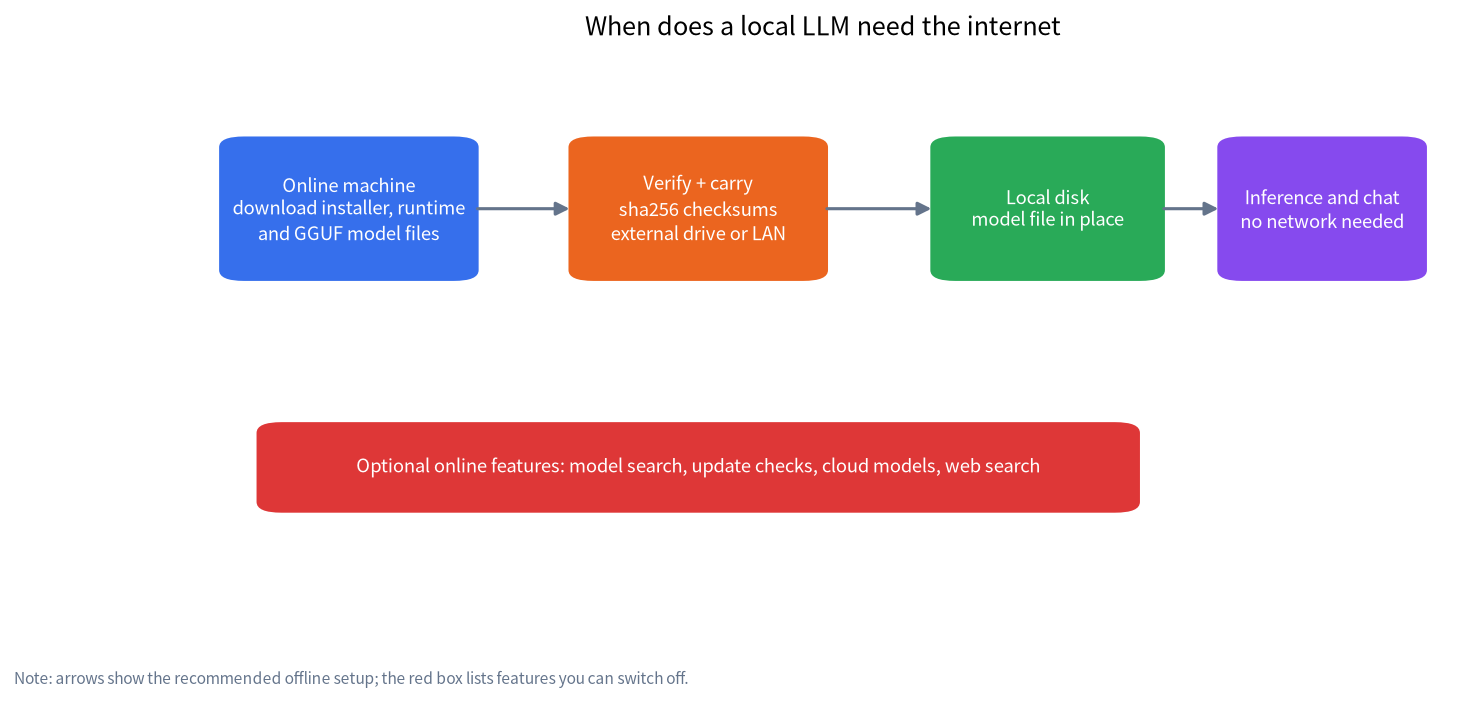
“Does it need the internet” only has a clear answer when asked step by step.
| Step | Needs internet? | Notes |
|---|---|---|
| Download the app and runtime | Yes | Installers, runtimes such as llama.cpp, GPU drivers |
| Download model files | Yes, once | From Hugging Face, ModelScope or the app’s built-in catalog (GGUF and similar) |
| Inference and chat | No | Computation is local; prompts and answers do not pass through an external server |
| Local document Q&A (RAG) | No | The embedding model must be downloaded beforehand; LM Studio’s docs say document chat works offline |
| Model search and catalog stats | Yes | LM Studio’s Discover page makes network requests |
| Update checks | Yes | Most apps check on launch by default |
| Cloud models and web search | Yes | Ollama cloud models, Open WebUI web search and similar features look local but run remotely |
So the accurate formulation is: an offline LLM means doing every online step during setup and keeping the runtime phase disconnected. It also clears up a common misunderstanding. Seeing “cloud models” inside Ollama’s interface, some people assume local models upload their data. They do not: local and cloud models are two different paths, and a model that is already on your disk keeps your data on your disk. For the cost and privacy trade-offs between the two, read local vs cloud API.
Offline AI software: compare network behavior, not just features
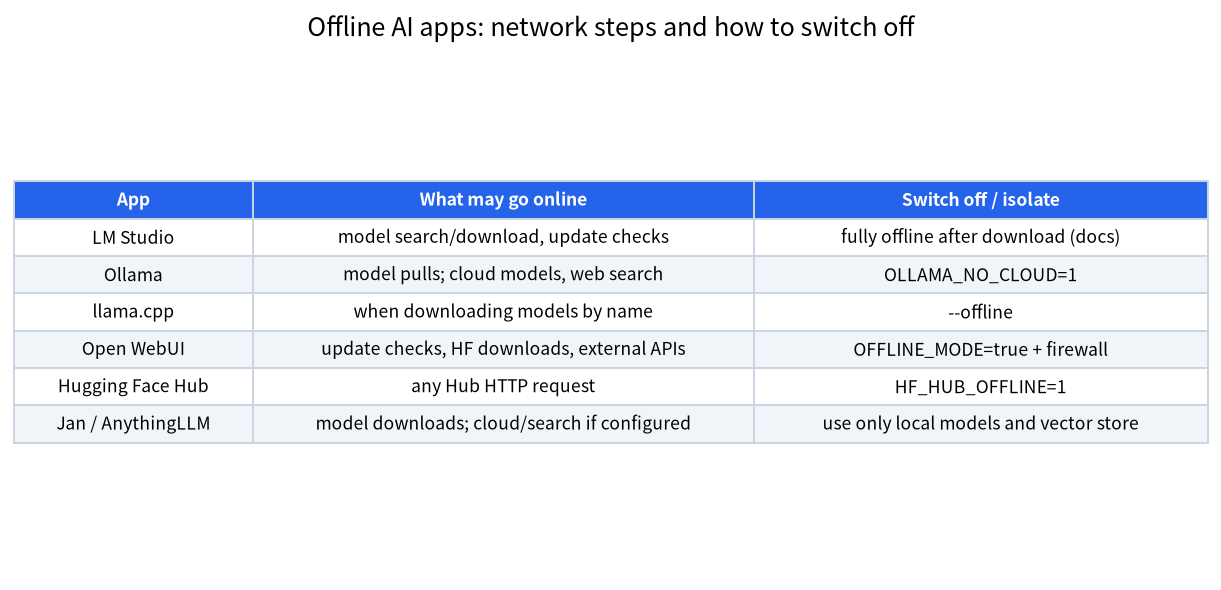
When choosing offline AI software, judge whether its network behavior can be switched off and how cleanly, in addition to how pleasant the interface is. The table below summarizes what each project’s official documentation says; we did not capture traffic ourselves.
| App | License and form | What may use the network | How to switch off or isolate |
|---|---|---|---|
| LM Studio | Desktop app, free for personal and internal work use, closed source (per its terms) | Model search and download, runtime downloads, update checks | Docs say chat, document chat and the local server work fully offline after models are downloaded |
| Ollama | MIT-licensed open source with macOS/Windows desktop apps | Pulling models; cloud models and web search | Set OLLAMA_NO_CLOUD=1 and restart to disable cloud features |
| llama.cpp | MIT license, CLI and server | Downloading a model by name from Hugging Face and similar | llama-server --offline forces the local cache and blocks network access |
| Open WebUI | Web front end for Ollama and other back ends | Version checks, Hugging Face downloads, optional web search and external APIs | OFFLINE_MODE=true disables update checks and HF downloads, but does not block external services you configured |
| Jan | Apache-2.0 open-source desktop app | Downloading models | Local API listens on 127.0.0.1:1337 by default |
| AnythingLLM | MIT license, desktop and self-hosted | Only if you configure cloud models or web search | Pick local models and the local vector store (LanceDB by default) |
Practical picks: for a graphical app with little fuss, choose LM Studio (see the LM Studio tutorial) or the Ollama desktop app (Ollama install guide); to serve a web page to family or a team, add Open WebUI (Open WebUI with Ollama); for full control, use llama.cpp (GGUF and llama.cpp intro). For document Q&A look at AnythingLLM or a local RAG knowledge base.
Remember that the table only records what each project claims. Apps change fast, and today’s defaults may not hold next month. Before using a machine in a restricted network, block its outbound traffic with a firewall and test every feature again; that is more reliable than trusting any single switch.
Offline LLM download: how big and how long
The biggest practical hurdle for an offline LLM download is size. The llama.cpp quantization documentation lists Q4_K_M sizes for the Llama-3.1 family: about 4.9 GB for 8B, 43.1 GB for 70B and 249.1 GB for 405B. We converted these to theoretical download times with this formula:
seconds = size (GB) × 8 ÷ bandwidth (Gbps)
| File | 20 Mbps | 100 Mbps | 500 Mbps |
|---|---|---|---|
| 8B Q4_K_M (about 4.9 GB) | about 32.7 min | about 6.5 min | about 1.3 min |
| 70B Q4_K_M (about 43.1 GB) | about 4.8 h | about 57.5 min | about 11.5 min |
| 405B Q4_K_M (about 249.1 GB) | about 27.7 h | about 5.5 h | about 66.4 min |
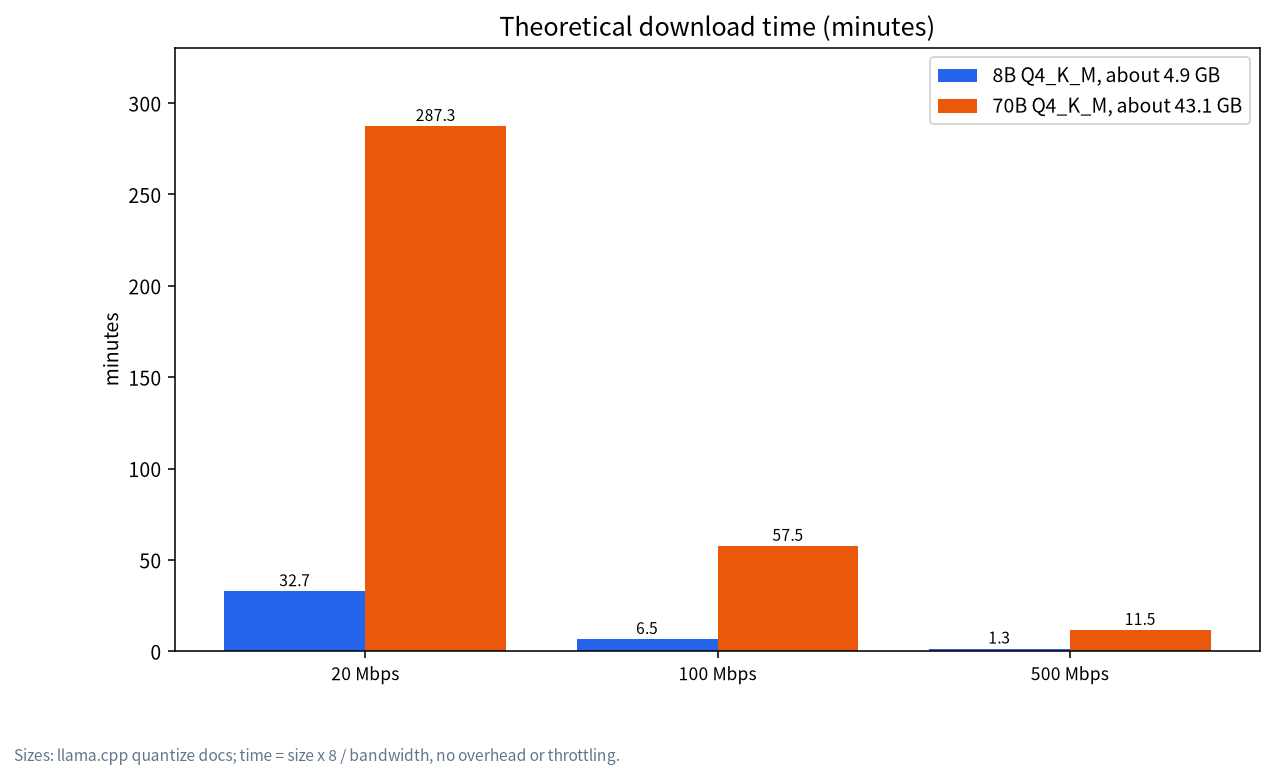
These are theoretical: bits are converted directly, with no protocol overhead, throttling or retries, so real downloads are usually slower. Four takeaways. First, an 8B model is a matter of minutes on home broadband while a 70B file needs an hour or more. Second, use a downloader that supports resuming, because an interrupted browser download often has to start over. Third, leave disk space for the file plus temporary data, roughly 1.2 times the file size. Fourth, if Hugging Face is slow from your network, use a mirror, or look for the GGUF of common models on ModelScope, then verify the checksum so you know the file is intact. To decide which size to download in the first place, use the model size chooser.
Setting up an offline LLM for PC on a disconnected machine
For restricted networks or any PC you never want online, the usual method is to prepare on a connected machine and carry files over on a drive. The steps below are ordinary file operations and do not bypass anything.
- On a connected machine, download the app installer, the runtime for your operating system, the GGUF model files you need, and an embedding model if you want document Q&A.
- Record checksums with
sha256sum filename(on Windowscertutil -hashfile filename SHA256) and keep them in a list. - Copy to an external drive. If a USB stick is FAT32, a single file is limited to about 4 GB, which cannot hold the 8B Q4_K_M file; format as exFAT or NTFS.
- On the offline machine, install and verify the checksums again.
- Put the model in the app’s model folder. With llama.cpp run
llama-server -m model.gguf --offline; LM Studio lets you point to a models folder in settings; Ollama can import a local GGUF through a short Modelfile. - For Python libraries such as Transformers, download the whole repository to a local directory first, then set
HF_HUB_OFFLINE=1. Hugging Face’s documentation says this variable disables HTTP calls to the Hub and uses cached files only, raising an error when something is missing, which helps you find what you forgot to copy.
Common pitfalls: copying the model but not the tokenizer or config files; missing Visual C++ runtimes on Windows; mismatched NVIDIA driver and runtime; and LM Studio’s Discover page failing to load without a network, which is expected. If memory runs short, see fixing out-of-memory errors.
What works offline and what does not
Offline you can chat over many turns, draft and rewrite text, translate, get code help, ask questions about local documents (RAG) and call a local API from your own scripts. You cannot get fresh information (the model has a knowledge cutoff), search the web, use cloud models or auto-download new ones. A common workaround for freshness is to refresh a document store on a connected machine and carry the cleaned text over for retrieval.
One more point is often missed: offline is not automatically safe. A disconnected machine can still be harmed by a poisoned model file or vulnerable software. Pickle-based weight files can execute code when loaded, so prefer GGUF or safetensors and keep files of unknown origin out of restricted networks.
How we checked this, and what we did not do
We read and cross-checked LM Studio’s offline documentation and terms, Ollama’s FAQ and cloud documentation, the llama.cpp server README for --offline, the Open WebUI environment variable reference, the Hugging Face Hub environment variable docs, and the file sizes in the llama.cpp quantization docs. We did not test every app on a disconnected machine or capture their network requests. Behavior descriptions come from official documentation, and the download times are computed values, not measurements.
FAQ
What does on-device LLM mean, and what is offline LLM deployment for?
An on-device LLM runs on a phone, PC, or edge box instead of a cloud API. Offline LLM deployment is for air-gapped chat and internal document help—you download weights ahead of time and set offline env flags; see the ferry workflow above.
Does a local LLM need the internet to run?
No. Once the model file is on your machine, inference runs on your own CPU or GPU. The internet is used for downloading models, searching catalogs, checking updates and any cloud or web-search feature you switch on.
What is the difference between Ollama cloud models and local models?
Cloud models run on Ollama’s servers, so your requests leave your machine; local models run on your own hardware. To guarantee local-only use, set OLLAMA_NO_CLOUD=1 and restart the service to disable cloud features.
How do I install a model on a computer with no network?
Download the installer and model on a connected machine, record checksums with sha256sum, copy them over on an external drive (mind FAT32’s 4 GB per-file limit), verify, and put the model in the app’s models folder.
Which offline AI software is best?
It depends: LM Studio or the Ollama desktop app for a graphical start, Open WebUI for a shared web interface, AnythingLLM for document Q&A, and llama.cpp for maximum control. Re-verify with a firewall before using it in a restricted network.
Is an offline model worse than an online one?
The model you download defines its ability, together with its quantization level, not whether the PC is online. The difference is that it cannot fetch new information and is usually far smaller than a hosted frontier model.
Is a fully offline setup automatically secure?
No. Check where model files come from and their format (prefer GGUF or safetensors), install software from official sources and limit outbound traffic on the network.
Want us to check your offline plan?
If you plan to deploy in a restricted or air-gapped network, join the community or email admin@microaione.com with your hardware, operating system and use case, and we will help you pick software and model size. For company-wide needs see enterprise private LLM deployment.
References: LM Studio offline operation, LM Studio app terms, Ollama FAQ, llama.cpp server README, Open WebUI environment variables, Hugging Face Hub environment variables, Jan docs. Read on 2026-11-04.