How to Install an LLM Locally on Windows: 3 Methods With No Command Line
Many tutorials open a terminal in the first step and ask you to type ollama run, which is a real barrier if the command line is unfamiliar. You can now install an LLM locally on Windows without touching it: download an app with a graphical interface, then click to pick a model, download it and start chatting. This article compares three no-command-line methods, the new Ollama desktop app, LM Studio and Jan, plus GPT4All as a backup, and gives each one’s requirements, steps, and a worked example of picking a model size for your PC.
How we checked this: Requirements and features come from each project’s official documentation and blog pages (read on 2026-11-04). Versions change, so rely on the official pages. We did not test these apps on your computer and did not benchmark speed; the model-size advice is an estimate based on file size.
Key points (updated 2026-11-04)
- The new Ollama app (released 2025-07-30) lets you download models and chat in a window on macOS and Windows, and supports dragging in files.
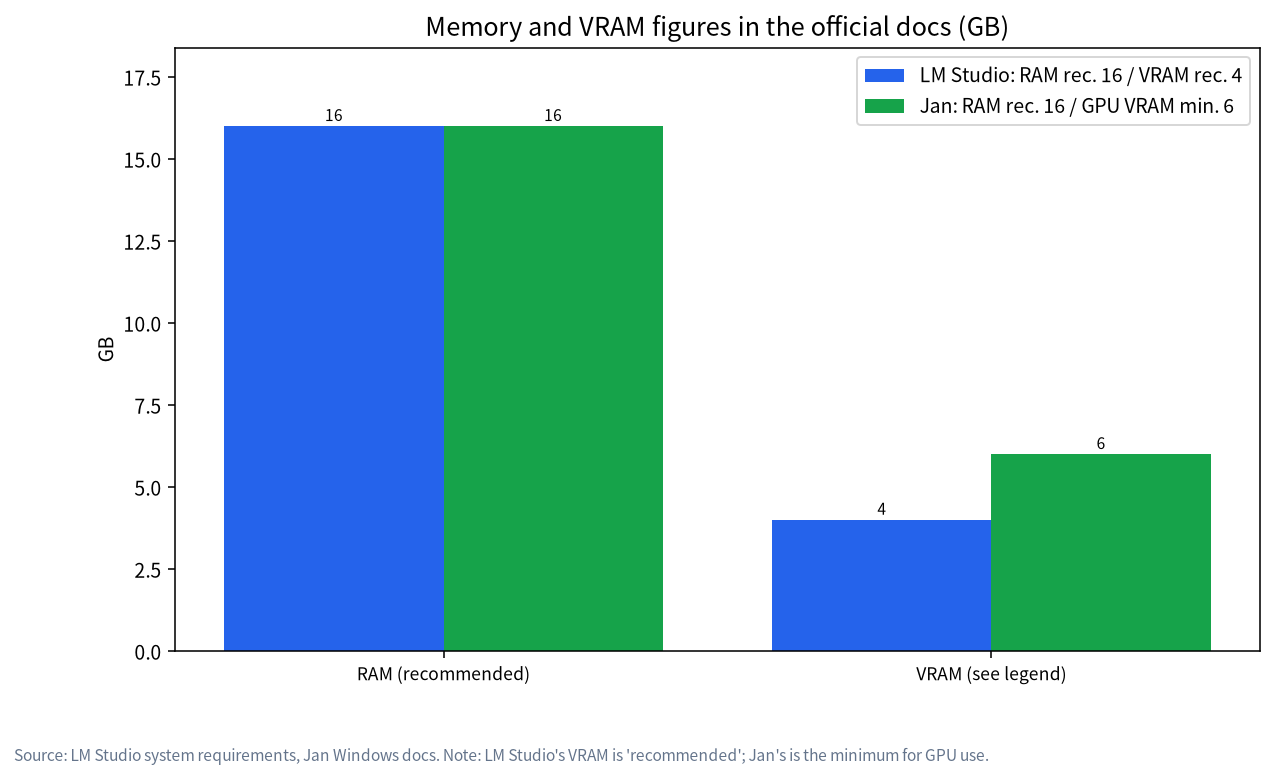
LM Studio’s documentation: a CPU with AVX2 is required; 16 GB RAM and 4 GB VRAM are recommended; it can run offline.
Jan’s documentation: Windows 10 or newer with AVX2, 8 GB RAM minimum (16 GB recommended), 6 GB VRAM minimum for GPU use, about 10 GB of storage, and Vulkan for AMD and Intel Arc cards.
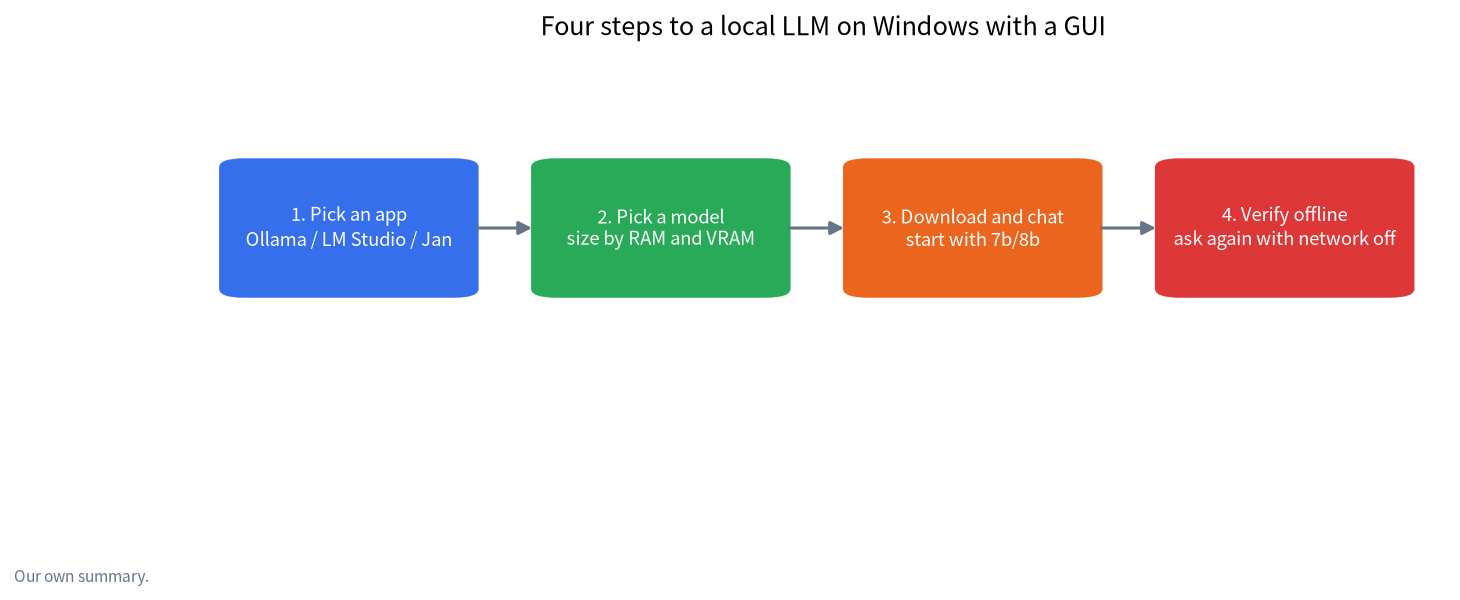
- On a 16 GB PC with no discrete GPU, start with a 7b or 8b model (files around 5 GB), not 14b or larger.
Install an LLM locally on Windows: the three methods at a glance
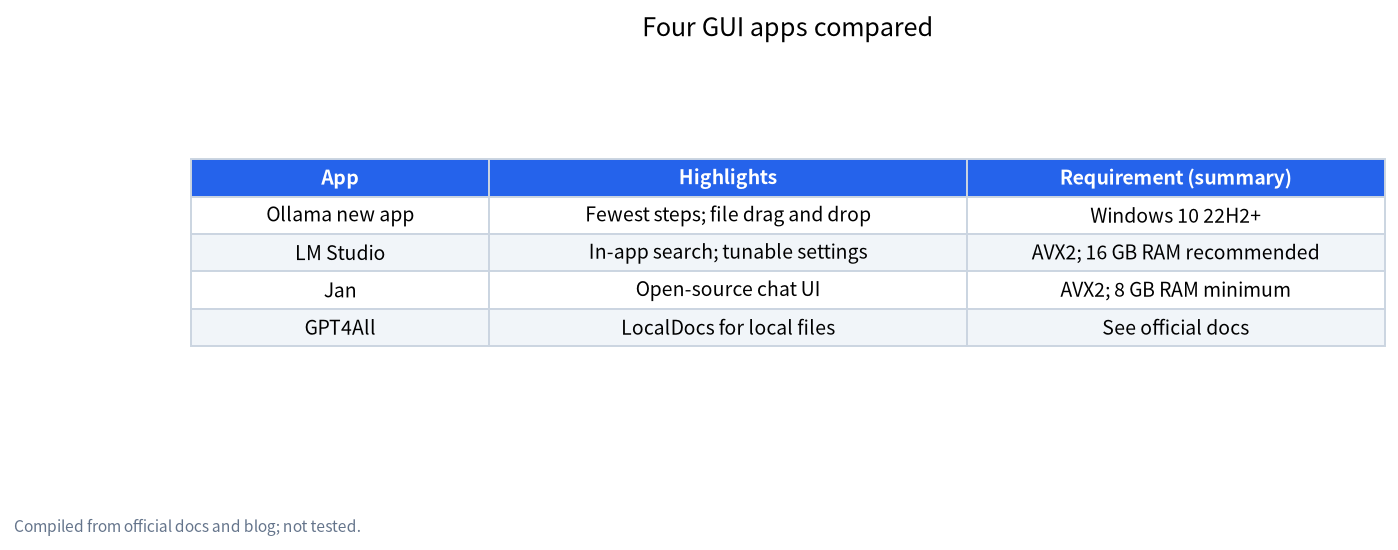
| Item | New Ollama app | LM Studio | Jan |
|---|---|---|---|
| Difficulty | Lowest, a clean interface | Low, more features | Low, chat-app style |
| Requirements (official) | Windows 10 22H2+; NVIDIA driver 551.61+ | AVX2 needed; 16 GB RAM and 4 GB VRAM recommended | Windows 10+, AVX2; 8 GB RAM minimum, 16 GB recommended; 6 GB VRAM minimum for GPU |
| Chat with dropped files | File drag and drop supported | Check the official docs | Check the official docs |
| Works offline | Models run locally once downloaded | Documented as able to run offline | Runs locally |
| Best for | First-timers wanting the fewest steps | People who want to pick models and tune settings | People who like an open-source chat UI |
If you are not yet sure what a local LLM is, start with what is a local LLM; for a wider roundup see offline-capable local AI apps.
Method 1: the new Ollama desktop app
Ollama is known for its command line, but since the new app released on 30 July 2025, the macOS and Windows versions include a window for downloading and chatting. The official blog lists a few features: downloading and chatting with models directly, dragging in files (text or PDF), raising the context length in settings (which needs more memory), and sending images to models that support them.
Steps:
- Download the Windows installer from the Ollama website and install it. The documented requirement is Windows 10 22H2 or newer, and NVIDIA drivers at 551.61 or higher.
- Open the app and choose a model in the model selector; picking one the first time downloads it automatically.
- When the download finishes, just type your question.
- To have it read a file, drag a text file or PDF into the chat window; for long documents you can raise the context length in settings, accepting higher memory use.
Best for: people who want to use it fast and not study the software. If you later want the command line or the API, the same software supports them; see the Ollama install guide.
Method 2: LM Studio
LM Studio is the graphical app most often suggested to beginners; you can search for and download models inside the app and adjust settings. Its official system requirements page says the CPU needs AVX2, recommends 16 GB RAM and 4 GB VRAM, and states it can run offline.
Steps:
- Download the Windows installer from the LM Studio website and install it.
- On the app’s model search page, search for the model you want and download a version with a suitable file size (check your RAM and VRAM first; see the worked example below).
- After downloading, switch to the chat view, load the model and start talking.
- For more detailed settings see the LM Studio tutorial.
Best for: people who want to choose models themselves and compare quantization variants.
Method 3: Jan
Jan is an open-source desktop chat app whose interface resembles everyday chat tools. Its official Windows install documentation lists: Windows 10 or newer, a CPU with AVX2, 8 GB RAM minimum (16 GB recommended), 6 GB VRAM minimum when using a GPU, about 10 GB of storage, and Vulkan support for AMD and Intel Arc cards.
Steps:
- Download the Windows installer from the Jan website and install it.
- Choose a model in the app’s model hub and download it.
- Return to the chat view, select the model and start chatting.
Best for: people who like open-source software and want an interface closer to a normal chat tool.
Backup option: GPT4All
GPT4All’s official quickstart is short: install and open the app, press “Start Chatting”, click “+ Add Model” to download a model, then go to the chat page and load the default model. It can also use local files as a source (LocalDocs). If none of the first three suits you, try it.
A worked example: 16 GB RAM, no discrete GPU
Say your PC has 16 GB of RAM and only integrated graphics. Here is an estimate (the numbers are rules of thumb and vary by system):
- Windows plus a browser and other resident programs typically use roughly 6 to 8 GB (estimate).
- That leaves about 8 to 10 GB for the model.
- An 8b model file is about 5.2 GB; with 1 to 2 GB of runtime overhead that is about 6.2 to 7.2 GB. It fits, but not generously.
- A 14b model file is about 9.0 GB; with overhead it needs about 10 to 11 GB, more than is free, so it would spill into virtual memory and slow down noticeably.
So on 16 GB with no discrete GPU, starting at 7b or 8b is the safe choice. With an 8 GB graphics card, see local LLMs on 8 GB of VRAM. The file sizes come from the Ollama deepseek-r1 page: 7b about 4.7 GB, 8b about 5.2 GB, 14b about 9.0 GB.
How to verify it really runs locally and offline
- Download the model first.
- Disconnect the network (turn off Wi-Fi or unplug the cable) and ask a question. If it still answers, inference is happening on your machine.
- Note that the app itself may have optional features such as update checks or web search. Those are separate from model inference; turn them off in settings if needed, and see the local LLM privacy notes for privacy settings.
Four questions to ask before choosing an app
- Does my CPU support AVX2? LM Studio and Jan both require it. Most recent processors do; if unsure, check the official spec page for your CPU model.
- How much RAM and VRAM do I have? That decides the model size you can choose; use the worked example above. When memory is short, go one size smaller.
- Do I want it to read files? If you often want the model to read PDFs or text, the official materials for the Ollama app and GPT4All both mention file features; confirm the current version’s notes before choosing.
- Do I care whether the app is open source? Jan is an open-source project, so consider it first if that matters to you.
If the app will not open or a download fails
| Symptom | What to try first |
|---|---|
| The app says the CPU is unsupported | Check whether your CPU supports AVX2; if not, you need a different app or a different PC |
| Model download is slow or stalls | Retry at another time; for Ollama see slow downloads and model paths |
| Out-of-memory message or the system lags | Use a smaller model and close memory-hungry programs such as browsers |
| Replies are very slow | Usually the model is too large or the GPU is unused; try one size smaller, then check the GPU driver |
| Not enough disk space | Delete unused models or move the model folder to a bigger drive |
Most of these are general approaches; the exact settings differ between apps, so follow the in-app instructions.
Common mistakes
- Assuming 8 GB of RAM will feel smooth. Jan’s documented minimum is 8 GB with 16 GB recommended; a minimum is not the same as a smooth experience.
- Ignoring AVX2. LM Studio and Jan both require it, and very old CPUs may not have it.
- Downloading a huge model first. Start small and move up once it runs well.
- Installing several apps that each download a copy. Each app usually has its own model folder and duplicates use disk; for capacity planning see storage for local LLMs.
- Using unofficial “portable” or “bundle” builds. Download installers only from the official sites.
- Confusing app features with model networking. Local models do not go online by default; web search is an add-on.
When the command line is still worth it
A graphical app is enough for everyday chat, but if you want to build a web service, call the API from scripts, deploy with Docker or process in batches, the command line and API are more flexible. Then see DeepSeek local install: Windows and Docker and WSL2 and Docker on Windows. The two styles do not conflict; many people start with a GUI and move to the command line gradually.
What we checked and what we did not
Requirements and features come from Ollama’s blog and documentation, LM Studio’s system requirements page, Jan’s Windows install documentation and the GPT4All quickstart; these pages may change with versions. We did not install on a range of Windows PCs, and did not benchmark, nor did we read each app’s privacy policy in full. The memory-use numbers are rule-of-thumb estimates.
FAQ
Can I install a local LLM on Windows without the command line?
Yes. The new Ollama app, LM Studio, Jan and GPT4All all offer a graphical interface where you choose and download a model and then chat directly.
Which method is best for beginners?
For the fewest steps, try the new Ollama app; to choose models and quantization variants yourself, try LM Studio; if you like an open-source chat interface, try Jan.
What PC specs do I need?
Official figures: LM Studio recommends 16 GB RAM and 4 GB VRAM and needs AVX2; Jan needs 8 GB RAM minimum (16 GB recommended), 6 GB VRAM minimum for GPU use, and AVX2; Ollama requires Windows 10 22H2 or newer and NVIDIA driver 551.61 or higher.
Does it work without a discrete graphics card?
Smaller models can run on the CPU, though slower than with a GPU; start with 7b or 8b, and real experience depends on your processor and RAM.
Are these apps free?
We did not verify each app’s current licence and pricing terms; check the official sites.
Does it still work offline?
Once a model is downloaded it runs on your machine; LM Studio’s documentation says it can run offline. Optional features such as update checks need the network and can be managed in settings.
Installed it but unsure which model to choose?
Visit the community or email admin@microaione.com with your RAM, GPU and use case. Our Shenzhen team can help you judge a suitable size and will mark which conclusions are estimates.
References: Ollama blog: the new app, Ollama: Windows docs, LM Studio: system requirements, Jan: Windows install, GPT4All: desktop quickstart, Ollama library: deepseek-r1.