
DeepSeek Local Install: Windows and Docker Methods, With a VRAM Cheat Sheet
Running DeepSeek on your own Windows PC, with no internet needed and no questions sent to someone else’s server, is now easy: install Ollama, pull a deepseek-r1 model, done. But a DeepSeek local install hides two questions that people often skip. First, which size are you installing? The full 671b model is 404 GB, which a normal PC cannot hold; what you can run are the 1.5b to 70b distilled variants. Second, do you install on Windows directly or inside a Docker container? Each suits a different person. This guide explains the steps, commands, file sizes, VRAM matching and common errors for both methods.
How we checked this: System requirements, commands and paths come from the official Ollama and Docker documentation; file sizes come from the Ollama deepseek-r1 library page. We did not run the installation on your hardware and did not benchmark speed. The VRAM guidance is an estimate of file size plus runtime overhead.
Key points (updated 2026-11-04)
- Easiest route: on Windows 10 22H2 or newer, run
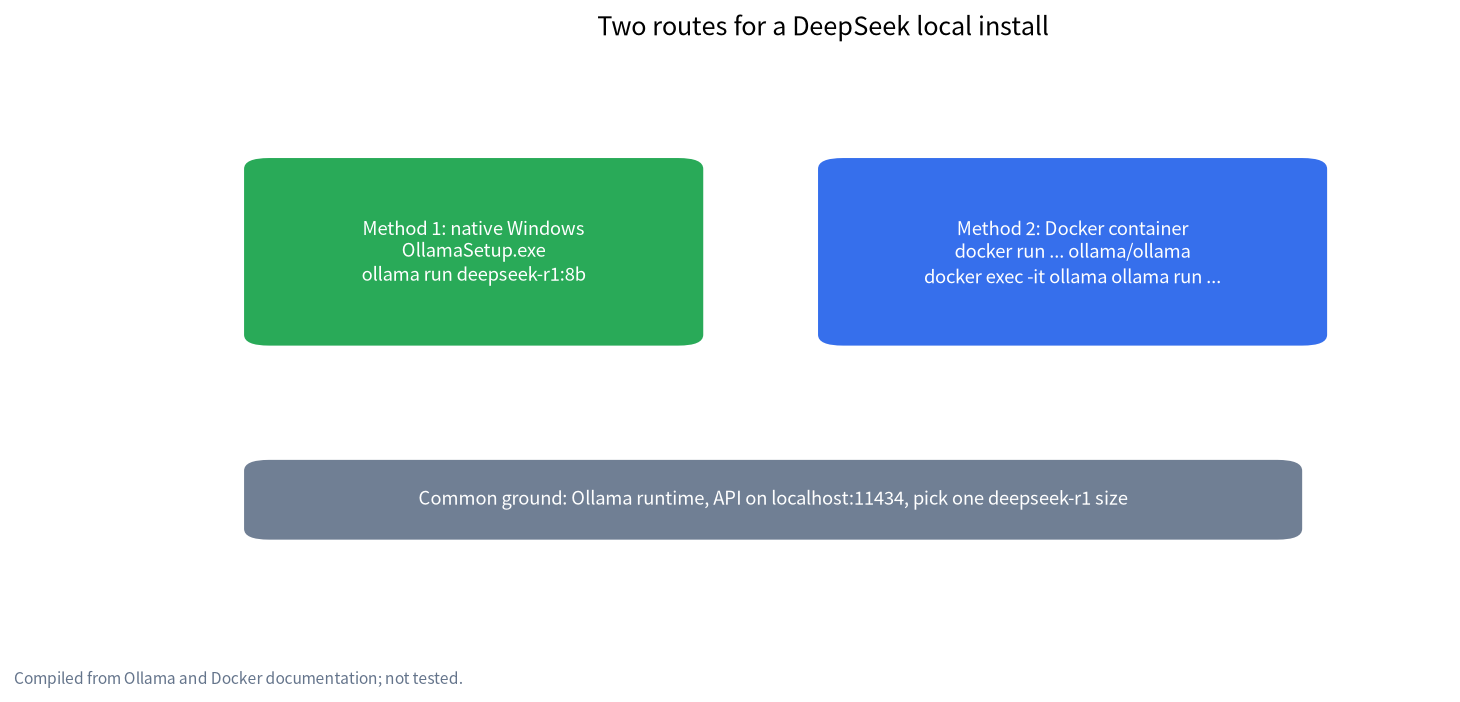
OllamaSetup.exe(no administrator rights needed), thenollama run deepseek-r1:8b. NVIDIA cards need driver 551.61 or newer.Docker route:
docker run -d -v ollama:/root/.ollama -p 11434:11434 --name ollama ollama/ollama; add--gpus=allfor NVIDIA GPUs.deepseek-r1 file sizes on Ollama: 1.5b about 1.1 GB, 7b 4.7 GB, 8b 5.2 GB, 14b 9.0 GB, 32b 20 GB, 70b 43 GB, 671b 404 GB.
- 8 GB of VRAM suits 8b, 12 GB suits 14b, 24 GB suits 32b. The full 671b needs server-class hardware and is not something a local install tutorial can fix.
First, which DeepSeek are you installing?
The deepseek-r1 entry in the Ollama library offers several sizes. The 1.5b, 7b, 8b, 14b, 32b and 70b tags are smaller distilled models derived from DeepSeek-R1, and only 671b is the full DeepSeek-R1. Sizes as listed on the Ollama page:
| Tag | File size | Suggested VRAM (our rule-of-thumb estimate) |
|---|---|---|
| deepseek-r1:1.5b | about 1.1 GB | Runs on integrated graphics or CPU only; limited ability |
| deepseek-r1:7b | about 4.7 GB | 8 GB VRAM |
| deepseek-r1:8b | about 5.2 GB | 8 GB VRAM, watch context length |
| deepseek-r1:14b | about 9.0 GB | 12 GB VRAM |
| deepseek-r1:32b | about 20 GB | 24 GB VRAM |
| deepseek-r1:70b | about 43 GB | 48 GB+ VRAM or a large-memory machine |
| deepseek-r1:671b | about 404 GB | Server-class hardware |
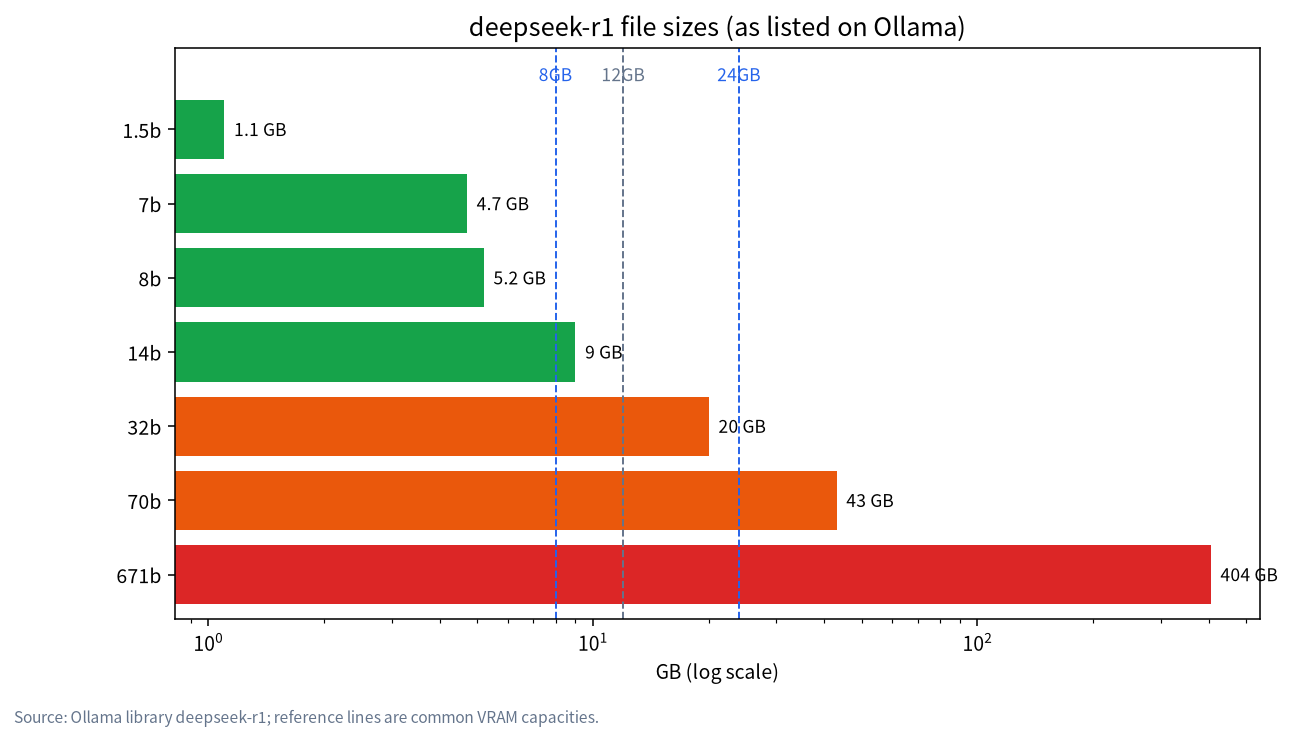
A simple way to choose: file size plus 1 to 2 GB of runtime overhead plus room for the KV cache should be smaller than your usable VRAM. The detailed method is in the VRAM calculator guide, and the differences between sizes are in DeepSeek R1 distilled sizes.
DeepSeek local install: which route should you pick?
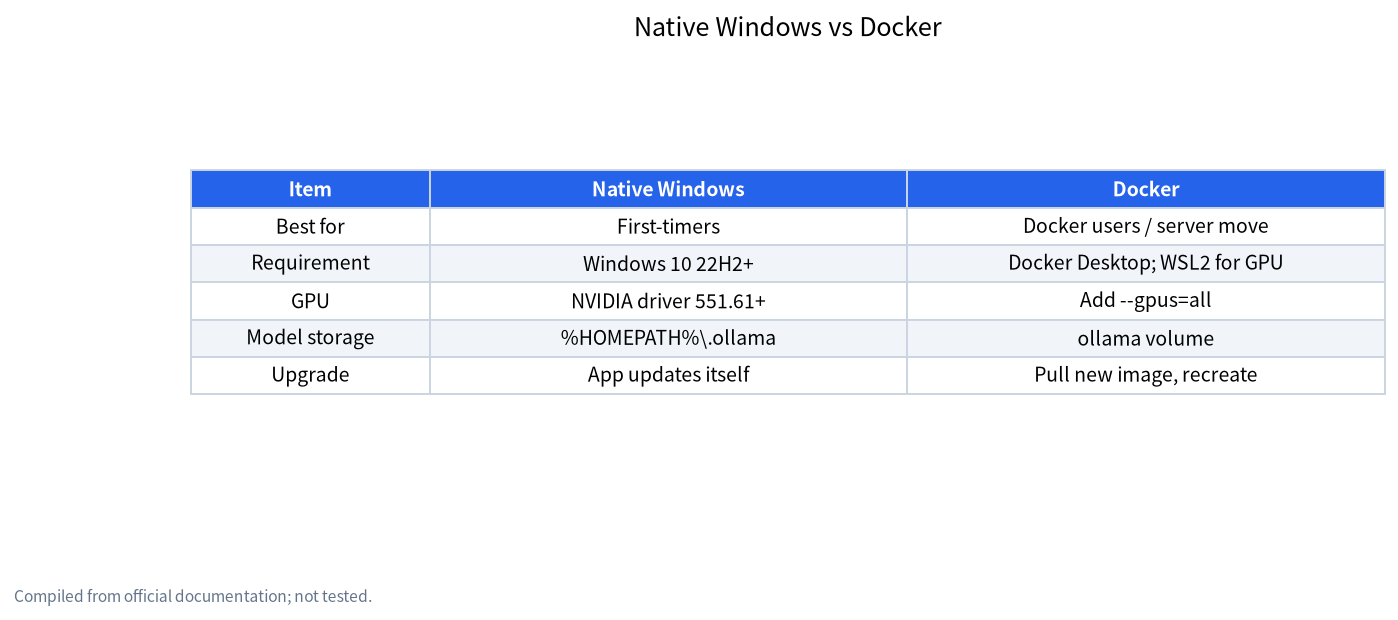
| Item | Native Windows (Ollama installer) | Docker container |
|---|---|---|
| Best for | First-timers who want it running quickly | People already using Docker, or moving to a server later |
| System requirement | Windows 10 22H2 or newer | Docker Desktop; WSL2 backend for GPU |
| Difficulty | Low, double-click install | Medium, Docker Desktop needed first |
| GPU support | NVIDIA driver 551.61 or newer | Add --gpus=all; depends on Docker and driver setup |
| Model storage | Default %HOMEPATH%\.ollama |
Stored in the ollama volume |
| Upgrade | App updates itself | Pull a new image and recreate the container |
If you are unsure, choose native Windows. Docker pays off when you want the same setup on a Linux server; see WSL2 and Docker for LLMs on Windows for that environment.
Method 1: native Windows install (recommended for beginners)
Prerequisites: Windows 10 22H2 or newer; with an NVIDIA GPU, driver 551.61 or newer; at least 4 GB of disk for the installer plus space for models.
Steps:
- Download
OllamaSetup.exefrom the Ollama website and run it. The documentation says it does not require administrator rights and installs into your user directory by default; the/DIR=option lets you pick another location. - After installation Ollama runs in the background with an API at
http://localhost:11434. - Open PowerShell or Command Prompt and check the version:
ollama --version. - Run a model:
ollama run deepseek-r1:8b. The first run downloads the files, then drops you into a chat. - Handy commands:
ollama listshows downloaded models,ollama psshows running ones,ollama rm deepseek-r1:8bremoves one.
Calling the API: in PowerShell use curl.exe (the .exe matters, to avoid the PowerShell alias):
curl.exe http://localhost:11434/api/generate -d "{\"model\":\"deepseek-r1:8b\",\"prompt\":\"Hello\",\"stream\":false}"
Moving the model folder: Ollama stores models in a .ollama folder under your user directory by default. If your C: drive is tight, set the OLLAMA_MODELS environment variable to a folder on another disk and restart Ollama. Details and fixes for slow downloads are in Ollama slow downloads and model paths.
Method 2: Docker container
Prerequisites: Docker Desktop. According to the Docker documentation, GPU support uses the WSL2 backend; run wsl --update first and keep your GPU driver current.
Steps:
- CPU only:
docker run -d -v ollama:/root/.ollama -p 11434:11434 --name ollama ollama/ollama
- With an NVIDIA GPU, add the GPU flag:
docker run -d --gpus=all -v ollama:/root/.ollama -p 11434:11434 --name ollama ollama/ollama
- Run a model inside the container:
docker exec -it ollama ollama run deepseek-r1:8b
- Models live in the volume named
ollama, which survives deleting the container; remove the volume separately to clean up completely. - For a web interface, connect Open WebUI; see Open WebUI with Ollama.
Note that Docker’s CPU mode works but is much slower than a GPU setup. AMD cards use a ROCm image variant in Docker, which you need to look up in the official docs.
A worked example: which size on 8 GB of VRAM?
Say you have an 8 GB card. Usable VRAM at 0.92 to 0.95 of nominal is about 7.4 to 7.6 GB. deepseek-r1:8b is a 5.2 GB file; with 1 to 2 GB of runtime overhead, roughly 0.2 to 1.4 GB is left for the KV cache. It works, but keep the context short. The 14b file is 9.0 GB, already more than 7.6 GB, so part of it spills into system memory and speed drops noticeably. So an 8 GB card should start with 7b or 8b. By the same logic, 12 GB gives about 11 to 11.4 GB usable, which suits the 14b’s 9.0 GB plus overhead; 24 GB gives about 22 to 22.8 GB usable, which holds the 32b’s 20 GB but leaves little context headroom.
After installing: how to confirm it works
- Check the version:
ollama --versionprints a version number if the command line tool works. - Check the model:
ollama listshould show yourdeepseek-r1tag and a size close to the table above. - Check where it runs: while chatting, open another window and run
ollama ps. It shows the memory the model uses and whether it runs on GPU or CPU. If it shows mostly CPU while you have a GPU, revisit your driver; see Ollama GPU troubleshooting. - Check the API: open
http://localhost:11434in a browser; if it says Ollama is running, the service is up. - Expect a different style: the R1 family writes out a reasoning section before the answer, so replies are longer and slower than a plain chat model. That is a model trait, not necessarily a faulty install.
Upgrading, cleaning up and uninstalling
Upgrade: the native Windows app prompts for updates; for Docker, run docker pull ollama/ollama, delete the old container and recreate it with the same command. Models sit in the volume, so recreating does not lose downloaded files.
Clean up: remove unused models with ollama rm <tag>. If you try several sizes, disk use grows faster than expected: keeping the 8b, 14b, 32b and 70b together is about 77 GB of files alone (5.2 + 9.0 + 20 + 43 from the table above), so check disk space before installing; for choosing a disk see storage for local LLMs.
Uninstall: the native version can be removed from Windows Apps. Model files live in the .ollama folder under your user directory (or the OLLAMA_MODELS folder you set); confirm yourself whether they remain after uninstalling, and delete them manually if you no longer need them. For Docker, docker rm -f ollama removes the container and docker volume rm ollama removes the volume.
Next: from “it runs” to “it is useful”
Most people then want three things: a web chat interface, a knowledge base that reads their own documents, and a guide to switching models. Use Open WebUI for the interface, local RAG for documents, and the DeepSeek local deployment guide for size comparisons. If you prefer not to type commands at all, installing a local LLM on Windows without the command line covers graphical options.
Common errors and fixes
| Symptom | Likely cause | What to do |
|---|---|---|
| Download is slow or stalls | Network or source speed | See slow downloads and paths; rerunning the same command resumes |
| GPU not used | Driver too old or unsupported | Update NVIDIA driver to 551.61+; see Ollama GPU troubleshooting |
| Out of memory or VRAM | Model too large | Pick a smaller size or shorten context; see fixing out-of-memory |
| Port 11434 in use | An existing Ollama process or container | Stop the old one, then start the new one |
| No GPU inside Docker | WSL2 or driver not updated | Run wsl --update, confirm the WSL2 backend and add --gpus=all |
| C: drive is full | Models default to the user directory | Set OLLAMA_MODELS to another disk |
Common mistakes
- Thinking 8b is the full DeepSeek. 8b is a distilled model with a clear capability gap to the full 671b; we make no quantified claim about the gap because we did not test it.
- Starting with 671b. At about 404 GB, downloading and storing it needs server-class resources.
- Looking only at parameters and ignoring context. If the model just fits in VRAM, a long chat overflows through the KV cache.
- Mixing install methods. Native Windows and a Docker container both claim port 11434; keep one.
- Downloading unofficial bundles. Use official installers only; third-party bundles may carry extras, and we advise against them.
- Expecting web search. Local models do not go online by default; see does offline AI need the internet.
What we checked and what we did not
Requirements (Windows 10 22H2, driver 551.61, OllamaSetup.exe, OLLAMA_MODELS, /DIR=) come from Ollama’s Windows documentation; Docker commands from its Docker documentation; WSL2 and --gpus=all from the Docker Desktop GPU documentation; sizes from the Ollama library page. We did not install on a range of hardware and did not benchmark speed. Version requirements can change with official updates, so check the official pages.
FAQ
What is the simplest DeepSeek local install?
On Windows 10 22H2 or newer, install OllamaSetup.exe, then run ollama run deepseek-r1:8b. The first run downloads the model automatically.
How much VRAM does a local DeepSeek need?
It depends on the size: the 8b file is about 5.2 GB and runs on 8 GB; 14b is about 9.0 GB and suits 12 GB; 32b is about 20 GB and suits 24 GB. These are estimates, and you also need room for the context cache.
Can I install DeepSeek without a GPU?
You can run small models such as 1.5b or 7b on CPU, but it will be much slower than with a GPU and the experience is limited.
What is the difference between Docker and a direct install?
The functionality is the same since both are Ollama. Docker eases isolation and migration; native Windows is simpler. GPU use needs the WSL2 backend and --gpus=all.
Can a local DeepSeek search the web?
Not by default. The model runs locally and does not go online; web access needs extra tools or interface configuration.
Can I install the full DeepSeek 671b on a home PC?
The 671b file is about 404 GB, far beyond a home PC’s VRAM and most RAM. It needs server-class hardware; home PCs suit the distilled versions.
Stuck, or unsure which size to pick?
Visit the community or email admin@microaione.com with your GPU model, VRAM and RAM. Our Shenzhen team can help you judge the right size, and we will say plainly which conclusions are estimates.
References: Ollama: Windows docs, Ollama: Docker docs, Docker Desktop: GPU support, Ollama library: deepseek-r1.