Connect Dify to a Local LLM on Windows
This is a hands-on guide to connect Dify to a local LLM on a Windows PC. You will run Dify with Docker Desktop, plug in a model served by Ollama, build a knowledge-base app that answers from your own documents, and call it from other programs through Dify’s API. No cloud model is involved, so prompts and files stay on your machine. Most of all, this article explains the one step where nearly everyone gets stuck: what address to type so Dify can actually see Ollama.
Verification note: Steps follow self-hosted Dify 1.x and Ollama as commonly used in November 2026. Menu labels may shift between versions; the Dify documentation is authoritative. Memory figures are estimates, not measurements.
Key points (updated 2026-11-05)
- Run Dify in Docker Desktop with the WSL2 backend; install Ollama natively on Windows.
In Dify, the Ollama base URL is
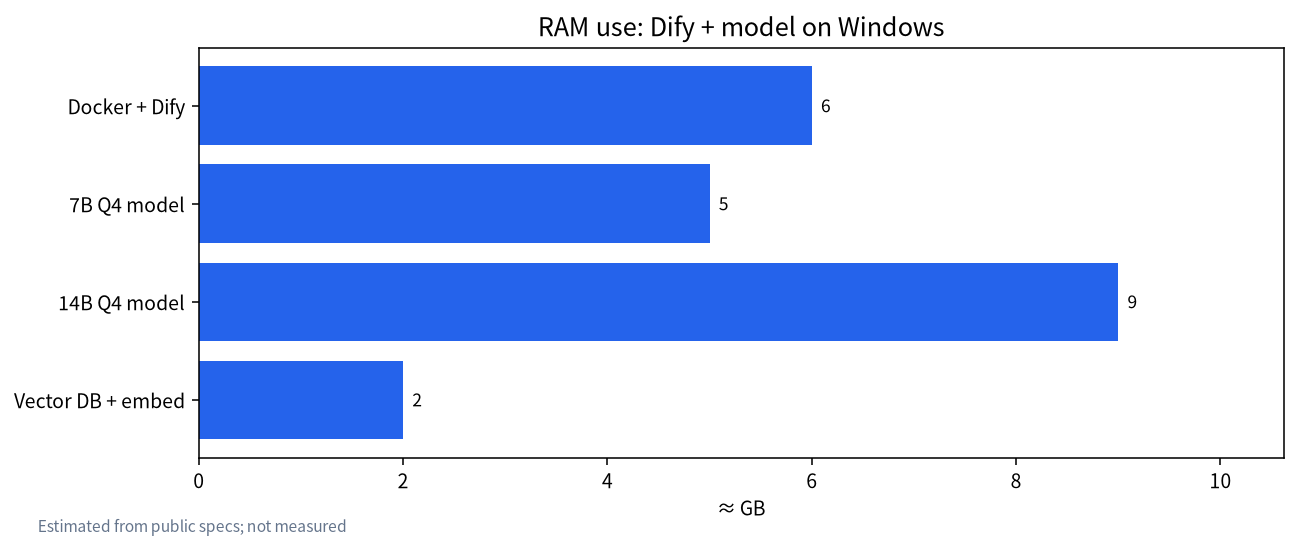
http://host.docker.internal:11434. Do not use localhost.Plan on 16 GB of RAM at minimum and 32 GB to be comfortable. Your GPU decides the model size.
In Dify 1.x, model providers are plugins. Install the Ollama plugin from the marketplace first.
Every Dify app exposes an API, so Dify can act as a local API gateway for your tools.
What Dify is and why you would connect it to a local model
Dify is an open-source platform for building LLM applications. You assemble chat assistants, knowledge-base Q&A bots, workflows, and agents in a visual editor, and Dify manages prompts, model settings, conversation history, and logs in one place. It does not ship a model of its own; it calls model providers. Most people start with a cloud API, which means every question and every uploaded document leaves the building. For contracts, financial data, or customer records, many companies simply do not allow that.
When you connect Dify to a local LLM, the picture changes. Inference runs on your own GPU, the knowledge base lives in a local vector database, there is no per-token bill, and the whole thing keeps working without internet. The trade-offs are that you supply and maintain the hardware, and answer quality depends on how large a model you can run. For personal learning, small-team internal tools, and privacy-sensitive work, that trade is usually worth it. Our comparisons of local vs cloud APIs and local LLM privacy go deeper.
Connect Dify to a local LLM: what you need
| Item | Minimum | Recommended | Notes |
|---|---|---|---|
| OS | Windows 10 22H2 / Windows 11 | Windows 11 | Virtualization and WSL2 enabled |
| RAM | 16 GB | 32 GB+ | Docker and the model share memory |
| GPU | None (small models only) | NVIDIA with 8–16 GB VRAM | See what 8 GB of VRAM can run |
| Disk | 50 GB free | 200 GB NVMe | Images, models, and vector data add up |
| Software | Docker Desktop, Git, Ollama | Same | Ollama setup: Ollama install guide |
If WSL2 and Docker are new to you, start with our guide to WSL2 and Docker for local LLMs on Windows. Dify’s own published minimum is 2 CPU cores and 4 GB of RAM, but that covers Dify alone. Add a model and vector search and 16 GB is the realistic floor.
Step 1: Install Dify with Docker Desktop
- Install Docker Desktop. In settings, confirm it uses the WSL2 backend and enable WSL integration under Resources.
- Open PowerShell and run
git clone https://github.com/langgenius/dify.git, thencd dify\docker. - Copy the environment file:
copy .env.example .env. You do not need to edit it on the first run. - Start the stack with
docker compose up -d. The first run pulls a dozen or so images and takes a while. - Open
http://localhost/installin a browser, create the admin account, and you are in the Dify console.
If port 80 is taken by IIS or another program, set EXPOSE_NGINX_PORT=8080 in .env, restart the stack, and browse to http://localhost:8080.
Step 2: Link Ollama to Dify
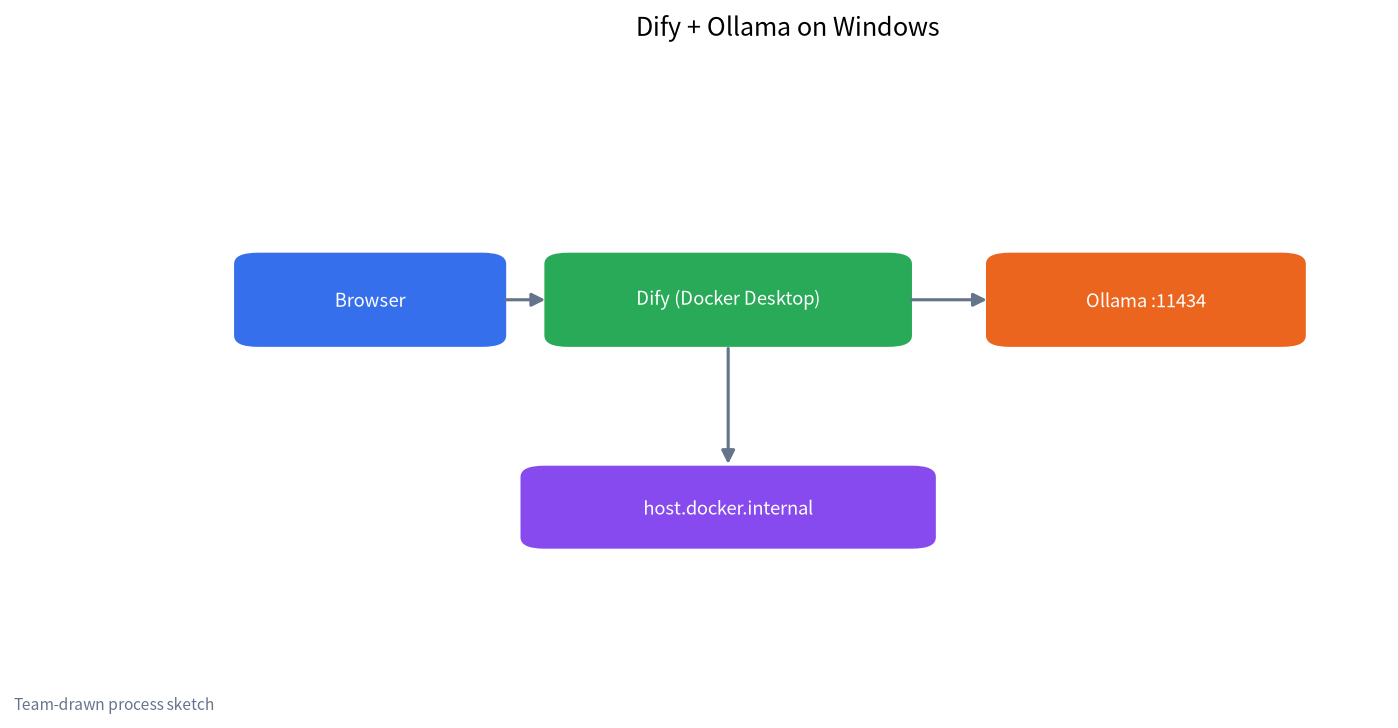
This is the step that matters most. Dify runs inside Docker containers, and inside a container, localhost means the container itself, not your Windows PC. So http://localhost:11434 will never reach Ollama. Do this instead:
- Make Ollama listen on all interfaces. Add a Windows system environment variable
OLLAMA_HOSTwith the value0.0.0.0, then quit Ollama from the tray and start it again. - Pull models. For example
ollama pull qwen3:8bfor chat, andollama pull bge-m3as an embedding model for the knowledge base. - Install the Ollama plugin in Dify. Click your avatar, go to Settings, then Model Provider, search the plugin marketplace for Ollama, and install it.
- Add the chat model. Model name
qwen3:8b, exactly as shown byollama list. Base URLhttp://host.docker.internal:11434. Type LLM. Set the context length to what the model supports. - Add the embedding model. Name
bge-m3, type Text Embedding, same base URL. - Set system defaults. Under System Model Settings, choose the local chat and embedding models as defaults.
If saving succeeds, the Dify Ollama connection works and the model appears in every app’s model picker. If saving spins forever, open http://localhost:11434 in your browser first. You should see a short “Ollama is running” message. If you do not, the problem is Ollama, not Dify.
Step 3: Build a local knowledge-base app
- Open Knowledge, upload PDF, Word, or Markdown files, and keep automatic chunking for the first try.
- Choose High Quality indexing with
bge-m3as the embedding model. - Create a Chatbot app, attach the knowledge base as context, and select
qwen3:8b. - In the prompt, define the role and tell it to answer only from the provided material and to say so when it does not know.
- Ask questions in the preview pane and check that the citations point to the right passages.
For retrieval concepts and tuning, see our local RAG knowledge base guide. If you are deciding between platforms, read Dify vs RAGFlow for local deployment.
Step 4: Use the Dify local API
Every Dify app has an “API Access” button. Create a key, and other programs can call the app at http://localhost/v1/chat-messages. Dify handles retrieval, prompt templates, and conversation memory for you. That is one level above Ollama’s raw inference endpoint and is handy for internal systems, chat bots, and scripts. Treat the API key as a password and keep it out of public code. To serve other machines on your LAN, replace localhost with the PC’s IP address and allow the port through Windows Firewall. If you only need a plain OpenAI-compatible endpoint, see running a local LLM API server.
Choosing a local model for Dify
| VRAM | Chat model | Embedding | Experience |
|---|---|---|---|
| None / integrated | 3B–4B quantized | bge-m3 | Works, slow; good for testing the flow |
| 8 GB | 7B–8B Q4 | bge-m3 | Fine for everyday Q&A |
| 12–16 GB | 14B Q4 | bge-m3 | Noticeably steadier knowledge-base answers |
| 24 GB | 32B Q4 | bge-m3 or larger | Close to a mid-tier cloud model |
Not sure what fits? Run the model size chooser, then just change the model name in Dify. The app itself does not need rebuilding.
Troubleshooting common errors
| Error or symptom | Cause | Fix |
|---|---|---|
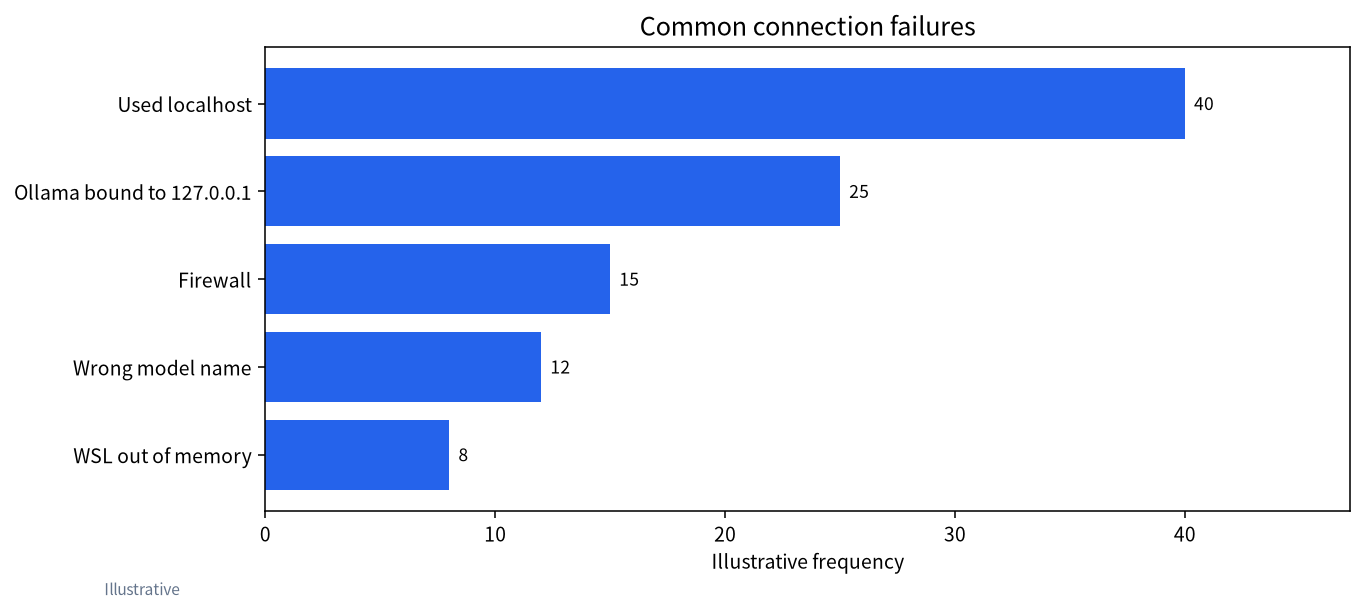
| Connection refused or timeout | Used localhost | Use host.docker.internal:11434 |
| Still cannot connect | Ollama bound to 127.0.0.1 only | Set OLLAMA_HOST=0.0.0.0 and restart Ollama |
| Other LAN PCs cannot connect | Firewall | Allow 11434 and the Dify port |
| model not found | Name differs from ollama list | Copy the full name including the tag |
| Very slow or frozen replies | Out of memory; WSL using too much | Cap memory in .wslconfig or use a smaller model |
| Knowledge base returns nothing | No embedding model or huge chunks | Check system model settings; shrink chunk size |
| docker compose pull fails | Network | Configure a registry mirror and retry |
Memory pressure is the most common hidden problem on Windows. By default WSL2 can take up to half of physical RAM. A .wslconfig file in your user folder with a line such as memory=12GB stops Docker and Ollama from starving each other. For GPU memory errors, see fixing LLM out-of-memory errors.
Going further with workflows
Once the chatbot works, try Dify’s Workflow mode. A contract pre-review flow is a good example: retrieve your standard clauses from the knowledge base, have a local model compare each clause in an uploaded contract, have a smaller model format the findings as a table, and return the result. Each node can use a different local model, so cheap steps run on a small model and judgment calls go to a larger one. HTTP request nodes can call your internal systems, turning a local model into an automation tool rather than just a chat window.
Keeping the setup healthy
A local Dify stack is a small server, and it rewards a little housekeeping. Set Docker Desktop and Ollama to start with Windows so the apps are available after a reboot. Check docker compose ps occasionally; a container stuck in a restart loop is usually the database or the sandbox running out of memory. Update deliberately rather than automatically: read the Dify release notes, back up the volumes folder, pull the new version, and run docker compose up -d again. Keep a short text file listing the Ollama models and tags each app uses, because a renamed or deleted model is the most common reason an app that worked last week suddenly fails.
On security, change the default secret key in .env before exposing Dify beyond your own PC, use strong admin passwords, and do not port-forward Dify to the internet from a home router. If remote access is needed, put it behind a VPN. Review the logs page now and then; it shows what users ask, which is also how you spot prompts that try to push the model outside its intended job.
Practical tips for Windows
- Do not run Ollama inside Docker on Windows. A native install uses the NVIDIA GPU with far less fuss.
- Prove the pipeline with a 7B–8B model first, then move to 14B or 32B.
- Back up
docker/volumesbefore upgrading Dify. It holds the database, knowledge bases, and uploads. - Add guardrails for anything user-facing. See local guardrail models and prompt injection vs jailbreak in RAG apps. Documents in a knowledge base can carry hidden instructions, a risk specific to RAG.
FAQ
Does Dify have to run in Docker?
Docker Compose is the officially recommended route and by far the easiest on Windows. A source install is possible but needs Python, Node, PostgreSQL, Redis, and more, which is a lot for a first setup.
Why does localhost not work for Ollama in Dify?
Dify runs in a container, and inside a container localhost is the container itself. On Windows, use host.docker.internal and make Ollama listen on 0.0.0.0.
Can I use it without a dedicated GPU?
Yes, with 3B–8B models, but responses will be slow. Our VRAM guides explain how model size maps to memory.
Can LM Studio replace Ollama?
Yes. LM Studio exposes an OpenAI-compatible server. Install Dify’s “OpenAI-API-compatible” provider plugin and use http://host.docker.internal:1234/v1 as the base URL.
How is the Dify local API different from the Ollama API?
The Ollama API only runs inference. The Dify API calls the app you built, including retrieval, prompt templates, and conversation management.
Can it run fully offline?
After images and models are downloaded, both Dify and Ollama run offline. Install plugins while you still have a connection. See our guide to whether offline AI needs internet and the best offline local AI apps.
Stuck somewhere?
Post your error in the community or email admin@microaione.com. Our Shenzhen team can take a look at your setup.
Sources: Dify documentation, Dify on GitHub, Ollama FAQ.